Configuration
Where: Settings → Configuration
Settings → Configuration stacks the panels that define how your store presents itself and reaches people, followed by a raw settings table for anything advanced.
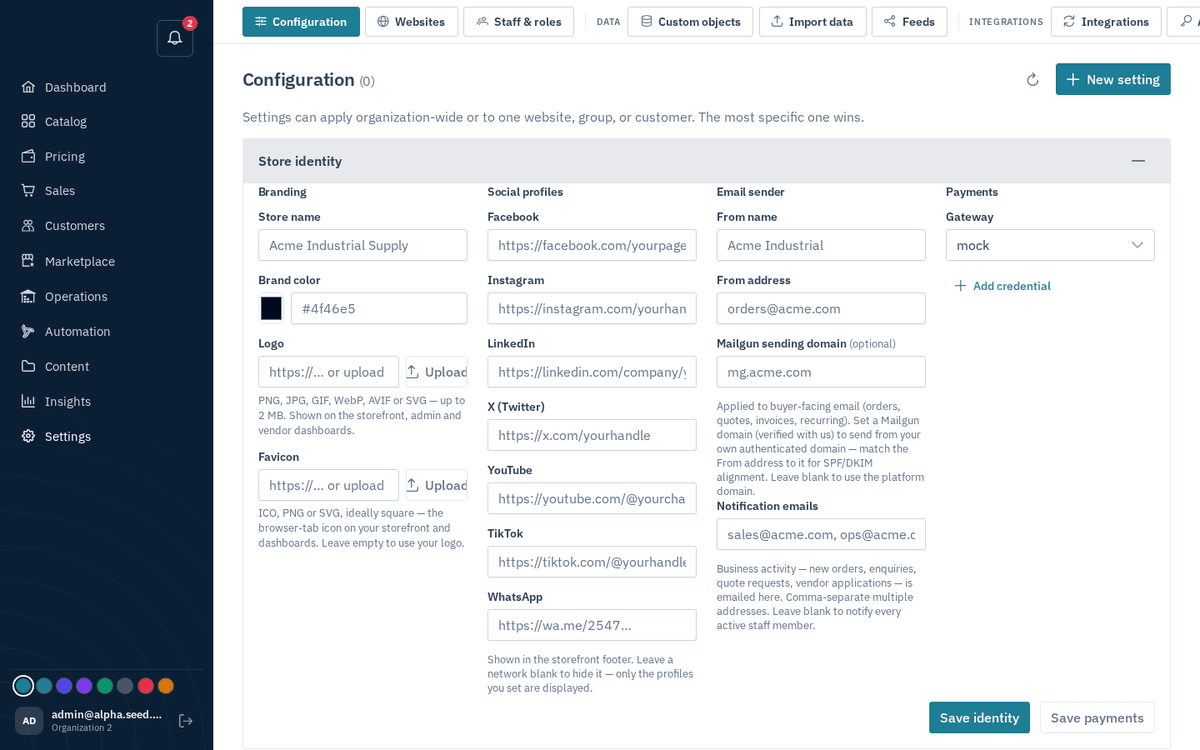
Settings → Configuration — store identity, branding, email sender, gateways
Store identity
- Store name, Brand color (with a picker), and uploads for the logo (PNG, JPG, GIF, WebP, AVIF or SVG — up to 2 MB. Shown on the storefront, admin and vendor dashboards.) and the favicon (ICO, PNG or SVG, ideally square … Leave empty to use your logo.).
- Cart icon and Products menu icon — your own icons for the storefront header's cart and products menu (PNG, WebP or SVG on a transparent background). The header draws each icon's shape in its own text colour, so a black icon shows white on a dark header bar. Leave empty for the built-in icons.
- Social profiles — links shown in the storefront footer.
- Email sender — From name, From address, the Mailgun sending domain, and the purpose mailboxes: Sales address (quotes, RFQs, follow-ups, cart recovery), Orders address (order confirmations, status updates, invoices, dunning) and Admin copy (blind-copied on every sales and orders email). If the From address doesn't match your sending domain you get the warning "Sender not aligned" — "From address must match the Mailgun domain (…) for DKIM/DMARC." Fix it or your emails risk the spam folder.
- Notification emails — the addresses that receive team alerts (comma-separated).
- Stored credentials — payment-gateway and similar keys. "Values are encrypted at rest and never shown. Saving new ones replaces all."
Email sending
Send from your own mailbox or Mailgun account instead of the platform default:
- Your mailbox (SMTP) — host, port, username and the mailbox password; press Save SMTP mailbox. Passwords are write-only: the panel only reports that one is stored.
- Your Mailgun account — paste an API key, choose the region, press Save sending config, then under Domain & DNS press Set up / verify domain and add the records the panel lists to your DNS (e.g. Cloudflare, as "DNS only"). Re-check until every record verifies.
- Prove it works — enter your address and press Send test email.
The transport order is: your own configuration when complete, otherwise the platform default. See Invoices and Prebuilt automations for what gets sent.
WhatsApp, WhatsApp rooms, Staff numbers
Connect the store to a WhatsApp number, let the assistant answer there, classify group chats, and link staff numbers. This is a topic of its own — see WhatsApp.
SMS
Connect your Sozuri project and sender ID so payment reminders can go out by text. See SMS.
AI lead prospecting
When you ask the assistant to find prospects it searches the platform directory, your Tender feeds (one RSS/Atom URL per line) and the public web. Web search works without any key through DuckDuckGo, which may turn automated searches away at busy times. For reliable web results choose a Web search provider, Brave Search API or Google Programmable Search, and paste its API key; Google also needs the Search engine id (cx) from programmablesearchengine.google.com. Keys are stored sealed and never shown again. Remove key goes back to the keyless search.
Directory listing
Tick List us in the directory to appear in the platform's public supplier directory, with What you sell, industries (Press enter or comma between each. Up to 12.), Regions served and a Contact email. Press Save listing.
Custom domains
Serve the storefront on your own domain: type it (e.g. shop.yourcompany.com), press Add domain, add the DNS record the panel shows (Add this DNS record at your domain provider, then click Verify), then Verify. Make primary switches the canonical address; Remove detaches a domain. Details under Websites and custom domains.
Storefront wording
The words on your storefront's pages are written in Pages and Header & footer. A few lines that sit outside the page builder are kept as settings; add or change them under New setting in the table at the bottom of this page (scope org, value type Text), and leave one out to use the default:
| Setting | What it changes |
|---|---|
storefront.catalog_label | The catalogue menu label |
forms.contact_title, forms.contact_intro | The contact page heading and prompt |
forms.rfq_title, forms.rfq_intro | The request-a-quote heading and prompt |
account.company_note | The company details note on sign-up |
account.signup_benefits | Why open an account: shown on the sign-up page and read out by the assistant |
assistant.voice | How the assistant talks on your store and on WhatsApp (up to 600 characters); wording only, never prices or what it may do |
storefront.blog_title, storefront.blog_intro | The name (default Guides) and intro of your blog |
storefront.default_country | The delivery country buyers start with at checkout and when accepting a quote (two-letter code, Kenya when blank) |
On WhatsApp the assistant writes like a salesperson texting: one to three short plain lines in the customer's own language, with no sign-up pitch and no part numbers read back. When it cannot help, it stays quiet so a person can answer.
Catalog listing
How the storefront lists products in categories and search results: Configuration → Quotes & pricing → Catalog listing (key storefront.listing_layout). Cards with photos is the default. Table lists one product per row — part number, specification, pack, price or Request a quote, and an add-to-cart button — which suits ranges whose items look alike and differ by size or spec. A buyer can still switch between the two with the view toggle, and the storefront remembers their choice.
Category pages sort by size by default (parsed diameter, then length) and show the first sentence of the category description under the heading, with the full text below the listing.
Price visibility
Who may see list prices on your storefront: Configuration → Quotes & pricing → Who sees list
prices (key storefront.price_visibility): public (the default — everyone), customers
(only signed-in buyers), quote_only (nobody — a buyer sees prices only on the quote that
answers their RFQ, so competitors never do). With quote_only, every product shows Price on request
and the cart hands off to a quote request; the assistant follows the same rule.
With quote_only the quote request is your storefront's checkout, so it is open to visitors who
have no account: they give a name and email with the request, we create their account from it, and
the quote comes back to them as it would for any buyer. Insights measures such a store on the stages
it actually uses — Started a quote and Requested a quote in place of cart and checkout — so a
store with no cart no longer reads as a store with no demand.
WhatsApp requests
What happens to a buying message on WhatsApp when the assistant is not answering the chat: Configuration → Quotes & pricing → WhatsApp requests (key quotes.chat_requests). Draft a quote for each one (the default) builds a draft and alerts your sales team; nothing reaches the buyer until someone presses Send. File them with products matched; we quote in the chat suits a team that quotes in the WhatsApp chat itself: each request is still filed on RFQs with its products matched, but no draft quote or alert is made for every message.
Either way, one chat makes one request. Messages a buyer sends close together are read as one ask ("You have 5.5 mm drill bits?" then "I need 10pcs"), a size, quantity or material sent later ("stainless steel", "7.6 × 364") joins their open request, and a quantity that names nothing ("Need 300kg") or small talk opens no request. Products are matched about 20 minutes after the request is filed, so a detail the buyer adds in that time lands on its lines.
Invoice payment details
Store identity → Payments → How to pay (key billing.payment_note) is your payment text:
M-Pesa paybill or till and the account to quote, bank name and account, cash on collection, card
online. Set Gateway to none when you take no online payment — buyers then see only these
instructions and a link to report what they paid; mock is a demo processor that settles invoices
without money and is refused in production. The text prints on every invoice PDF,
shows in a How to pay box on the buyer's invoice page and in the invoice email, next to a
Paid already? link where the buyer reports the M-Pesa or bank reference; those reports land
under Sales → Payments as claims to accept or reject. billing.address and billing.contact
fill the seller block on invoice and quote PDFs.
VAT on quotes
Configuration → Quotes & pricing → VAT on quotes (key quotes.tax_display) — exclusive
(the default; quotes show prices before VAT and the order adds it) or inclusive (VAT on every
quote line, in the total, the email and the PDF). Default tax country (key
tax.default_country, e.g. KE) picks the rates for a buyer with no address on file; the rates
themselves live under Tax & shipping. See
quotes.
Search and AI crawlers
Whether search engines may index your store, AI assistants may cite it, and AI models may train on it is the setting seo.ai_policy (value type Advanced (JSON)), for example {"search": true, "ai_input": true, "ai_train": false} — index and cite, do not train, which is what applies when the setting is absent. It drives your storefront's robots.txt and content signals.
Visitor recordings
Connect Microsoft Clarity to see heatmaps and session replays of how visitors use your store: where they scroll, what they click and where they leave. In Clarity, open Settings › Setup › Install manually and copy the tracking code; paste the whole code, or only the short project ID at its end, into Clarity project ID and press Save Clarity. The storefront then adds Clarity once each page has loaded, so it never slows the first view, and never records the site builder's previews. Clarity masks what visitors type; mention it in your privacy notice. Clear the box and save to disconnect. Your storefront Insights keep counting on their own either way.
Meta Pixel
To measure Facebook and Instagram ads, set the setting storefront.meta_pixel_id (value type Text) to your pixel's number in the table at the bottom of this page. The storefront then loads Meta's pixel once each page has loaded, counts a page view for every page a visitor opens, and never runs it in the site builder's previews. Remove the setting to stop it. Mention Meta's tracking in your privacy notice.
Business profile
What the assistant and /llms.txt say about you: What you sell, in one sentence, Registered company name, VAT / GST number, Tax / company registration number, Trading since, Contact & reach (sales email and phone, Where you deliver — Comma-separated. Answers "do they ship to me?"), Other profiles, and the Trading address.
Three of these fields also work on search engines. The first place in Where you deliver goes into category page titles ("Hex Head Bolts in Kenya"). Type of business (hardware store, wholesale store…) and Opening hours turn the store's structured data into a local business, which is what map and "near me" results read. Under Search engines, paste the Google Search Console token (from the "HTML file" verification method, the part between google and .html) and the Bing Webmaster code; the storefront serves both verification files the moment you save, so you can press Verify straight away and then submit https://your-store/sitemap.xml.
The raw settings table
Below the panels, advanced key/value settings with scoping. "Settings can apply organization-wide or to one website, group, or customer. The most specific one wins."
- Press New setting.
- Choose Applies to (org / website / group / customer), the Applies-to ID (not for organization scope), the Setting name (e.g.
free_ship_threshold), a Value type (Text / Number / Yes-No / List of values / Advanced (JSON)), and the value. - Save. More specific scopes override broader ones — which is what makes per-customer overrides possible.
Check which value applies resolves any key for a given website, group or customer and shows you which scope won.
Validations here are strict on purpose: "Org scope must not have a scope id.", "This scope needs a scope id (website/group/customer).", and JSON values must be valid JSON.