How Sokisoko works
Three surfaces, three audiences
Sokisoko is one platform with three separate web applications, each with its own sign-in and its own audience. The same email address can exist on more than one surface — they are entirely separate accounts (see Signing in).
| Surface | Who uses it | Where to open it | What it’s for |
|---|---|---|---|
| Storefront | Buyers — the people at customer companies who browse, order and pay | The store’s own web address; sign in at /login on that address | Catalog with your contract pricing, cart and checkout, quick order, RFQs and quotes, orders and tracking, invoices and payment, returns, budgets, approvals, company user management |
| Admin console | The seller’s staff — sales reps, catalog managers, finance, operators | The admin address your operator gave you (it always ends in /console) | Catalog and pricing, RFQs/quotes/orders/invoices, returns, inventory, CRM, marketplace moderation, automations, content, reports, settings |
| Vendor portal | Marketplace sellers (“vendors”) who list products on the store | The vendor address your operator gave you (it always ends in /portal) | Listing products for review, fulfilling sub-orders, tracking commission, payouts and team management |
One organization (a “tenant”) can run several storefront websites, each on its own domain, currency and language. The storefront a buyer sees is decided entirely by the web address they open — that rule matters later, in the troubleshooting chapter.
The lifecycle in one paragraph
Everything in Sokisoko hangs off one repeating motion. Read it once and the rest of the guide is just detail:
Catalog (house products plus vendor listings that passed moderation) → buyer browses with their own contract pricing resolved live (customer › group › website, or “price on request”) → cart and checkout (or a Request for Quote instead) → quote (priced into a draft by the Draft a quote for new RFQs automation, then reviewed and sent by a sales rep — nothing reaches the buyer until a person presses Send) → buyer accepts (or counters, or declines) → acceptance creates an order in one step → the order is split into per-vendor sub-orders where marketplace items are involved → staff confirm the order, which reserves stock → shipment is created with carrier and tracking → invoice is issued (with a PDF) → payment is recorded (card, mobile money, bank reference, or on terms) → any returns are approved and received, which restocks goods and issues a credit note → delivered vendor sub-orders are batched into payouts and disbursed.
Every gate along the way — spending limits, credit limits, budgets, approvals, moderation — is described under How data flows below.
The same story, in screenshots
The screenshots below follow one real order — reference 2d6e0112, purchase order PO-2026-0142 — and one real quote — Quote #61 (buyer reference 7e984649) — across all three applications, in the order things actually happened.
Step 1 — The buyer browses the catalog. A visitor (or signed-in buyer) opens a product page. Note three things: the Sold by line (this flange is a marketplace listing from vendor Kilimanjaro Tools Ltd), the Availability panel with per-warehouse stock (“In stock — 93 available”), and the two calls to action: Add to cart and Request a quote.
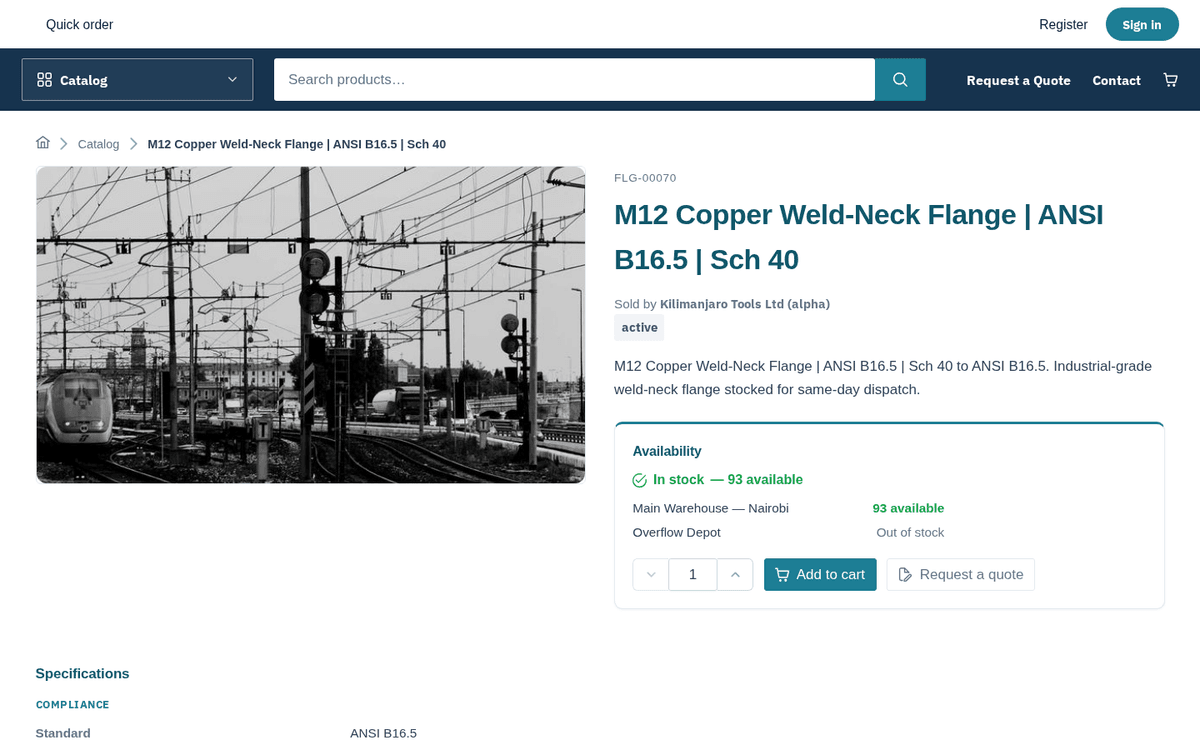
A storefront product page — gallery, “Sold by” vendor line, availability per warehouse, Add to cart
Step 2 — Cart. The buyer signs in and builds a cart. The cart shows line items with quantity steppers, a coupon box, a Re-check prices button and running totals in the store currency.
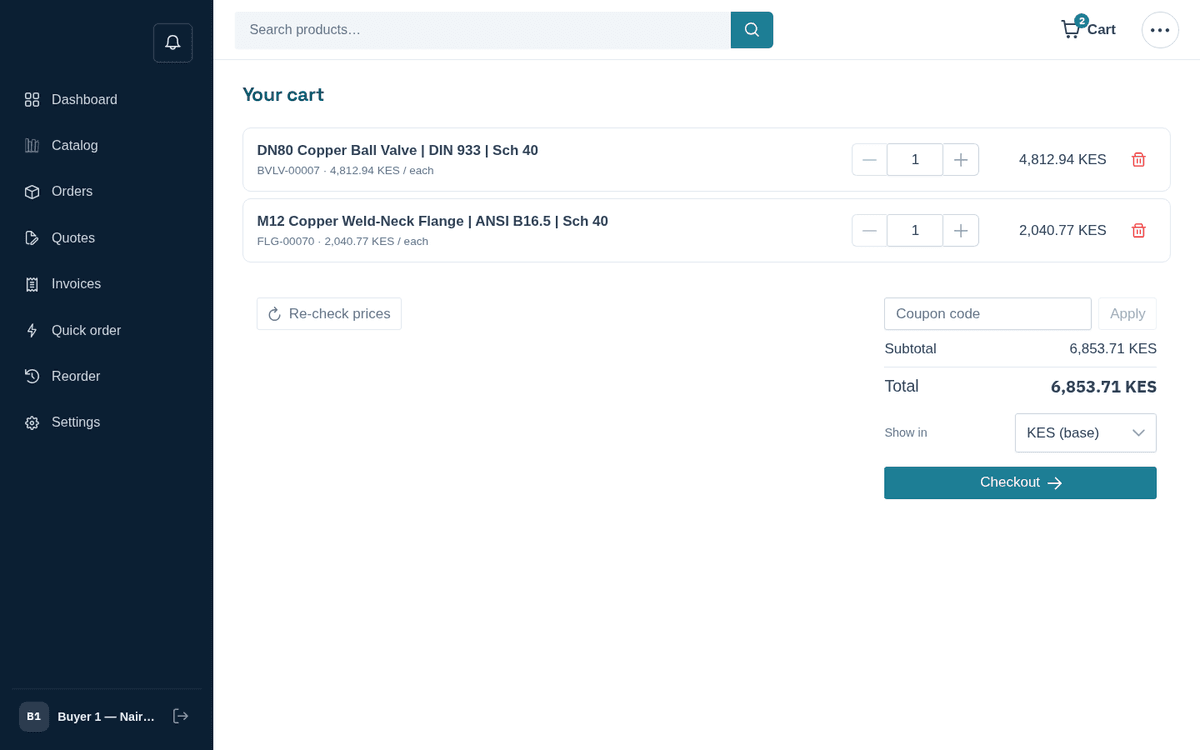
The cart — line items, quantity steppers, coupon box and totals
Step 3 — Checkout. Checkout is three steps: Order details (PO number, cost center, requested delivery date), Shipping (default or new address, then a shipping method priced live for the destination) and Review & place. Our buyer enters PO number PO-2026-0142.
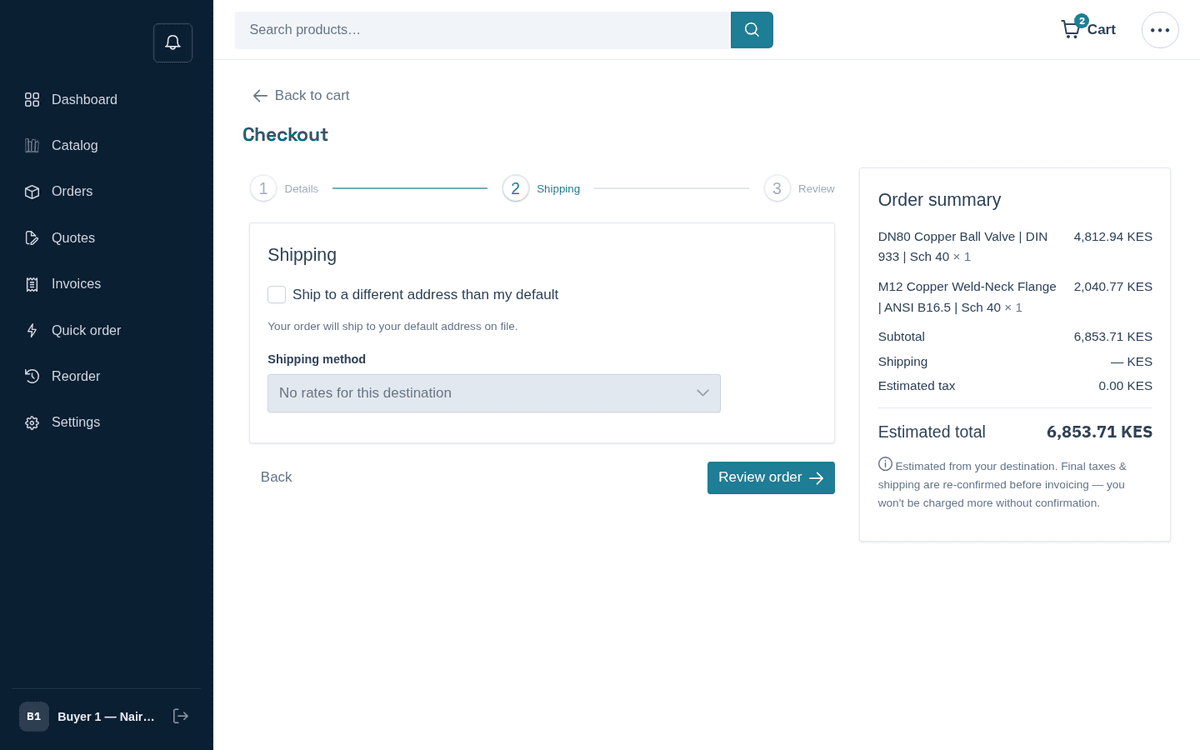
Checkout step 2 — shipping address and method selection
Step 4 — Order placed. Pressing Place order lands the buyer directly on the order tracking page. Order 2d6e0112 is born in status Pending, showing both lines (the DN80 ball valve and the M12 flange), the total of 6,853.71 KES, a timeline that starts with “Pending — placed from cart”, and a Questions about this order message thread straight to the seller.
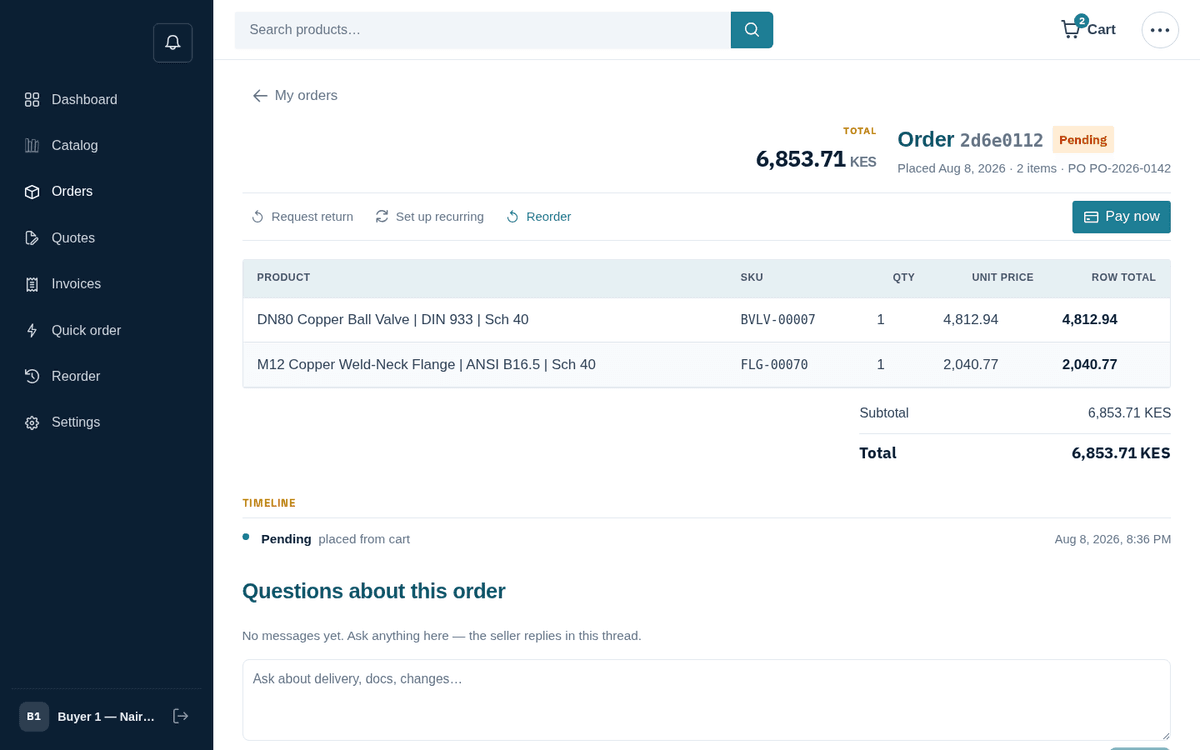
Order 2d6e0112 placed — pending status, items, timeline and message thread
Step 5 — Meanwhile, the RFQ path. For negotiated volumes the buyer skips the cart and uses Request a quote. Catalog lines are picked with live suggestions; each picked product becomes a card with quantity, target price and notes. Off-catalog parts can be described free-text.
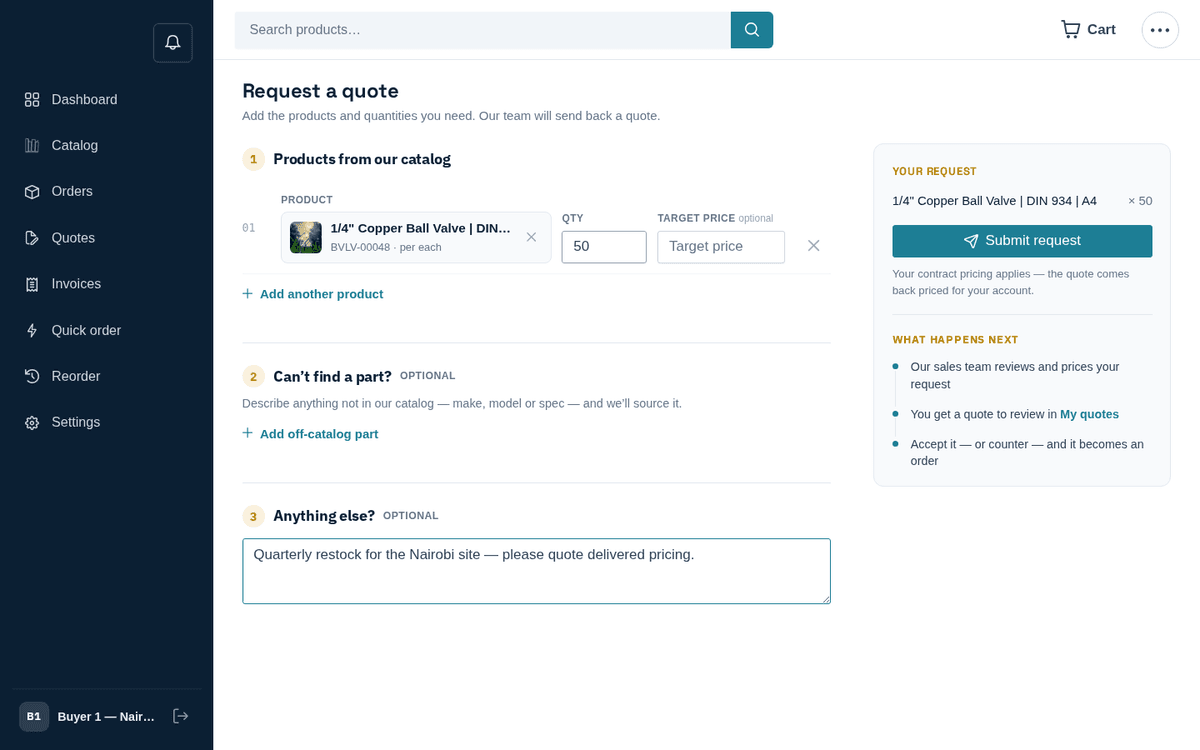
The request-a-quote builder — a picked product card with quantity and target price
Step 6 — The quote is drafted, then a rep sends it. In the admin console, the RFQ was priced into a draft by the Draft a quote for new RFQs automation and the sales team was alerted to review it. A rep checked the lines and pressed Send. The quote editor shows the Draft → Sent → Accepted ribbon (this one is sent, version v2), the line (50 × 1/4” Copper Ball Valve at 2,931.37), the Fulfilment card (“Deliver to customer”) and a conversation panel that reaches the buyer’s portal.
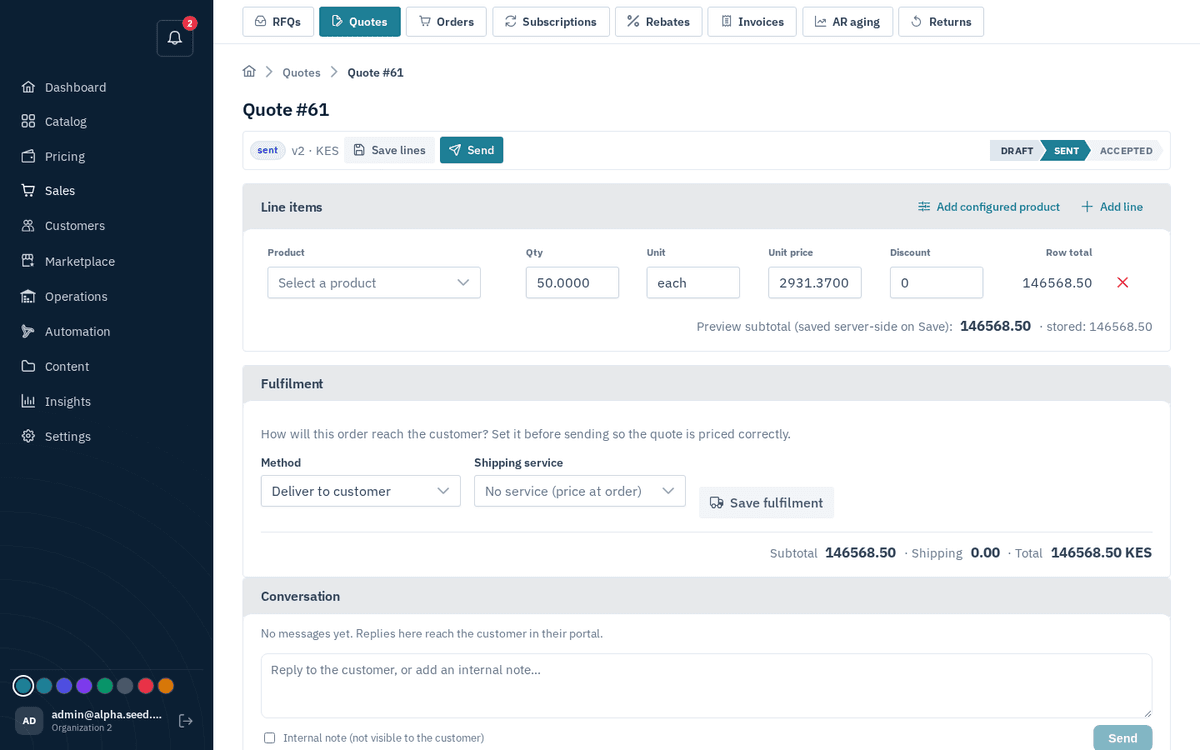
Admin quote editor — Quote #61, drafted by the automation and sent by a rep
Step 7 — The buyer reviews the quote. In the storefront, the buyer opens quote 7e984649 and has three choices: Decline, Propose changes (a counter-offer, line by line) or Accept & create order. The subtotal note says “VAT added when the order is created”.
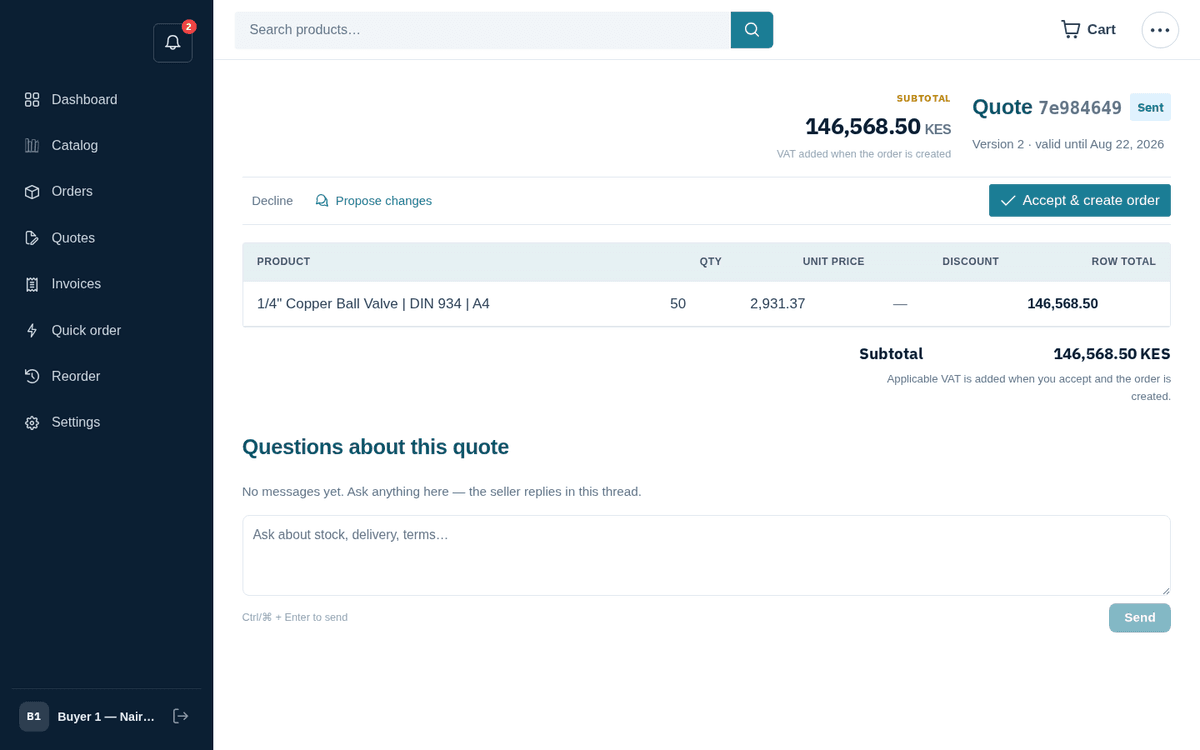
The buyer’s view of the quote — Decline, Propose changes, or Accept & create order
Step 8 — Acceptance creates an order instantly. Accepting converts the quote to an order in one transaction and lands the buyer on its tracking page. Sibling quotes on the same RFQ are superseded so only one order can ever come from it.
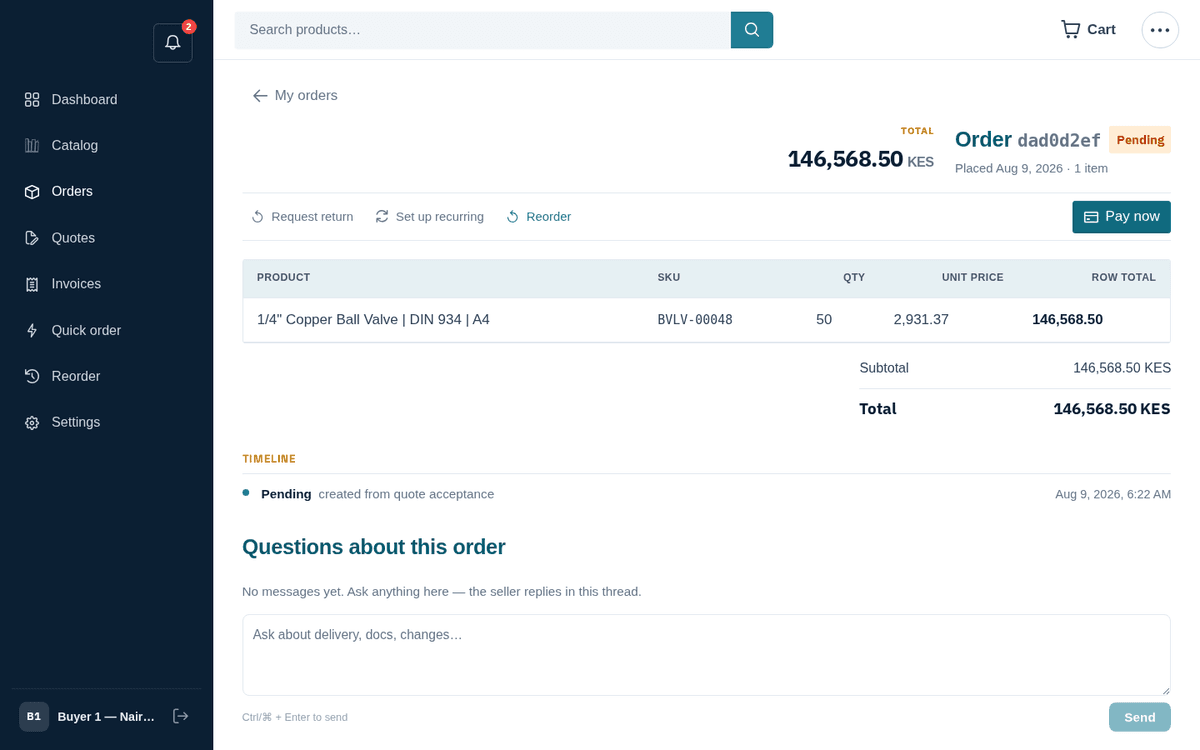
Accepting the quote creates the order and opens its tracking page
Step 9 — Staff confirm the order. Back in the admin console, order 2d6e0112 shows the status ribbon Placed → Confirmed → Processing → Shipped → Delivered → Closed. Transitions are buttons named for the literal next status; here the operator pressed confirmed and got the toast “Status → confirmed”. Confirming is the moment stock is reserved. The right-hand rail records every step (“Status → pending — placed from cart”, “Status → confirmed”).
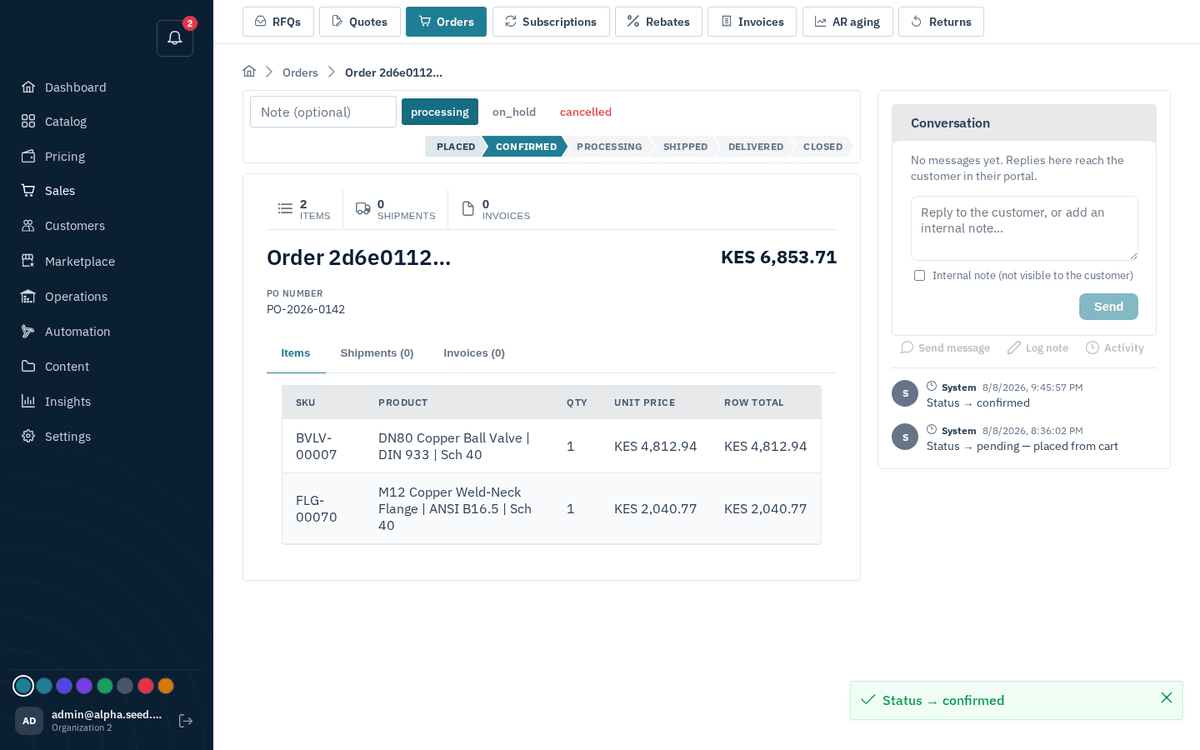
Admin order detail — the ribbon, transition buttons and the “Status → confirmed” toast
Step 10 — The vendor sees their share. Because the flange line belongs to a marketplace vendor, the buyer’s order split automatically into per-vendor sub-orders. In the vendor portal, sub-order 2d6e0112… appears at the top of the Orders list as pending, gross 2,040.77 KES, net 1,897.92 KES after commission — with an Accept button. Vendors advance their own fulfilment: Accept → Mark shipped → Mark delivered.
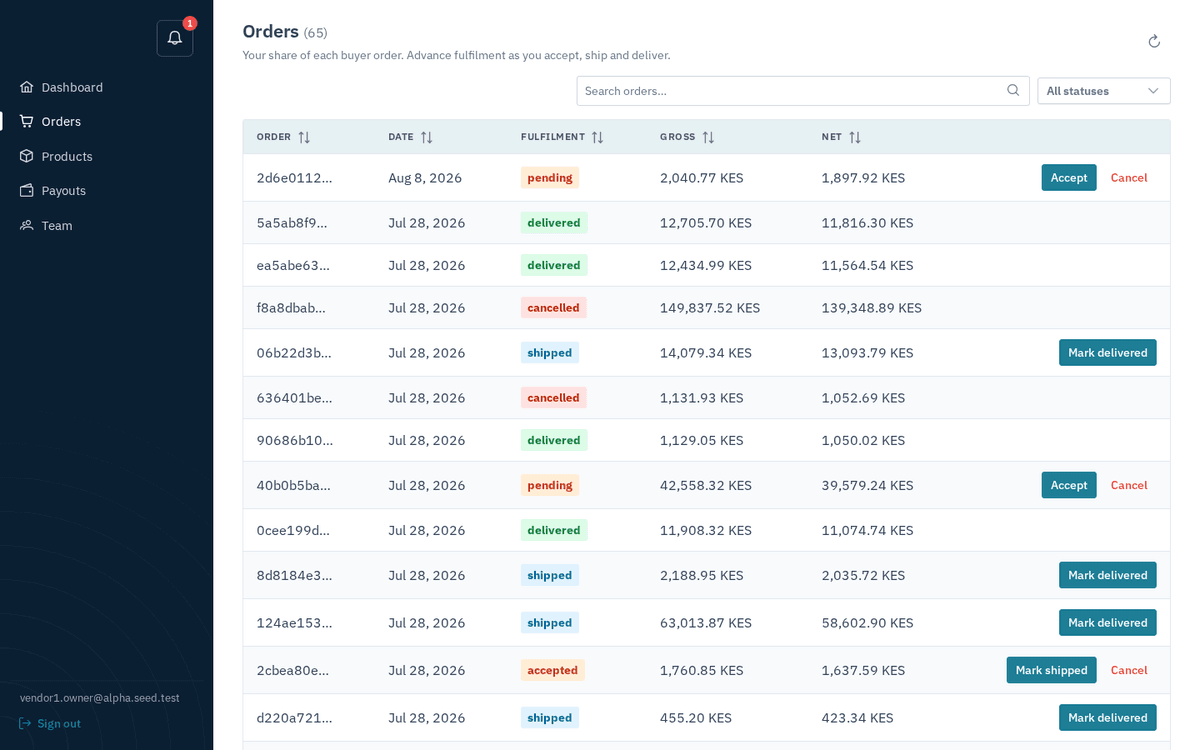
Vendor portal — the same order arrives as a pending sub-order with Accept / Cancel
Step 11 — Shipment with tracking. On the admin order’s Shipments tab, Create shipment captures Carrier, Tracking #, Ship from warehouse and per-line quantities (“Quantities to ship (capped at ordered minus already shipped):”).
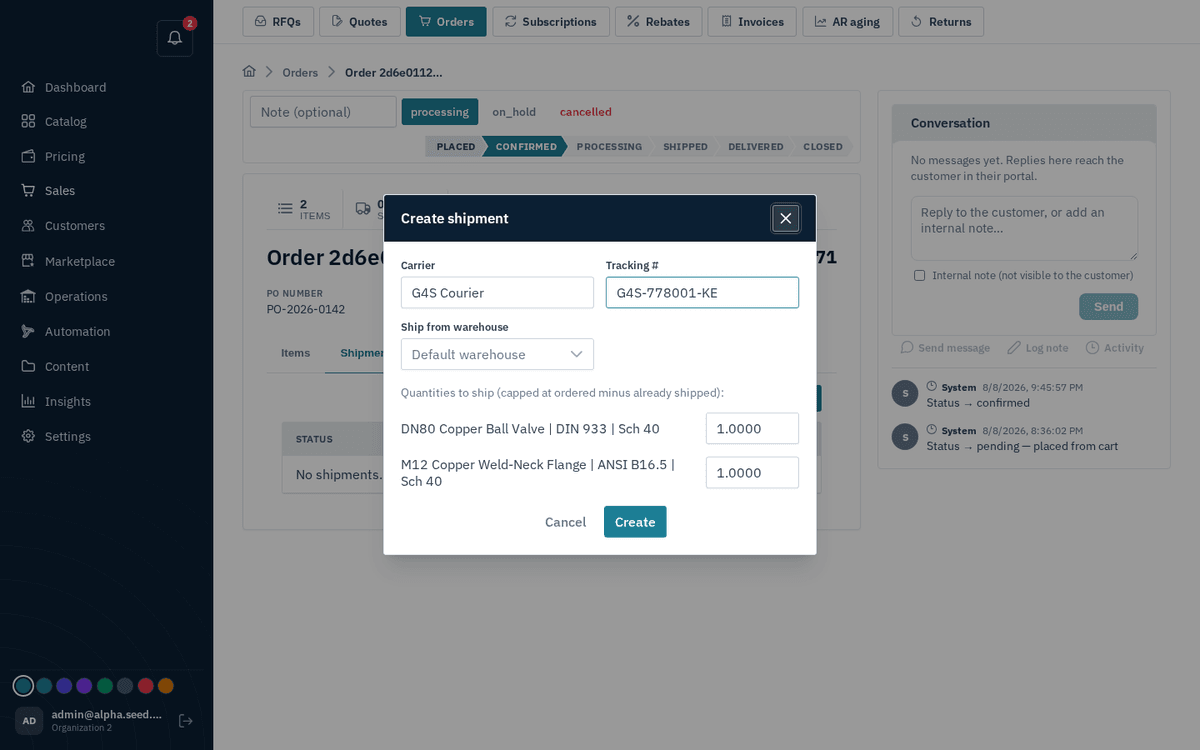
Create shipment — carrier, tracking number, warehouse and per-item quantities
Step 12 — The buyer tracks it. The storefront order page now shows the shipment: carrier G4S Courier, tracking G4S-778001-KE, the items inside it, and the growing timeline (Pending → Confirmed). Pay now, Reorder, Request return and Set up recurring sit on the action bar.
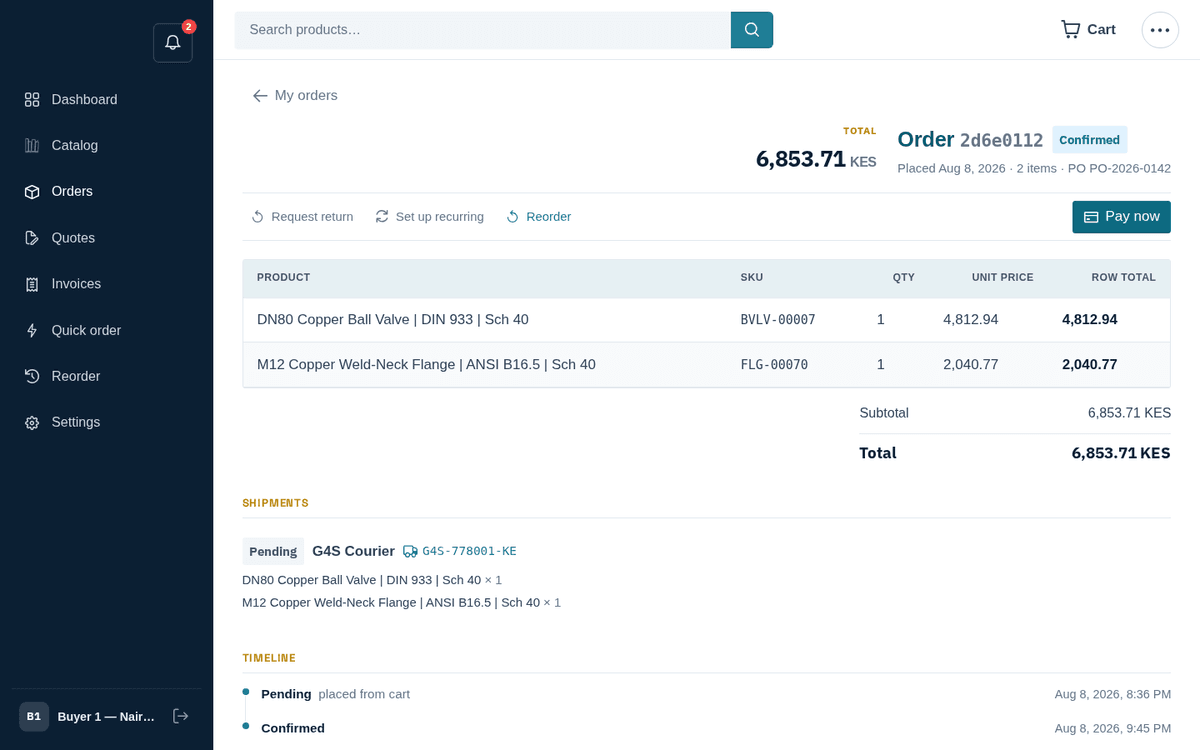
The buyer’s order page now shows the shipment with carrier and tracking number
Step 13 — Invoice. On the admin order’s Invoices tab, Issue invoice bills the confirmed order — toast “Invoice issued”. The invoice appears with status issued and its PDF is rendered in the background.
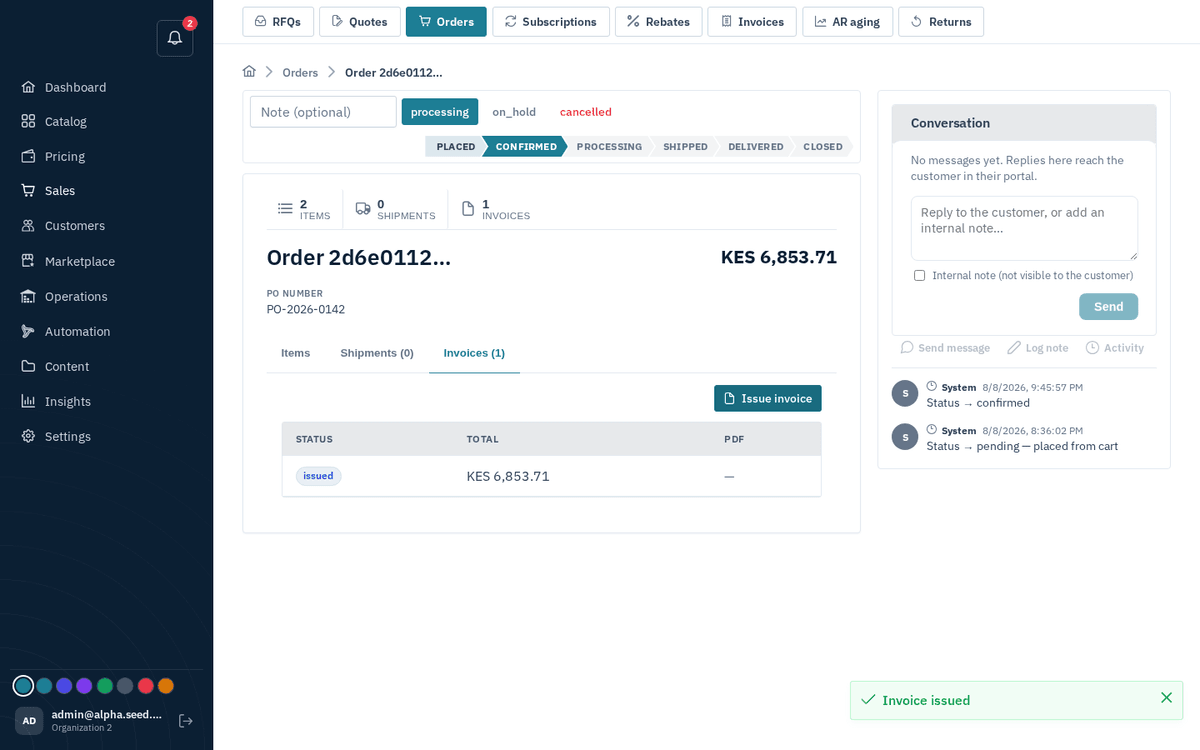
Issue invoice on the order — the invoice appears on the Invoices tab
Step 14 — Payment. Buyers can pay from the storefront (card, or mobile money where offered); finance staff can also record payments received outside the system. The Record payment dialog captures Method (card / ach / invoice / po / mpesa), Amount (defaulting to the outstanding balance) and a Reference — the reference blocks duplicate entry.
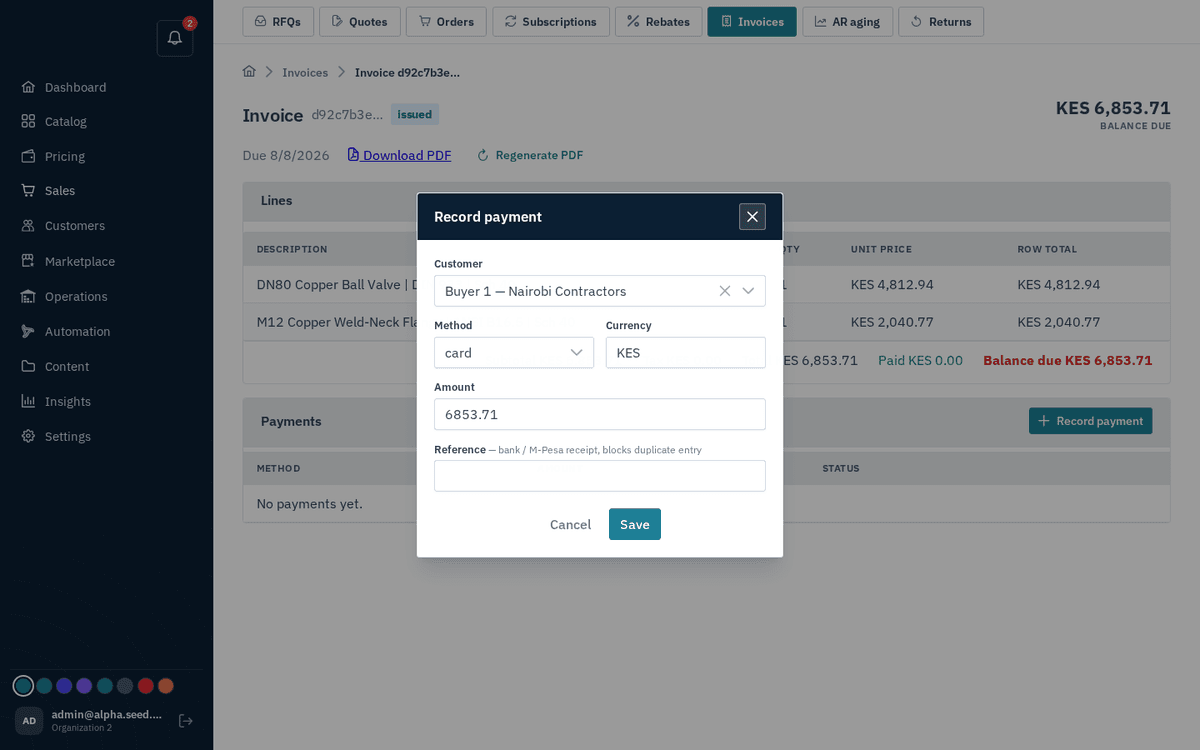
Record payment — method, amount defaulting to the balance, and a duplicate-blocking reference
Step 15 — Returns and credit. If something must go back, the buyer opens the order and presses Request return, choosing per-line quantities. On the seller side, returns move requested → approved → received — receiving restocks the goods and issues a credit note automatically.
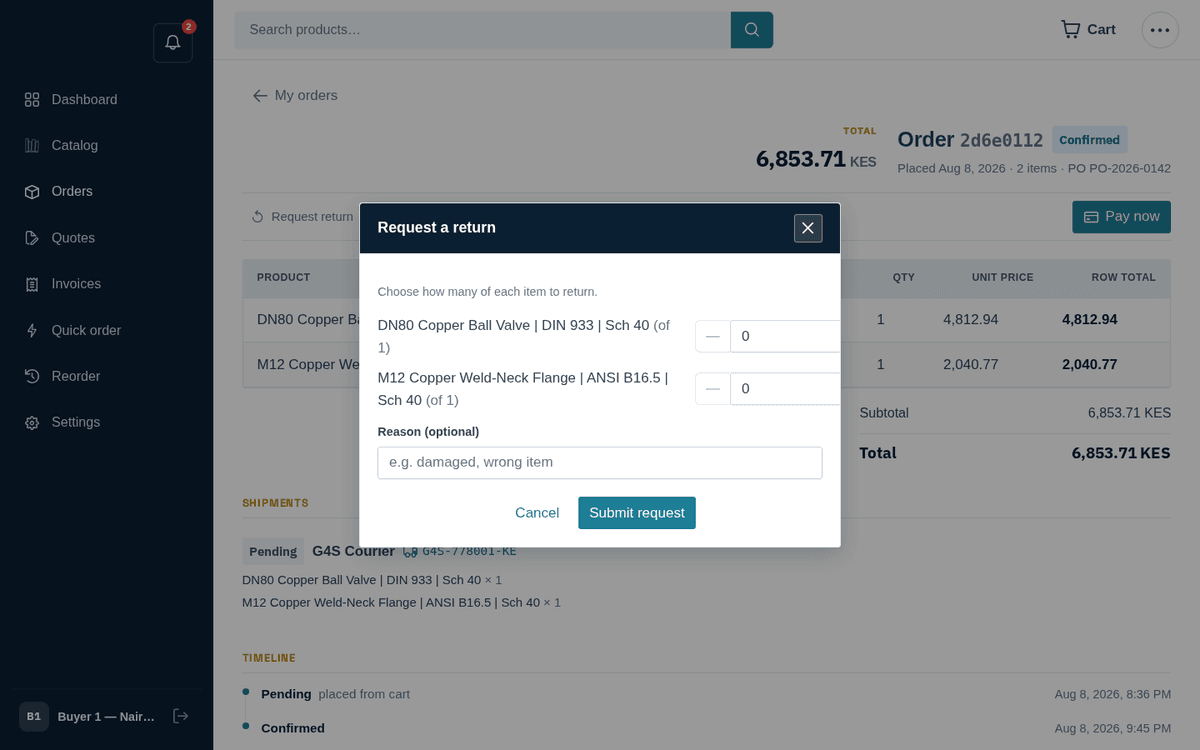
Request a return — pick lines and quantities; approved returns restock and credit you
Step 16 — Payouts close the loop. Once vendor sub-orders reach delivered, the operator generates a payout. The vendor’s Payouts page shows Pending payout (delivered orders awaiting a payout run), Paid to date, and the payout terms (here Net-30); clicking any payout reveals the exact orders it settled, line by line, gross minus commission.
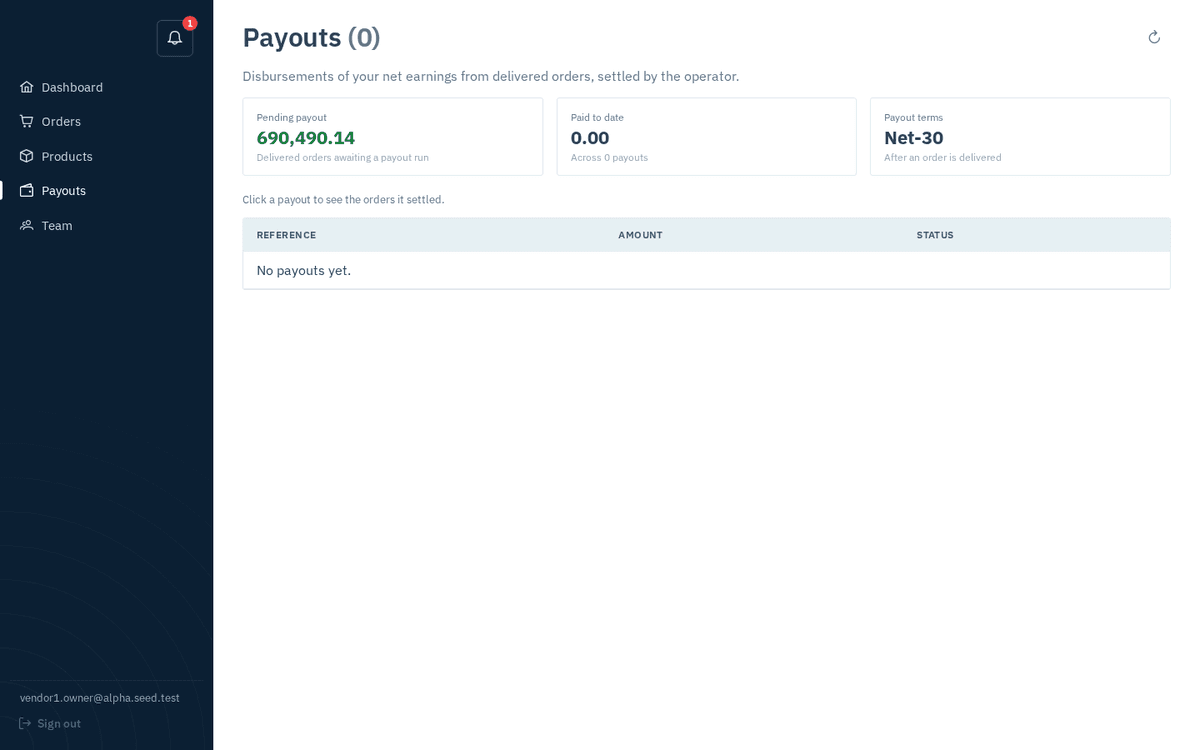
Vendor payouts — pending vs paid totals and Net-30 terms
That is the whole machine. Every remaining chapter zooms into one part of it.
How data flows
This chapter explains the rules that make screens show what they show. Understanding these four mechanisms resolves most “why is it doing that?” questions before they become tickets.
How a buyer’s price is decided
Prices live in price lists (Pricing → Price lists): currency-scoped books of per-product tiers (“100+ at 4,000”). What makes B2B pricing work is the assignment: a list can be assigned to a specific customer, a customer group, or a website, each with a priority.
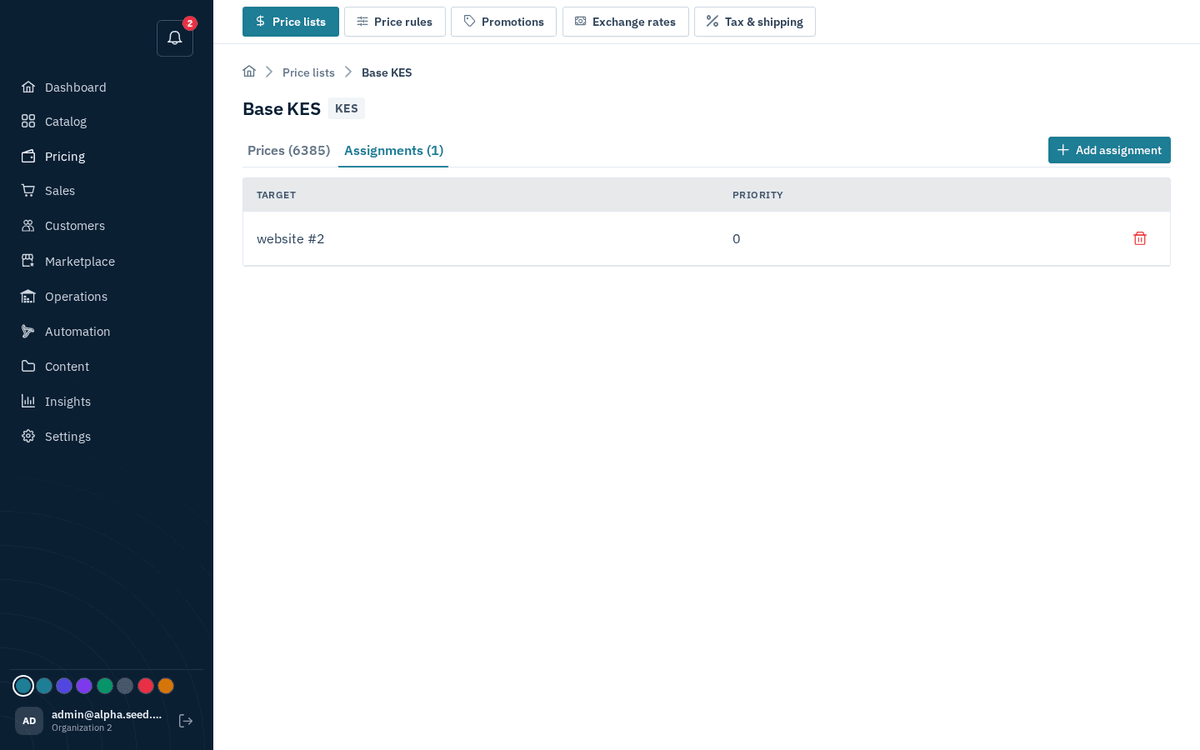
Price list assignments — customer, group or website decide who gets this list
When a buyer looks at a product, the price is resolved live, on every read, walking the precedence chain:
- A list assigned to the customer (or an ancestor company in its hierarchy) wins first.
- Otherwise a list assigned to the customer’s group.
- Otherwise the website default list.
- On top of the resolved price, price rules (Pricing → Price rules) apply percentage or fixed adjustments — when rules overlap, the highest priority wins.
If the walk finds no price at all, the product shows “Price on request — add to a quote and our team will respond.” on the product page. That is not an error — it is the deliberate path into the RFQ flow. There is no cache anywhere in this chain: a price change in the console is live on the storefront immediately.
Stock: reserved on confirm, drawn on shipment
Inventory is a per-warehouse ledger (Operations → Inventory). The commercial moments are:
- Placing an order does not touch stock.
- Confirming an order reserves stock. If a tracked line cannot be covered and backorder is not allowed, the confirm transition fails with 409 insufficient_stock — the fix is to receive stock, allow backorder on that level, or adjust the order.
- Shipments convert reservations into fulfilment, drawn from the chosen warehouse.
- Marking an order shipped requires shipments covering every line — otherwise the transition fails with “create shipments covering every line before marking the order shipped”.
- Cancelling releases reservations, voids unpaid invoices, reverses promotion redemptions and cascades the cancellation to vendor sub-orders.
- A received return restocks tracked lines into the warehouse they shipped from.
Vendor listings and moderation
Vendor-created listings are invisible to buyers until the operator approves them. The lifecycle is Draft → In review (pending) → Approved (live) or Rejected. Vendors submit from their Products page; new listings and edits to existing ones both go back to review (“Your changes (including prices) go to the marketplace operator for approval.”).
Operators work the queue in Marketplace → Catalog moderation: “Vendor-submitted listings awaiting approval. Approved products become visible and buyable on the storefront; rejected ones stay hidden.”
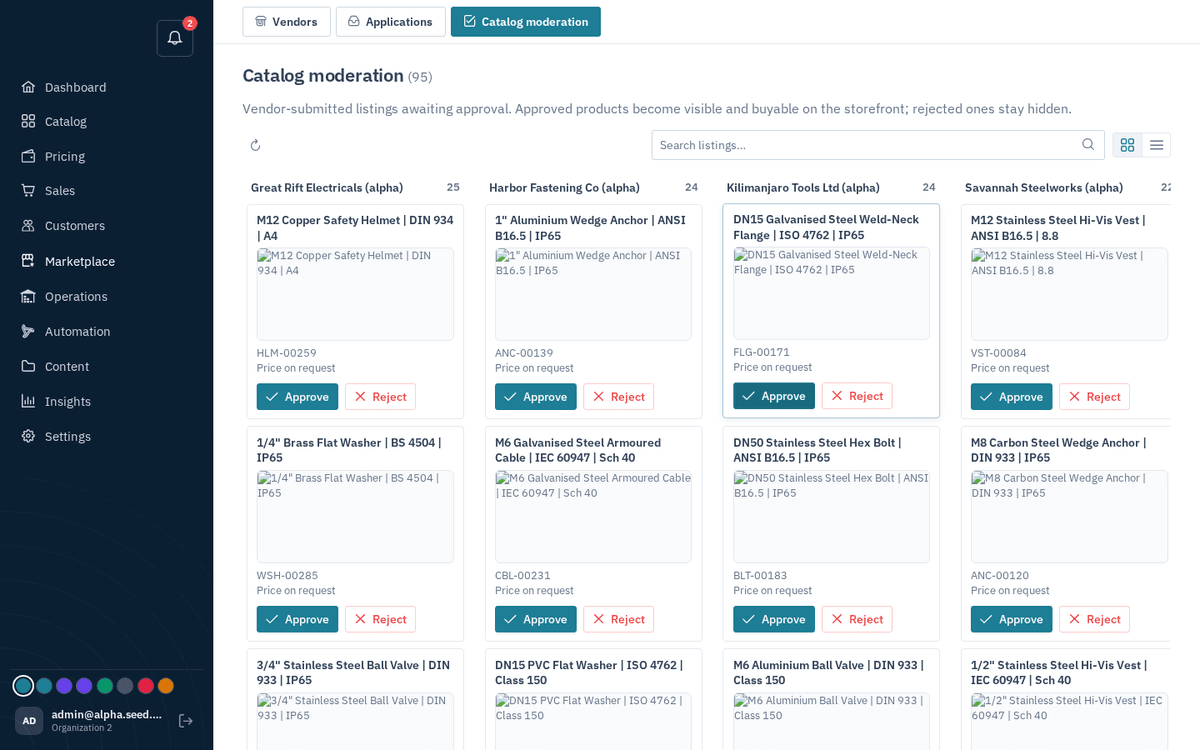
Catalog moderation — approve or reject vendor listings before they go live
- Review the card — image, SKU and proposed price tiers (or “Price on request”).
- Press Approve (toast “Product approved”) — approval also publishes the vendor’s staged price tiers into the default price list, and the vendor gets a bell notification “Listing approved: ‹name›”.
- Or press Reject and write a reason (“Tell the vendor what to fix. They’ll see this reason and can revise and resubmit.”). The vendor sees “Listing needs changes: ‹name›” and the full reason in their product row, fixes it, and presses “Submit for approval” again.
Vendors may attach up to 5 photos per product; images only (JPEG, PNG, GIF, WebP), max 25 MB each.
The gates at checkout: spending limits, credit limits, budgets, approvals
Every order-creation path — cart checkout, quote acceptance, even subscription renewals — passes the same gate, in this order:
| Gate | Trigger | What happens |
|---|---|---|
| Spending limit (per user) | Order total exceeds the placer’s spending limit | Order is created on hold; approvers are notified instead of a confirmation email |
| Credit limit (per company; 0 = unlimited) | Open invoices + open orders + this order would exceed the company credit limit | Order is created on hold |
| Budget (per cost center and period) | An active budget matches the order’s cost center and this order would exceed the period’s cap | Order is blocked at checkout — it is not created at all. The message is “this order would exceed the cost-center budget for the period” |
Held orders appear in the storefront Approvals queue for the company’s approvers and admins:
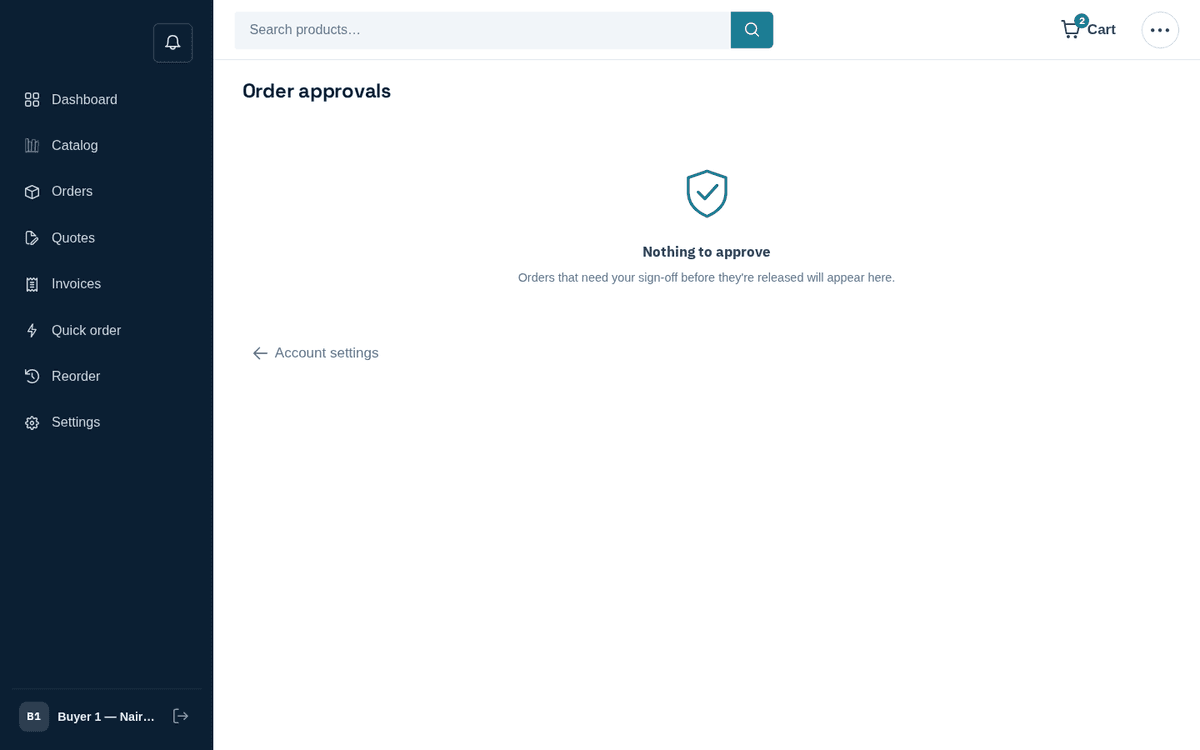
The buyer-side approvals queue — over-limit orders wait for an approver’s sign-off
- Open Approvals (visible only to approvers/admins; the banner reads “These orders exceeded the buyer’s spending limit and need your sign-off before they’re released.”).
- Press Approve (“Order approved and released.” — the order returns to the normal flow) or Reject (“Order rejected.” — the order is cancelled).
Two rules shape who can approve: separation of duties (you cannot approve an order you placed — the error is “You cannot act on an order you placed yourself.”) and tiered approval routing (Automation → Approval routing lets the operator define amount bands: a large order can demand the Admin only tier, and a too-junior approver sees “this order’s amount requires a higher approver role”).
Budgets block; limits hold. If the order never appeared at all, look at budgets; if it exists but sits “On hold”, look at limits and approvals.
Automations — what runs by itself
Under Automation → Prebuilt automations the operator can switch on ready-made behaviors: “Flip one on and it starts working immediately — no setup needed.”
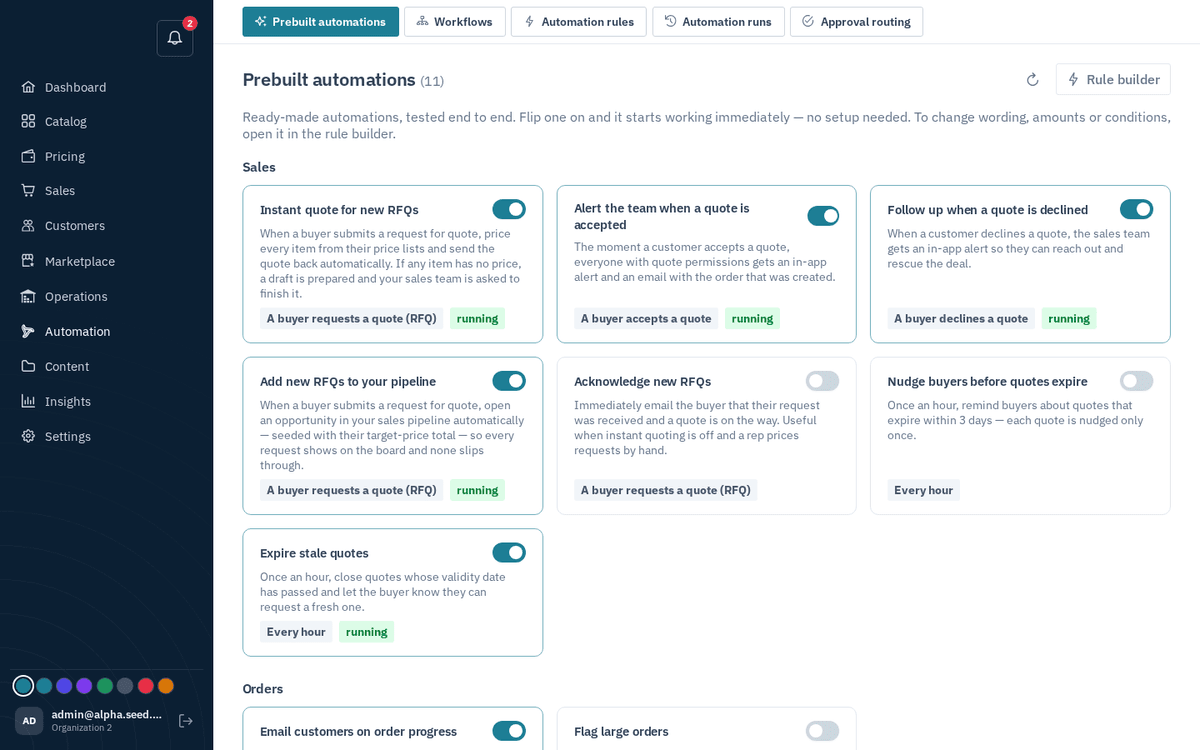
Prebuilt automations — one-click toggles for RFQ drafting, dunning, cart recovery and more
The ones you will notice most:
- Draft a quote for new RFQs — when a buyer submits an RFQ, it is priced from the buyer’s own price lists into a draft and the sales team is alerted to review it. Unpriced or unmatched lines are called out in the alert. Nothing is sent until a rep presses Send.
- Invoice dunning — invoices past due flip to overdue and chase themselves; the AR aging page’s “Run overdue sweep” button does the same on demand (“Marked N overdue — Dunning notices queued”).
- Abandoned-cart recovery and expiring-quote follow-ups — automated nudges. A stale sent quote past its validity is expired by an hourly sweep and the customer is emailed.
- Order-status emails, team alerts on quote acceptance/decline, and anything custom built in the Automation rules visual builder (trigger → conditions → actions).
Every firing is recorded under Automation → Runs (“Every rule firing and how it actually ended — settled by the worker, kept for 90 days”) — the first place to look when “the automation didn’t fire”.
All of this — plus every email, invoice PDF and image rendition — is executed by a separate background worker process, not by the web application itself. If automations, emails and PDFs all stop at once, the worker is down: that is an IT issue — see Troubleshooting.