Quotes
Where: Sales → Quotes
Before you begin
- The customer exists as a company account (see Customers).
- Shipping rates cover the customer's destination if you want a priced delivery option (see Tax & shipping).
Creating a quote from scratch
- Go to Sales → Quotes and press “New quote”.
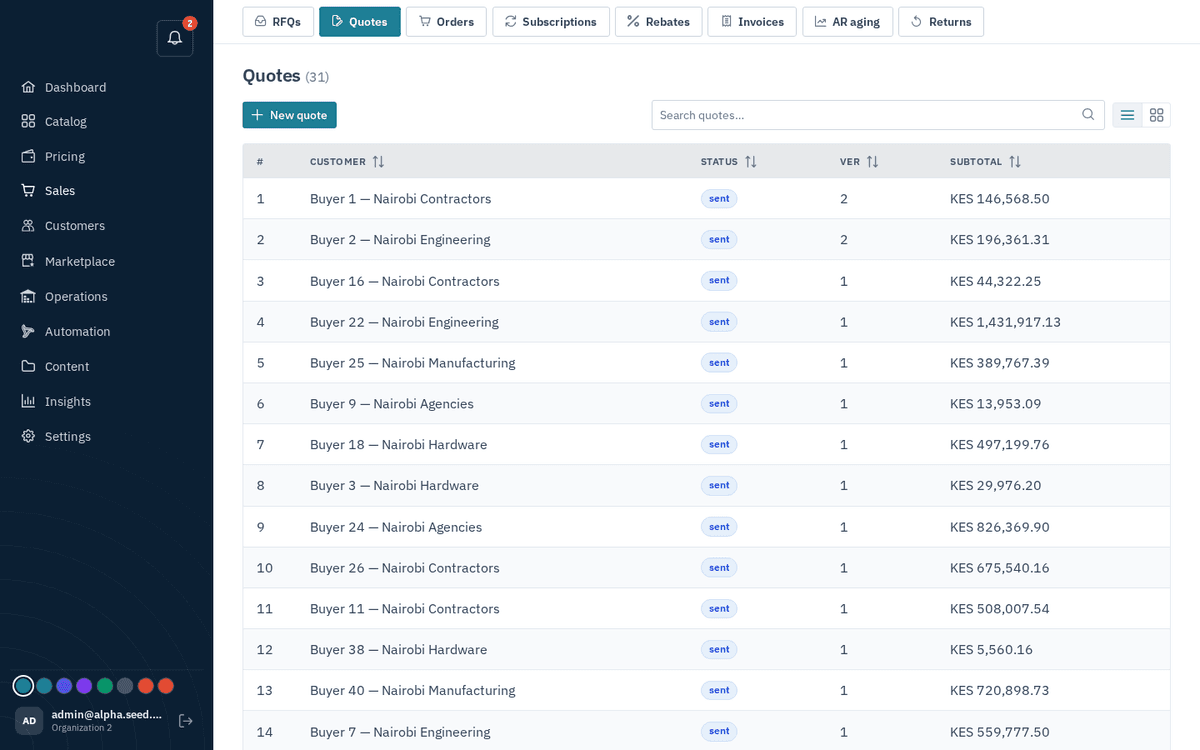
Sales → Quotes — every quote and its status
- In the dialog, pick the Customer (required), then the first line — “First line (add more in the editor):” — Product (required), Qty, and Unit price (required; in your store currency).
- Press “Create & edit” (disabled until the required fields are filled). You land in the quote editor.
A draft nobody has seen can be deleted from the list with the trash icon on its row. A quote that was sent is the buyer's record and cannot be deleted: edit and re-send it as the next version, or let a new quote for the same request supersede it.
The list searches every quote by quote number (Q-1a2b3c4d or its first few characters) or customer name, and the status menu narrows it to one status with a count per status. The header count and the kanban column counts are full totals, not just the page on screen. Each kanban column shows its first 20 cards and says how many it holds, so a stage is never empty just because newer records fill the list's first page.
The quote editor
The editor page is titled Quote #N. Across the top: the status tag with version and currency (e.g. sent · v2 · KES), the action buttons “Save lines” and “Send”, and the stage ribbon Draft → Sent → Accepted.
Line items. Each line has: Product (searchable), Qty, Unit, Unit price, Discount, a computed Row total, and a remove ×. Buttons: “Add line” for a normal line and “Add configured product” for a CPQ line (below). The totals under the lines follow what you type — subtotal, VAT at the standard rate when quotes include VAT, and the total — and carry an unsaved tag until you press Save lines. Send saves the lines first, so typed prices always reach the buyer; the same Save lines and Send buttons sit beside the totals.
- Edit the lines, then press “Save lines” — toast “Lines saved” with the new subtotal.
- Press “Send” — toast “Sent (vN)”. Sending bumps the version; every send is an immutable revision the buyer can see in their history.
Customers with no portal login yet. Many customers exist only as contacts (imported from your ERP or receivables). When you send them a quote, the first contact with an email gets a portal login, and the quote email and WhatsApp message carry Set your password and view the quote. A contact whose email already signs in to another customer is left alone. A buyer known only by a phone number gets the quote and PDF on WhatsApp and is asked to reply there.
Send to. Every quote carries the numbers and addresses it goes to, filled in the moment it exists: the WhatsApp chat the request came from, the enquiry's own number and email, the customer's contacts, and, when your ERP priced it, the contacts the ERP holds for that customer. The Send to card in the editor lists them; add a number or an address, or remove one, before pressing Send. Send then mails every address (the quote link, with a set-password link for a contact who has never signed in) and sends every WhatsApp number the lines, total, validity date and link, followed by the PDF. The toast names where it went. Nobody pastes a quote into WhatsApp by hand. See WhatsApp.
Once a quote is accepted, declined, or expired, it is final. The editor shows a banner — “This quote is ‹status› and can no longer be edited.” — and both buttons are disabled. If you edit a quote that is currently sent, it withdraws to draft and you re-send it as the next version.
Add configured product (CPQ). For configurable items, press “Add configured product”: pick the product, make a choice in each option group (required groups are flagged; groups say “choose one” or “choose min–max”), set the Quantity, and watch the estimate — “Estimated: ‹n› · final price validated on Add”. Press “Add to quote” — toast “Configured line added”. If you pick a product with no configuration, the dialog says “This product is not configurable.”
Terms. The Terms card holds what a buyer files with the quote and asks for in nearly every RFQ: lead time, warranty, country of origin, HSN code, make, approximate weight, compliance (COC, identification tags, approval letters, shelf-life commitments) and free notes. Fill the ones that apply and press “Save terms” — toast “Terms saved”. They print on the PDF under Special notes & terms of sale and appear on the buyer's quote page, and each sent version keeps the terms it went out with. Changing terms on a quote that is already with the buyer withdraws it to draft, exactly like editing a line, so you re-send a new version.
Set your standard terms once under Settings (key quotes.default_terms, e.g. {"lead_time":"Ex-stock, 2 days","warranty":"12 months"}) and every new quote starts from them — the rep only edits what differs.
Per-line terms. When one part differs — an import with its own lead time, a different country of origin, another make — press the list icon at the end of that line to open its own terms. They use the same headings as the quote's terms and override them for that line only; the buyer sees them under the line, and the PDF prints them beneath the description.
Attachments. The Attachments card takes the documents a buyer's procurement desk asks for — datasheets, certificates of conformity, drawings, test reports. Give each a label (e.g. Datasheet), press “Attach file” and pick a PDF, image, spreadsheet, Word document or text file up to 25 MB. Files are kept in private storage: the buyer downloads them from the quote page behind their login, and the PDF names them under Special notes & terms of sale (Attached: Datasheet, Certificate of conformity). Remove one with the × beside it.
Fulfilment. The Fulfilment card asks: “How will this order reach the customer? Set it before sending so the quote is priced correctly.”
- Choose the Method: Deliver to customer or Customer pickup.
- For delivery, pick a Shipping service — options show as “service — currency amount” from your Tax & shipping rates; you can also leave “No service (price at order)”. If nothing appears, the message is “No rates for the customer’s destination” (fix in Tax & shipping).
- For pickup, pick the Pickup location warehouse.
- Press “Save fulfilment” — toast “Fulfilment saved”.
The totals row beneath shows Subtotal · Shipping (or Pickup (no shipping)) · Total, and tags itself “includes unsaved lines” whenever your edits aren’t saved yet.
Conversation. The right-hand or lower Conversation panel is a message thread with the buyer: “Replies here reach the customer in their portal.” Tick “Internal note (not visible to the customer)” to keep a note team-only.
A quote that answers an RFQ shows What the buyer asked for above the lines — the request exactly as written, headed by where it came from (a WhatsApp message, a website enquiry or a chat with the assistant). Items that matched no single catalogue product are listed under No single catalogue match — pick a product or price by hand: press Find in catalogue on a line to see the products in the size the buyer asked for ("m10x50", "M10 × 50mm" and "M8 x 1½" all read the way the trade means them) and add the one the buyer means with their quantity, or price the line by hand. A set such as "M16 × 80mm bolts, nuts, washers" shows one group per part: the M16 × 80 bolts, the M16 nuts and the washers an M16 bolt takes, each with the plain part first. If you sell that set in that size it is offered first, and a part needed twice per set, like "2 washers", is added at twice the quantity. A line is matched on its own only when every specific word in the product's name appears in what the buyer wrote, the size, length and material the buyer gave all agree, exactly one product fits, and no other line already took it; anything less waits for a person. The RFQ reference beside it opens the request.
Lines picked by AI. When a request still has lines nobody matched, the assistant reads each one before the draft is built, searches the catalogue and picks the product a counter salesperson would quote: the exact size, length and material the buyer wrote, and the common trade choice for anything they left open, such as grade 8.8 over 12.9. The platform then re-checks the pick against the buyer's sizes and refuses any product that disagrees, however sure the assistant was. Picked lines arrive in the draft with prices from your price lists. On the RFQ each shows the buyer's words followed by picked by AI, check it, and the alert you receive says how many lines were picked. Lines the assistant was unsure about stay under No single catalogue match for you to price by hand. Nothing is sent until you press Send.
The picks follow how the trade writes. MS (or "mild steel") means mild steel: an MS product is picked when you stock that size, otherwise the plain 8.8 part a counter would offer, and never stainless. A nut or washer the buyer gave no finish takes the finish of the bolt picked for it, so zinc bolts get zinc washers. A line the buyer's message repeats with the same quantity is quoted once; the same item asked again with another quantity stays its own line.
Lines you can't supply (N/A)
When an RFQ asks for something you can't offer, don't delete the line — tick its N/A box.
The line stays on the quote so the buyer sees it was considered, shows N/A instead of a
price on the storefront, the PDF and in the email total, and is left out of the subtotal and
of the order when the buyer accepts. In chat, price BOLT-9=N/A on Q-… does the same.
Send refuses three things, with the reason in the toast: a quote where every line is N/A (nothing to buy), and a quote with an available line still at 0 (“price every line before sending, or mark it N/A”). The buyer, in turn, cannot accept a quote whose priced lines add up to zero. Unsaved line edits are saved for you when you press Send. A quote that is already sent and has not been edited since is refused too (Version N already went to the buyer), and the editor greys Send out with the tag vN is with the buyer — edit a line to send a revision, so a second click never emails the buyer twice. Editing any line withdraws the quote to draft and Send becomes a revision; a quote whose validity has lapsed can be re-sent as a renewal.
VAT on quotes
By default a quote shows prices excluding VAT with the note “VAT added when the order is
created.” If your buyers expect the SAP-style layout with VAT on every line, set the
configuration key quotes.tax_display to inclusive: each line then carries VAT and
Total incl. VAT, the summary shows Subtotal, VAT and Total, and the email and PDF quote
the VAT-inclusive total. Rates come from Tax & shipping for the
buyer's country; a buyer without an address on file is taxed at the country in
tax.default_country (for example KE). The order created on acceptance carries the same VAT.
Buyer counter-offers
Buyers don’t just accept or decline — they can propose changes. When a buyer counters, the quote’s status becomes countered and a Buyer counter-offer card appears in the editor showing, per line, what you quoted versus what the “Buyer proposes”, plus their note.
- Review the proposals.
- Press “Apply proposals to lines” — the toast guides you: “Proposals applied to the line editor — Review, then Save lines and Send.”
- Adjust anything you don’t agree with, “Save lines”, and “Send” the next version.
Acceptance → order
Acceptance happens on the buyer’s side, on the storefront. When they accept:
- The quote’s ribbon reaches the green Accepted stage and the quote becomes read-only.
- An order is created automatically from the quote (with the quoted shipping carried over). The order’s detail page notes its origin: “From quote #N”.
- Any other open quotes for the same RFQ are superseded, so a single RFQ can only ever become one order.
| Quote status | Meaning |
|---|---|
| draft | Being edited; the buyer can’t see it |
| sent | Delivered to the buyer, awaiting their response |
| revised | A newer version was sent after edits |
| countered | The buyer proposed changes — your move |
| accepted | Final — an order was created |
| declined | Final — the buyer said no |
| expired | Final — its validity date passed (an hourly automation expires stale quotes and emails the customer) |