ERP sync
Where: Settings → ERP sync
Settings → ERP sync connects Sokisoko to your ERP or accounting system: orders and invoices flow out, inventory updates flow in, all over a signed connection so replays and forgeries are rejected, and idempotently so nothing is double-posted. Setting up a connector is a one-time exercise with your operator or ERP consultant; day to day you’ll use this page to check the connector’s status and recent sync activity.
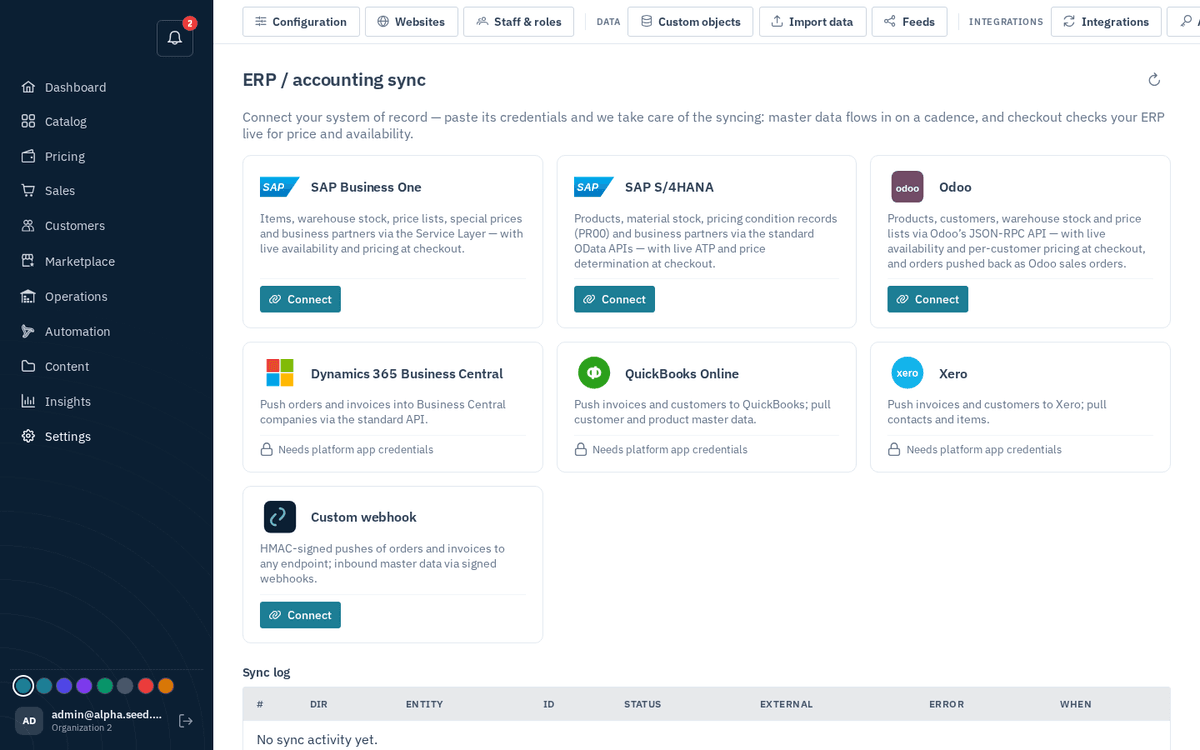
Settings → ERP sync — signed connector for orders, invoices and stock
Connecting SAP Business One
Where: Settings → Integrations → ERP → SAP Business One → Connect.
You need a Service Layer user made for this integration, not a person's login. Fill the form exactly as B1 knows the values:
| Field | What to enter |
|---|---|
| Service Layer URL | https://your-b1-host:50000 — the Service Layer, not the client |
| Company database | the company's database name, e.g. SBO_GALAXY |
| Username / Password | the integration user; sealed in the vault the moment you press Connect & sync, and never shown again |
| Base price list # | the B1 price list whose prices become the storefront list price (1 unless you use another) |
| Default currency | used when a B1 price carries no currency, e.g. KES |
Pressing Connect & sync creates the connection, seals the credentials and lets the first pull start on the next sweep (within 15 minutes). Then press Warehouses on the connection and map each B1 warehouse code to one of your warehouses — stock lands only in mapped warehouses; unmapped codes fall back to your default warehouse.
SAP stays the record: items, stock, customers and prices arrive from B1 and are read-only here unless a record is claimed as local (Catalog → product → Sync authority). Prices pulled from B1 obey price visibility, so a quote-only store never shows them publicly.
What the web originates flows back: a buyer becomes a B1 Business Partner (code <prefix><number>,
both set on the connection) when a request or order of theirs goes to SAP, and a confirmed order becomes a B1 Sales Order
carrying the order number as the customer reference, so a retry never books it twice. Edit
on a connection sets how often changes are pulled, every 5 minutes at the fastest.
ERP behind a firewall: the Windows bridge
When the ERP is only reachable inside the customer's network, install the SokiSoko ERP Bridge (a Windows service, see sozuri/sokisoko-erp-bridge) on a machine on that network. It polls SAP Business One or Odoo locally and pushes the same records to Sokisoko over HTTPS, so no inbound firewall rule is needed. Setup:
-
Press Connect on the ERP card here (SAP Business One or Odoo) and tick “This ERP is only reachable inside our network”. The login fields disappear — the bridge holds them — and Create for the bridge makes an empty connection. The toast gives you its connection id, and the Connections table lists it under ID; click the id to copy it.
-
Create an API key (Settings → API keys) with only the
erp.managescope. It is shown once, starts withtgk_, and goes straight into the bridge — never into email or chat. -
On the Windows machine, open the bridge's setup console (http://127.0.0.1:8735). In the ERP panel put the Service Layer URL as the bridge sees it (
https://localhost:50000when the bridge runs on the B1 server), the company database, the B1 user and password. In the SokiSoko panel puthttps://api.sokisoko.com, the API key and the connection id from step 1; an interval of 5 minutes and a batch of 200 suit most stores. Press both Test buttons, then Save settings. -
Back here, open Warehouses on the connection. Every warehouse the ERP sends stock for gets a warehouse of its own on arrival, named the way the ERP names it (or
SAP_B1 101until the bridge sends the names), and appears in the mapping list. Re-point any of them at one of your existing warehouses and the next sync follows. Nothing waits on you: stock is never parked in the wrong place while you decide. -
Open Categories on the connection and map each ERP item group to one of your categories. A mapped group files every product that carries it into that category; an unmapped group still rides along on the product as an attribute, so nothing is lost while you decide.
A bridge-fed connection shows a via bridge tag and no Sync now button: pulling from here would fail, because the ERP login lives on the bridge. Its pushes still appear in the sync log.
One ERP warehouse, one warehouse here
A business running six warehouses in SAP needs six here, or the numbers cannot be right: if several ERP warehouses write to the same place, each push replaces the last and the on-hand figure becomes whichever warehouse happened to sync most recently. So an ERP warehouse we have no mapping for is given one of its own rather than being folded into your default. Merge them later by pointing two codes at the same warehouse — that is a decision you make, not one the sync makes for you.
Only a push that names no warehouse at all uses your default.
Cost and prices need a full re-read
B1 does not stamp everything it changes. When goods are received it writes the new purchase price onto the item but leaves the item's change date alone, and price-list lines carry no change date at all. A sync that only asks "what changed since last time" therefore never sees either: cost and prices freeze at whatever they were when the catalogue was first loaded, silently and without an error.
So every item and price is re-read in full on a cadence — hourly by default, set by Full re-read (min) on the connection. Stock keeps its own faster rhythm, and the quick delta still runs every interval for genuine item edits. Unchanged rows are skipped on arrival, so a re-read costs little.
Knowing the bridge is alive
A bridge that stops working is silence, not an error, so the ERP card says what it last heard:
- “Bridge last pushed 4 min ago” — healthy. The agent version is shown beside it.
- “Nothing has arrived since 3 h ago” — the bridge service is stopped, the machine is off, or it cannot reach us. Check the Windows service on the ERP machine first.
- “The bridge cannot read your ERP: …” — the bridge is running and reaching us, but SAP refused it. The message is SAP's own, usually a wrong company database, a changed password or a licence that has run out.
The Connections table carries the same thing as a Last heard column, and the sync log records the error once when it starts and once when it clears, rather than on every push. If nothing arrives for half an hour, everyone with ERP access is also notified in the app — once a day, so a long outage does not become a drumbeat.
What comes across from SAP Business One
| Area | Fields |
|---|---|
| Items | code as SKU, name, foreign name as description, inventory unit, item group, barcode, selling unit, pack size, purchase unit, manufacturer and main supplier |
| Stock | on-hand per B1 warehouse, each landing in its own warehouse here, plus the quantity committed to open SAP orders, which is held back from what buyers see as available. An item that sells out in SAP drops to zero here too; an item SAP has never stocked stays untracked |
| Business partners | code, name, tax number, credit limit and addresses, customers only. A partial SAP address is kept: a missing street uses the next line, and a missing country takes the one your other SAP addresses use |
| Prices | your chosen base price list, plus per-customer special prices |
| Names | B1's own names for warehouses, item groups, manufacturers and suppliers, so mapping is a pick from a list; the manufacturer reaches the product as its brand and the main supplier as its supplier |
Anything else in B1's item master — a user-defined field such as a grade or thread, a weight column — comes across too: list those column names in the connection's Extra item fields (comma-separated, exactly as B1 names them) and each becomes a product attribute. B1 only returns the columns we ask for by name, which is why they have to be listed.
The bridge mirrors items, stock, prices and customers on the connection's pull interval; status and errors appear in the same sync log as a server-side pull. Orders and buyers go the other way through the same bridge: it collects them from us and writes them into SAP, so nothing needs a route into your network. Each one appears in the sync log with the document number SAP gave it, or with SAP's own reason for refusing it.
Sales come back too: every order, delivery, invoice and payment raised in SAP from the day the bridge is installed, including counter sales invoiced with no order, so Sales shows what the business actually sold. Only an order made from one of your requests alerts the team; sales and payments your staff enter in SAP arrive quietly. Invoices mirrored from SAP are not chased by Sokisoko's overdue reminders, because SAP holds the receivable; switch reminders on for a single invoice to chase it from here.
Returns and credit memos come back as well, so a sale credited in SAP comes off Revenue here.
Receivables follow SAP: the first run brings every open SAP invoice with what has been paid on it,
so Open AR and aging match SAP; partial payments, credits and settled invoices all carry over,
and no payment is ever counted twice. Once SAP's open invoices are in, the statement balances
imported on day one (STATEMENT-<customer code>) are marked void for every customer SAP holds.
The stock journal — sales, receipts, transfers and adjustments — arrives line by line as stock
movement history from the day the bridge is installed, so stock reports and the assistant see
why a quantity changed, not only the new figure. Returns, credit memos and the journal need
read access to ORDN, RDN1, ORIN, RIN1 and OINM; until it is granted, the bridge skips
them and logs which table it cannot read.
ERPNext: the SokiSoko Sync app
ERPNext needs no bridge — install the SokiSoko Sync Frappe app (see sozuri/sokisoko-erpnext-sync) on the ERPNext bench. It adds a SokiSoko Settings page (URL, API key, connection id, price list) with Test connection and Sync now buttons, and pushes items, customers, selling prices and warehouse stock nightly via the scheduler — same ingest endpoint, same sync log here.
Odoo: the SokiSoko Sync app
For Odoo installations, install the SokiSoko Sync Odoo module (see sozuri/sokisoko-odoo-sync) in your Odoo addons directory. It adds a SokiSoko Sync section in Settings (URL, API key, connection id, default currency) with Test Connection and Sync Now buttons, and pushes products, customers, list prices, and warehouse stock automatically via Odoo's scheduled actions — same ingest endpoint, same sync log here.
Two-way with QuickBooks and Xero
An accounting connection now carries the whole receivable, both ways. Issued invoices go over as invoices (authorised in Xero, so money can be applied to them); every payment collected here — card, M-Pesa, a reconciled statement line — follows as a payment on that invoice, and a credit note from a return as a credit memo or credit note. In the other direction the hourly pull asks the accounting system what is still owed on the invoices it holds: one settled there is marked paid here, with the payment recorded against it, so the two never disagree about who has paid. Pull now on the connection asks straight away. A payment the accounting system recorded itself is never sent back to it.