Staff & roles
Where: Settings → Staff & roles
Before you begin
- Decide which areas each role may view and which it may manage — permissions come in pairs.
Settings → Staff & roles — “Add team members, define roles, and choose exactly what each role can see and do.”
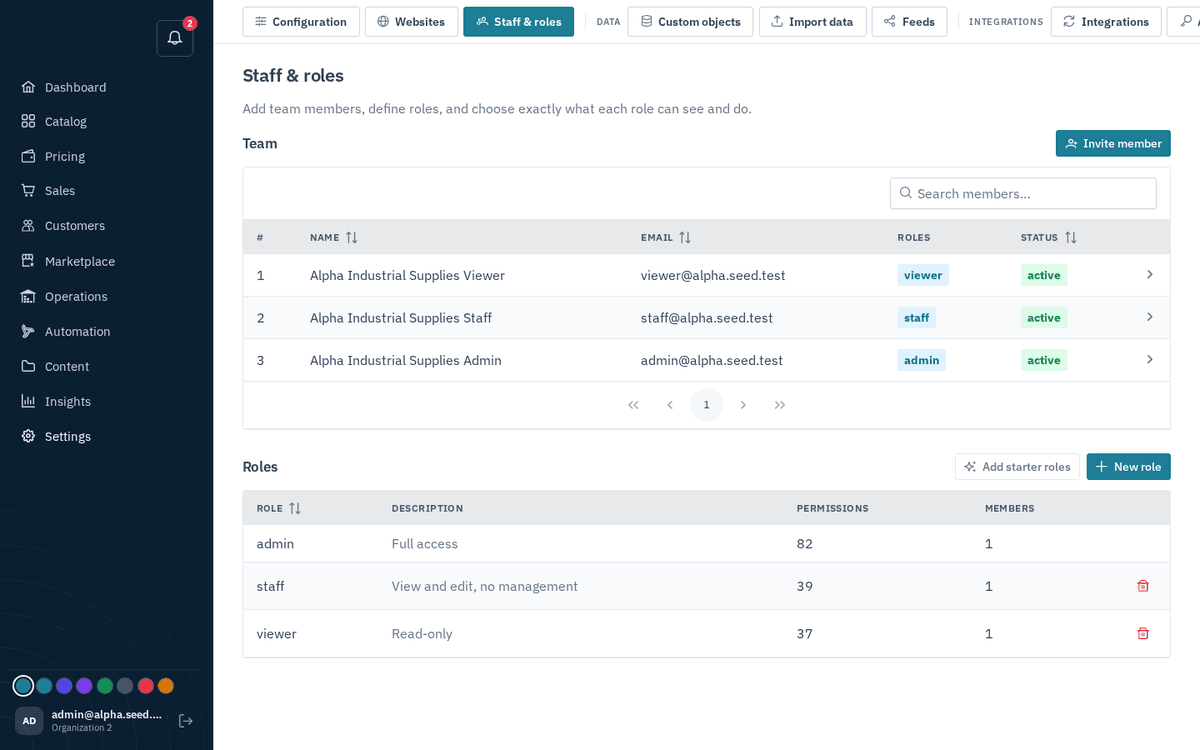
Settings → Staff & roles — invites, role matrix and per-permission control
Inviting a team member:
- Press “Invite member”.
- Enter Email, Full name, and pick their Roles (multi-select). The dialog notes: “A member’s access is the combined permissions of their roles.” and “We’ll email an invite link; they set their own password to join.”
- Press “Send invite”. A follow-up dialog — “Invitation sent” — shows the link so you can also share it directly. Invites last 14 days; the Pending invites section lists outstanding ones with a revoke button (“Revoke the invite for ‹email›? The link will stop working.”).
Editing a member: click their row — change the name, set a New password (“leave blank to keep current”; minimum 8 characters), adjust roles, and use the “Active (can sign in)” checkbox to disable leavers without deleting their history.
Roles and the permission matrix:
- “Add starter roles” creates a sensible starter set in one click — typically admin (“Full access”), staff (“View and edit, no management”), and viewer (“Read-only”). If they already exist: “Starter roles already exist”.
- “New role” opens a dialog with Name (“e.g. Sales rep”), Description, and a grouped permission checkbox matrix — each functional group has a group-level toggle plus per-permission checkboxes, with a live “(N selected)” count. Permissions come in pairs per area — a view permission (see the page) and a manage permission (change things) — so a role can read invoices without being able to record payments.
- Deleting a role asks: ‘Delete the “‹name›” role? Members keep their other roles.’ A role still assigned to people can’t be deleted (“Cannot delete — Role is in use”), and the built-in admin role can never be deleted.
tip
Sidebar sections and pages hide themselves from users who lack the view permission — so a well-scoped role automatically produces a simpler, safer console for that person.