Pages
Where: Content → Pages
Go to Content → Pages. These are “Block-based pages served to the storefront. Publish to make a page public.”
Before you begin
- Your Media library holds the images you want to place (see Media library).
- Set the storefront look first under Design so previews match.
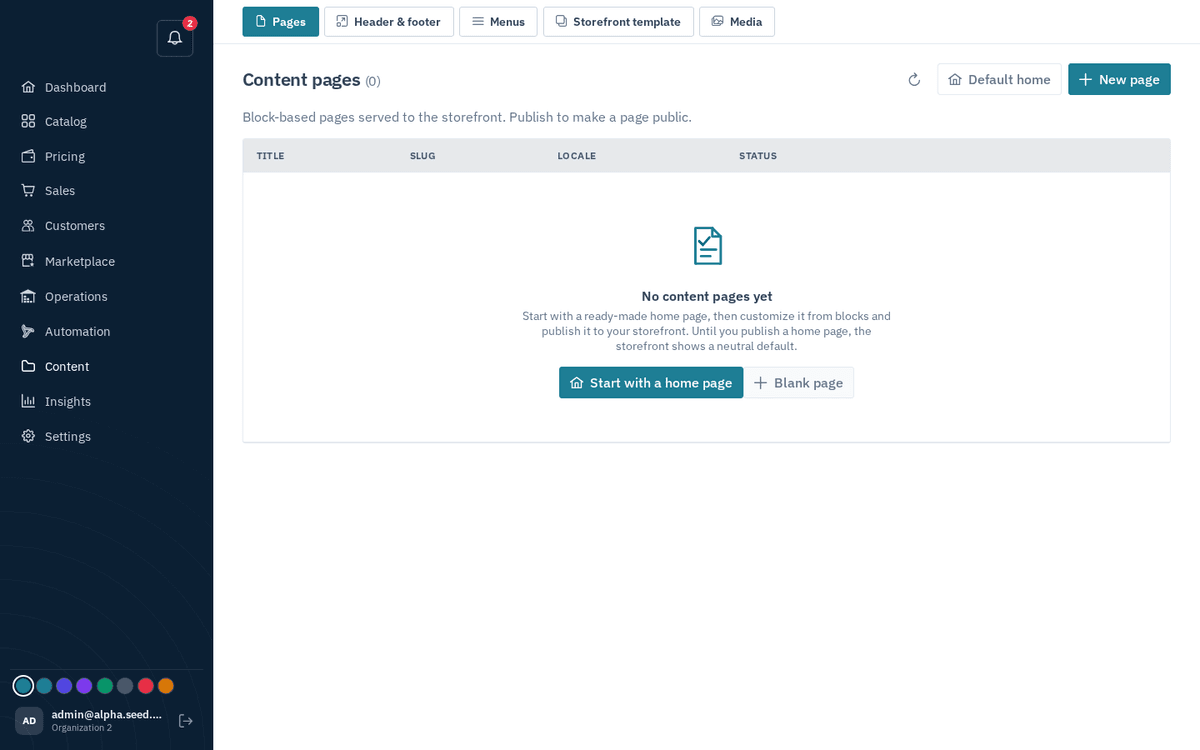
Content → Pages — block-based storefront pages; publish to go public
- Product shelves (New arrivals slider, Product spotlight, Product grid) fill themselves from the catalog, and each has editorial controls: Cards per row (0 lets as many cards fit as the screen allows), Pin these SKUs to show exactly those products in that order (for example the ones with clean packshots), and Hide these SKUs to keep specific products out of the automatic list.
- Trade kit blocks build a search-first B2B page from parts: Hero with search (a search box that lands on the catalog, or two buttons, beside a packshot on a white panel), Product showcase (copy beside pinned product cards with quantity + Add), Quick order band (a paste box that hands the lines to the quick order page), Trade account panel (benefits beside a proof card), Steps (numbered, in order) and Newsletter signup (one email box, with a line under it saying how you use the email). Slideshow, Features beside an image, Image collage + checklist and Cards with image cover the rest of a typical home page. Product shelves also have a Quantity + Add to cart on each card switch; adding works signed in and signed out.
- Category cards and Category list fill themselves with your biggest categories. Hide these categories takes names or link slugs, comma-separated — for example a catch-all such as Miscellaneous — and the next category takes the free place. The category itself, its products and its page stay as they are.
- “Default home” seeds a complete, ready-made home page (hero, category list, product sliders, new arrivals, industries, call-to-action) with the slug
home. “New page” starts a blank page with a single rich-text block. - On a fresh store the empty state offers both — “Start with a home page” / “Blank page” — and warns: “Until you publish a home page, the storefront shows a neutral default.”
- The table shows Title · Slug · Locale · Status (published green, draft amber, archived grey) with per-row Publish / Archive actions and a trash icon.
- Deleting is permanent — the dialog “Delete this page?” says: “‹title› and its blocks are removed for good. To take a page off the storefront but keep the work, archive it instead.”
Clicking a row opens the full-screen PageBuilder: a block palette on one side, the canvas in the middle, and an inspector for the selected block — plus a section library of pre-composed layouts, a media picker wired to your Media library, and page settings/SEO. Build, then Publish from the list.
Archive, don’t delete, whenever a page might come back — seasonal landing pages, promotions, event pages.
Category pages
Category page builds a landing page for one of your catalog categories. Pick the category in the Build a category page dialog; as it explains, "The page replaces the category's default layout at /c/<slug>. Keep the Product listing block where the catalog should appear." Edit the seeded blocks around that listing — an intro, a banner, sub-category tiles — and publish; the category's storefront address then serves your page instead of the plain listing.
Blog posts and guides
New post starts a blog post. It is built from the same blocks as a page, but it lives at /blog/<slug>, appears on your blog index at /blog (newest first), and gets an RSS feed at /blog/rss.xml. The Type column tells posts from pages, and Address shows where each one is served.
Draft a guide writes a buying guide for you. It suggests topics from what your buyers searched on the store and asked on WhatsApp over the last few weeks; pick one or type your own and press Draft guide. The draft answers the question first, then explains sizes, standards and which product suits which job, using only your own products and categories. It adds a Product spotlight pinned to the matching items, the questions buyers ask, and a Request a quote button. If your prices are quote-only, it never states a price. The draft opens in the editor unsaved: read it, correct it, then Save and Publish from the list.
To feature guides on your home page, add the Blog posts block (for example below your value points). It shows your newest published posts as cards, four across on a wide screen and fewer on smaller ones, with arrows at the edges to scroll through the rest. A post without its own share image shows the photo of the first product it features. Set the Kicker, Heading, Max posts, and the Link to all posts label (leave it blank to hide the link to /blog).
Each published post tells search engines and AI assistants it exists straight away. It is listed in your sitemap and in /llms.txt, and is marked up as an article with its questions as FAQs. Name the blog and give it an intro with the settings storefront.blog_title and storefront.blog_intro (Storefront wording); add a Guides link to your header or footer under Header & footer.
Inside the PageBuilder
- Blocks & layers — the palette on the left. "Click a block to add it, or drag it straight onto the page." The Patterns tab holds pre-composed sections; "Patterns drop in as normal sections — every part stays editable." Saved sections can be inserted as a copy (this page then owns it) or linked (editing the saved section updates this page too).
- The canvas in the middle, with Undo (Ctrl+Z) / Redo (Ctrl+Shift+Z) and a Preview width switch, and an inspector for the selected block on the right, including its style controls and a media picker wired to your Media library.
- AI: this section rewrites the selected block from a one-line brief and shows a preview you Accept — replace section or Regenerate. Generate page with AI drafts a whole page from a description — the prompt's own example is "A landing page for industrial tools — a hero, a promo banner for a clearance sale, and a grid of safety equipment." — and replaces the current blocks.
- Rich text edits in a Visual editor or as HTML. Text that contains a table always opens as HTML (This text has a table, so it is edited as HTML to keep the table intact), because the visual editor would flatten the table. Scripts, frames, styles and forms are refused in rich text; use the Embed or Video block for those.
- The canvas shows the page in the same frame as the live site: the home page full width, other pages inside the page margins, and blog posts in their article column under the title. Product, category and blog blocks are filled with your store's real products, categories and posts, and refresh as you change their settings. A block that would be empty on the live site (for example New arrivals when no product has a photo yet) shows a grey outline instead.
- Page settings — the Title, the web address (The page's address on your storefront), and Search: SEO title (keep it under ~60 characters), SEO description (aim for ~150 characters) with Draft with AI, and the Social share image (Open Graph) shown when the page is shared on WhatsApp, LinkedIn or X.
- Schedule — set Go live at and press Schedule: "The draft publishes itself at this time — save your edits first." Clear cancels it.
- History — a snapshot is taken each time you save. Restore loads a snapshot into the canvas; nothing changes until you save.
- Preview opens the page as buyers will see it; Save stores your work as a draft. Publish from the list.
Renaming a page's web address? Add a redirect from the old path first so bookmarks and search results keep landing.