Invoices
Where: Sales → Invoices
Issuing an invoice from the order
On the order’s Invoices tab, press “Issue invoice” — toast “Invoice issued”. The new invoice appears as a row; click it to open the full invoice page (Invoices).
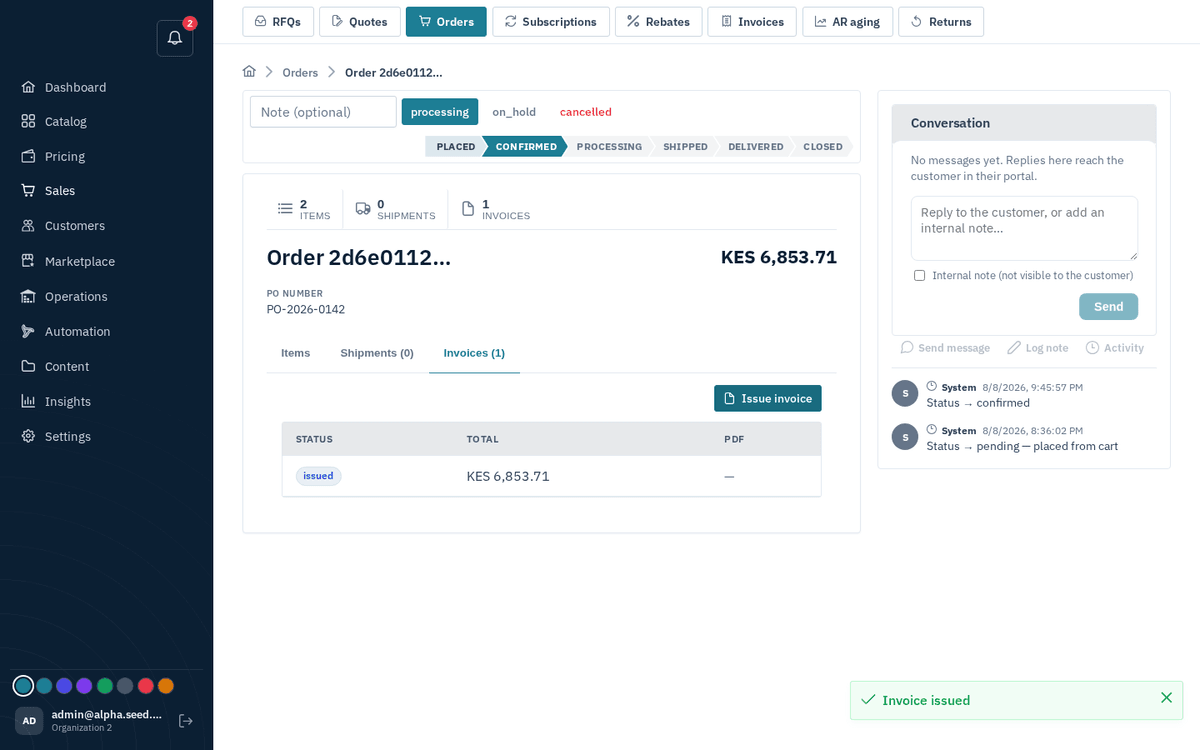
Issue invoice bills the order — it now appears on the Invoices tab
The invoice list
Go to Sales → Invoices. Columns: #, Reference, Customer, Status, Total, Balance (shown red while money is due), and Due date. The kanban view groups by status.
Search by customer, invoice reference or invoice id, and narrow by status (Unpaid means issued or overdue). Both run across every invoice, newest first, so an old unpaid invoice is one search away; the header and each kanban column show the full count, not just the page on screen. Clicking a column header sorts every matching invoice the same way, page after page.
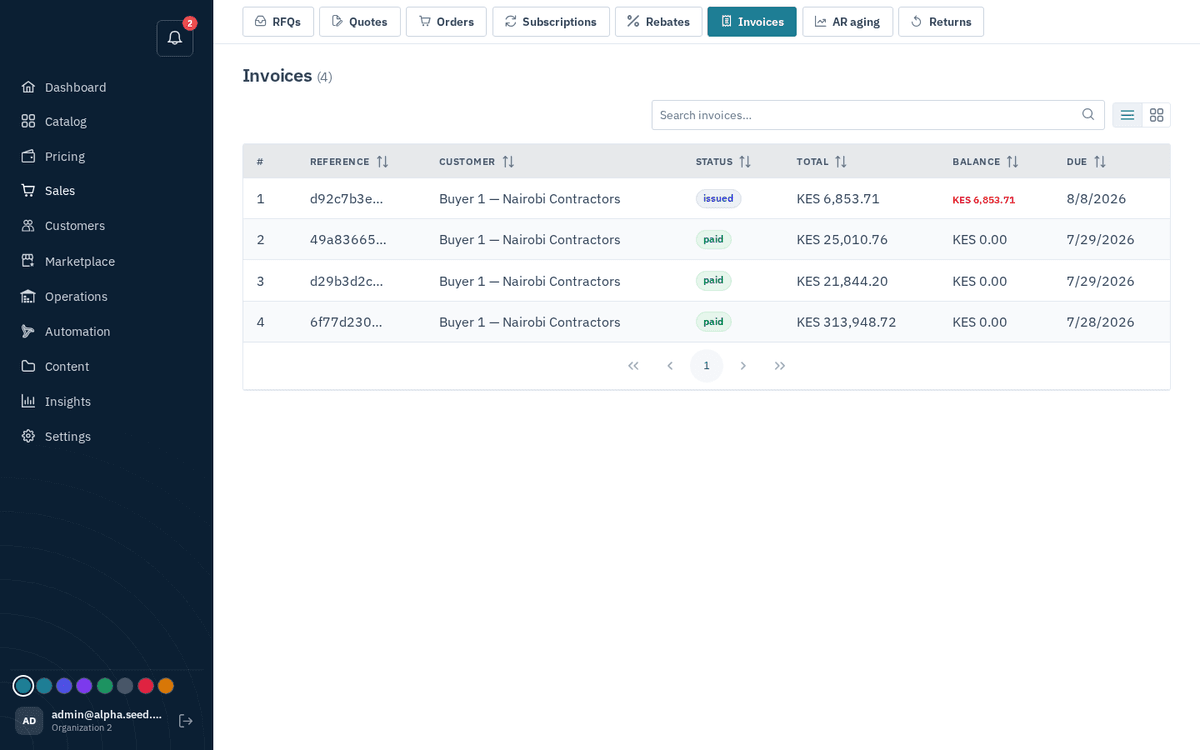
Sales → Invoices — status, totals, balances and due dates
| Invoice status | Meaning |
|---|---|
| draft | Created, not yet issued |
| issued | Billed — payable |
| sent | Delivered to the customer |
| partial | Some payment received, balance remains |
| paid | Settled in full |
| overdue | Past its due date with a balance (the dunning sweep flips these — AR aging) |
| void | Cancelled — no longer collectible |
The empty state: “No invoices yet — Invoices appear here once you bill confirmed orders…” — issue them from the order’s Invoices tab (Invoices).
The invoice page
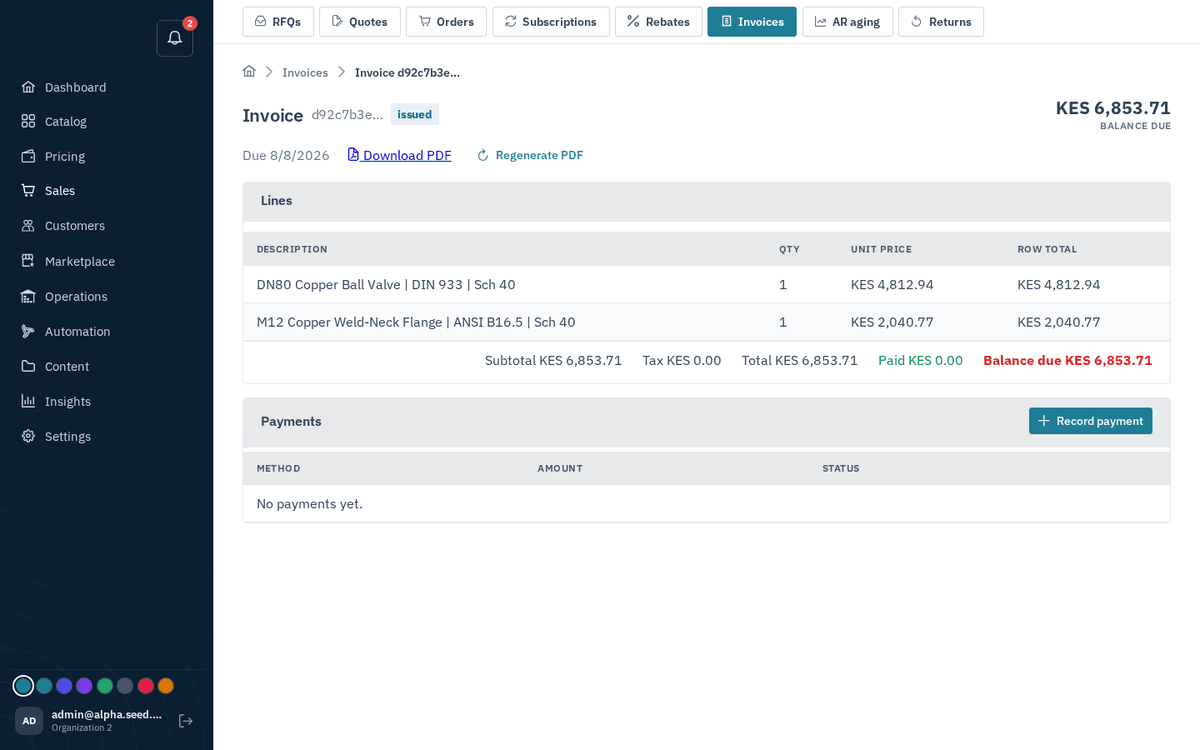
An invoice — balance due, lines, PDF download and payments
The header shows Invoice ‹ref› with its status tag, and — big, on the right — the Balance due figure (or “Paid in full”). Below: the due date, a “Download PDF” link, and a “Regenerate PDF” button (toast “PDF generation enqueued” — the PDF is rendered in the background and the link appears/refreshes shortly after). The Lines card lists what’s billed, with totals: Subtotal · Tax · Total · Paid (green) · Balance due (red).
KRA eTIMS
When the store's eTIMS device is registered (Pricing → Tax & shipping → KRA eTIMS), every invoice issued here is signed by KRA in the background. The invoice page shows the signing state: signed with KRA's receipt number and signature, pending while it is queued, or failed with KRA's reason and a Sign again button. A signed invoice's PDF carries the control unit id, receipt numbers, internal data, signature and the verification QR code KRA requires on a tax invoice. A credit note raised from a return is signed as a refund that refers back to the invoice it reverses.
Each product is registered with KRA the first time it appears on a signed invoice, under the default item class code set on the device. A buyer's KRA PIN is taken from the customer's tax id, so keep that filled for business customers.