Inventory
Where: Operations → Inventory
Before you begin
- Products exist in the catalog — stock is recorded against a product and a warehouse.
- You have at least one warehouse (add one on this page).
Warehouses
Go to Operations → Inventory. The Warehouses section lists your locations with an Add button (dialog “New warehouse” — just a Name). Click a warehouse row to open its detail page.
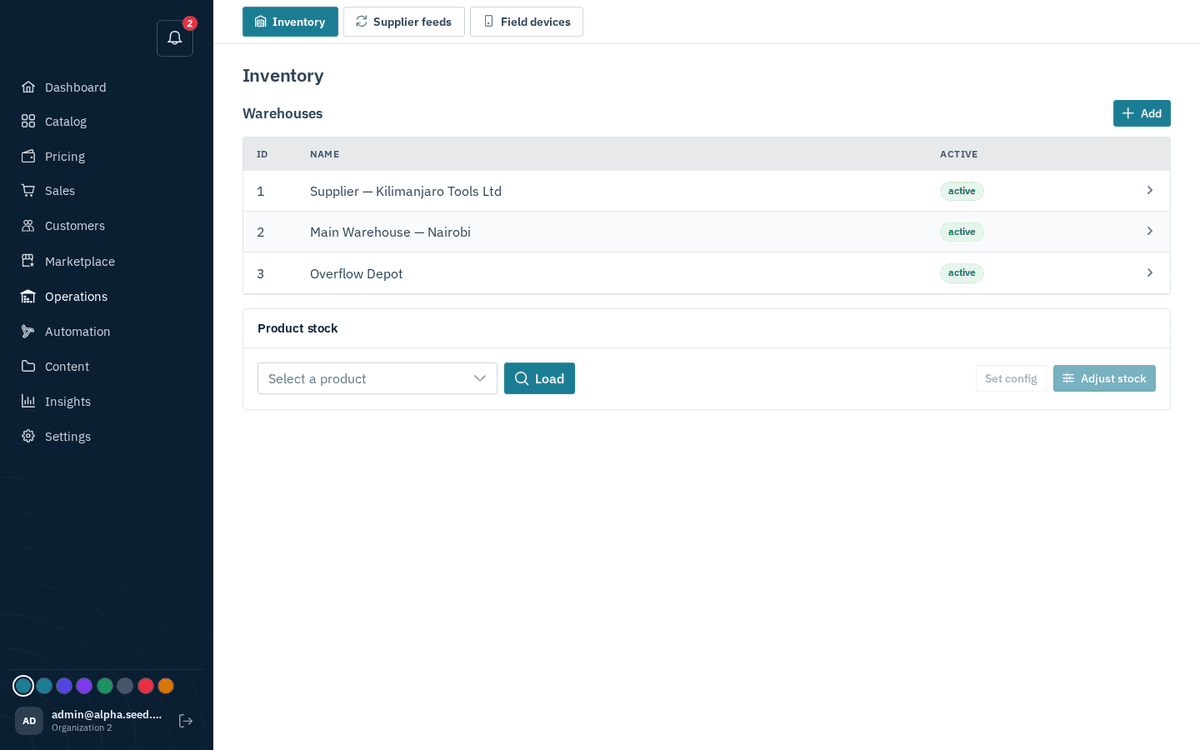
Operations → Inventory — warehouses and the product stock panel
Until you add one: “No warehouses — add one to track stock.”
Warehouses you do not sell from
Not every location holds goods you can sell. A damages bin, a quarantine bay and a showroom all hold real stock that must never be promised to a buyer. The Sells from column on each warehouse toggles this: switch it to not for sale and that warehouse's stock stops counting toward availability everywhere — the storefront, quotes, checkout and the never-oversell checks — while staff still see the goods and where they are.
This matters most when an ERP feeds your stock. SAP Business One, for instance, commonly carries a Damages warehouse beside the floors you sell from; each arrives here as its own warehouse, and marking the damages one not for sale is all that is needed. Stock still in transit usually needs no change: it has no on-hand quantity yet, so it adds nothing to availability, and buyers can still request a quote against it.
Checking and adjusting a product’s stock
The Product stock panel works product-first:
- Pick a product in the “Select a product” box and press Load.
- The levels table shows, per warehouse: On hand, Reserved (held for confirmed orders), Available (on hand minus reserved), Reorder threshold, and Backorder allowance — plus per-row config and history icons. A product with no rows yet shows: ‘No stock levels for this product yet (untracked). Use “Adjust stock”.’ Untracked products can always be sold; tracking starts the moment you record a movement.
Adjust stock (button enabled once a product is loaded):
- Press “Adjust stock”.
- Choose the Warehouse, the Type — receipt (goods in), return (goods back), or adjustment (count correction) — and the Quantity (signed; negative to decrease).
- Press Apply — toast “Movement recorded”. (Validation: “warehouse and quantity required”.)
Level config:
- Press “Set config”.
- Choose the Warehouse, set the Reorder threshold (at or below this, the product appears in the dashboard’s Low stock panel), and tick Allow backorder if orders may confirm even without stock.
- Save — toast “Config saved”.
The movement ledger. Below the levels, every historical movement: Type, signed Qty, Ref (the order/shipment/return that caused it), and when. If a number ever looks wrong, the ledger tells you exactly what happened — corrections are made with an adjustment movement, never by editing history.
Warehouse detail
A warehouse’s own page shows “‹N› product lines stocked here” and a Line inventory card: filter with “Filter by product or SKU…”, the same level columns, per-row Adjust stock and Level config shortcuts, and Load more paging for big locations.