Signing in
Where: Your admin console address — it always ends in /console
Opening the console and signing in
The admin console is a website. Open the admin console address your operator gave you — it always ends in /console. If you are not signed in, you land on the sign-in page.
- Enter your work email in the Email field.
- Enter your password in the Password field.
- Press Sign in.
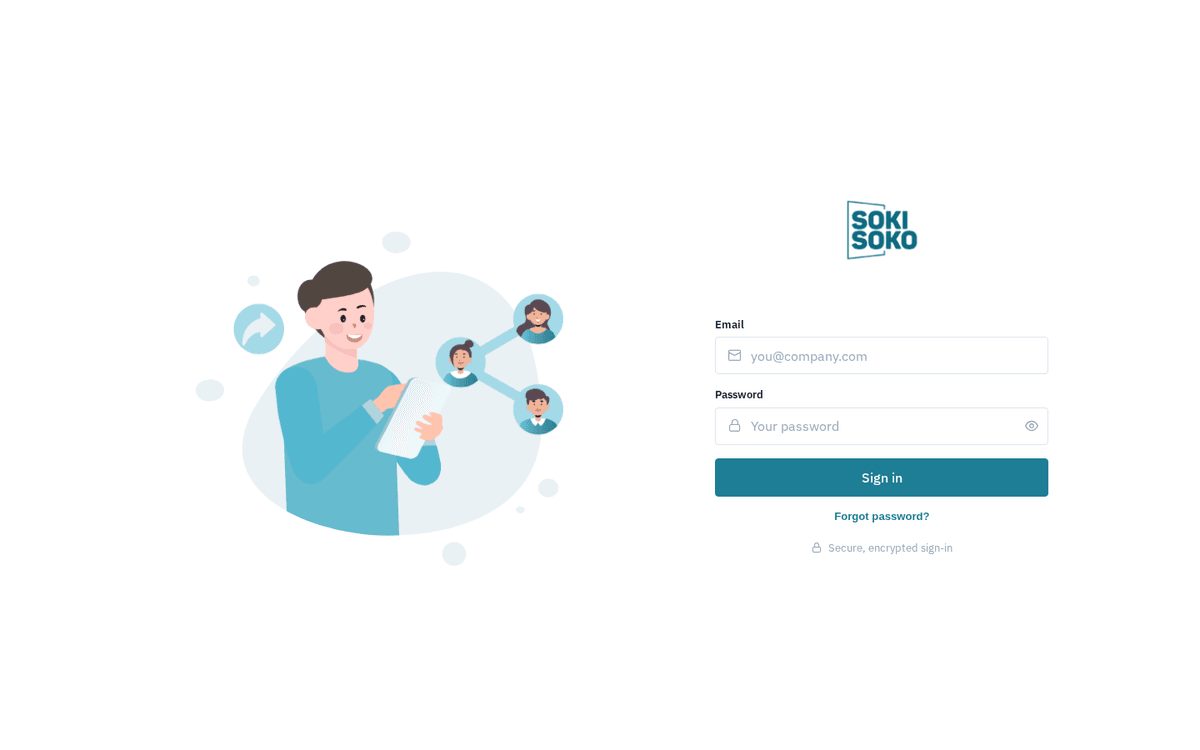
The admin console sign-in page
The sign-in page is branded for your organization. Below the form you may also see a Forgot password? link, and on the shared platform address, a Create your organization link for brand-new companies — see Create your organization.
Wrong password and other sign-in errors
If the email/password combination is wrong, a red banner appears above the form — usually “Invalid credentials”. Sokisoko deliberately shows the same message whether the email is unknown or the password is wrong, so nobody can probe which emails exist. Check for typos and caps lock, then try again.
If you retry too many times too quickly you may see “too many requests, slow down”. The sign-in page is rate-limited to protect your account — wait a minute and try again.
Signing in when your email belongs to more than one organization
Some people work for more than one company on the same Sokisoko platform (for example, an accountant serving two sister businesses). If your email exists in multiple organizations, your first sign-in attempt fails with a message mentioning “multiple organizations”, and a new field appears on the form:
- Fill in Organization ID (a number, e.g. 1). Your operator or the person who invited you can tell you which number is which company.
- Press Sign in again.
If you always open the console through your company’s own web address (rather than a shared platform address), the right organization is detected automatically and you will never be asked for an Organization ID.
Forgot your password
- On the sign-in page, click Forgot password?.
- A dialog titled “Reset your password” opens, with the note: “Enter your account email and we’ll send a link to set a new password.”
- Enter your Email. Only fill in Organization ID if you know your email is in more than one organization (the field’s own hint says: “Only needed if your email is in more than one organization.”).
- Press “Send reset link” (or Cancel to back out).
- You will always see the confirmation toast “Check your email” — “If that account exists, we’ve sent a password reset link.” This wording is deliberate: the system never confirms or denies whether an email is registered.
- Open the email and follow the link. On the reset page, enter a New password (“At least 8 characters”) and the same value in Confirm password, then press “Set new password”.
- On success you’ll see “Your password has been reset.” with a “Go to sign in” button.
Reset links are valid for about one hour. An old or reused link shows “This reset link is invalid or has expired.” — just request a fresh one.
Accepting a staff invitation
If a colleague invited you to the console, you’ll receive an email with an invitation link (invitations are valid for 14 days by default).
- Open the link. The page shows your Email already fixed.
- Choose a Password (at least 8 characters) and repeat it in Confirm password.
- Press “Activate account”. You can now sign in normally.
If the page says “Could not accept the invitation.”, the link has probably expired or been revoked. Ask the person who invited you to send a new one from Settings → Staff & roles.
Session expiry and signing out
Your session lasts a fixed time (typically 24 hours — your operator sets this). When it expires, the very next thing you do bounces you back to the sign-in page. Nothing is lost on the server; sign in again and the console returns you to the page you were trying to open.
To sign out yourself, click the Sign out icon at the very bottom of the left sidebar, next to your account chip (your initials, email, and organization).