Orders
Where: Sales → Orders
Before you begin
- Stock is tracked for the products you sell if you want confirm to reserve it (see Inventory).
- Approval routing tiers are set if buyers' held orders should route by amount (see Approval routing).
The order list
Go to Sales → Orders. Like most sales lists it offers list and kanban views; the kanban columns follow the lifecycle draft → pending → on_hold → confirmed → processing → shipped → delivered → closed → cancelled.
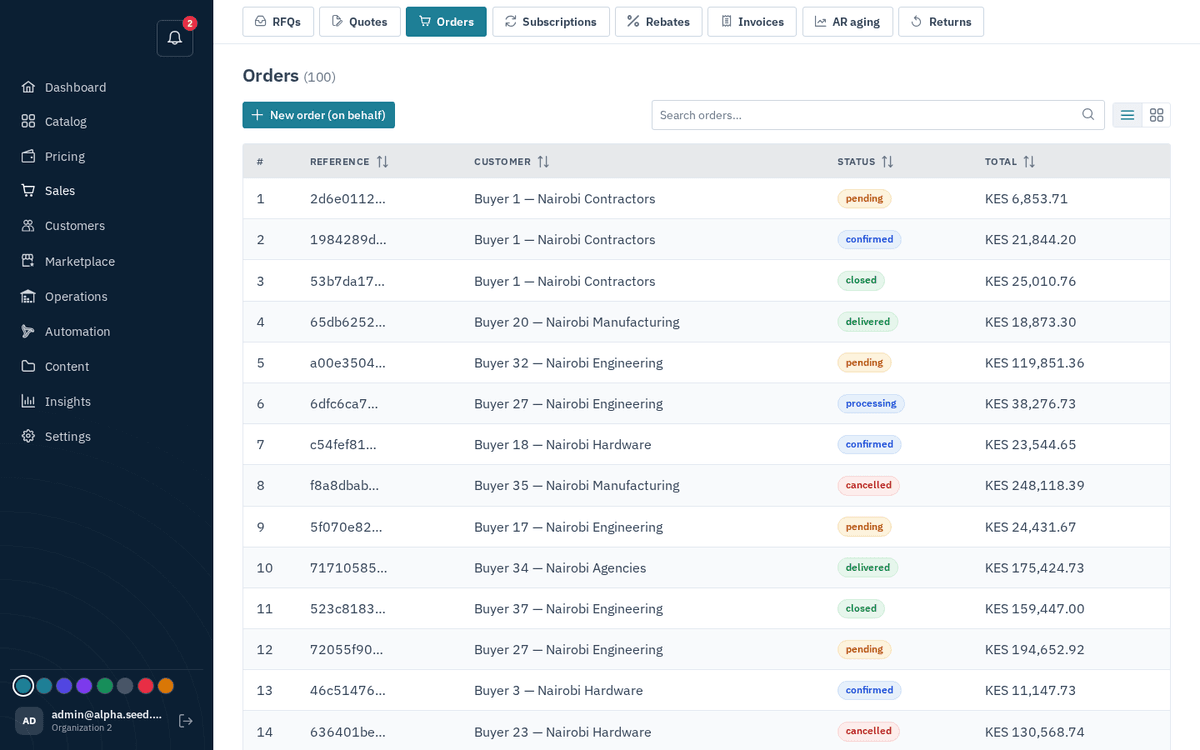
Sales → Orders — list or kanban across the whole lifecycle
Orders arrive three ways: buyers check out on the storefront, buyers accept quotes, or you place one on a buyer’s behalf. Orders placed by staff carry a “rep-placed” tag.
The search box covers every order, not just the page on screen: type an order number (ORD-1a2b3c4d or its first few characters), a customer name or a PO number. The status menu beside it narrows the list to one status and shows how many orders sit in each. The count in the header and on each kanban column is the full total.
Placing an order on behalf of a customer:
- Press “New order (on behalf)”.
- Pick the Customer, or press “New customer” beside it for a buyer who has never ordered: the same form as Customers → New customer opens on top, and once saved the new customer is already picked. Then build the “Line items” table: per row a Product (searchable), Qty, Unit price, a computed Total, and a remove button; “Add line” adds rows.
- Save. Validation if incomplete: “A customer and at least one complete line are required”. The new order opens immediately.
The order detail page and the status ribbon
Shipments and live delivery. The Shipments tab creates full or partial shipments as before. Press Delivery on a shipment to assign the driver, vehicle and ETA; the destination is the pin the buyer dropped at checkout. Copy driver link goes to the driver's phone (start, share location, nearly there, delivered, could not deliver) and Copy tracking link goes to the buyer, who also sees Track delivery on their order. The whole run is described under Deliveries.
Deleting a cancelled order. A cancelled order that nothing moved on — no shipment, payment, return or credit note, and no invoice other than a void one — shows a Delete order button beside its status tag. It exists for mistakes, such as an order created from a quote that should never have gone out; the confirmation dialog (Delete order → Delete) removes the order, its void invoices and its conversation for good, and the toast reads Order deleted. Anything with real records stays: the server answers this order has a shipment, payment, return, credit note or an invoice that is not void — it stays as the record.
Open any order. The top shows the stage ribbon — Placed → Confirmed → Processing → Shipped → Delivered → Closed — with the current stage filled. Statuses that sit off the main path (on_hold, cancelled) appear as a tag beside the ribbon rather than on it.
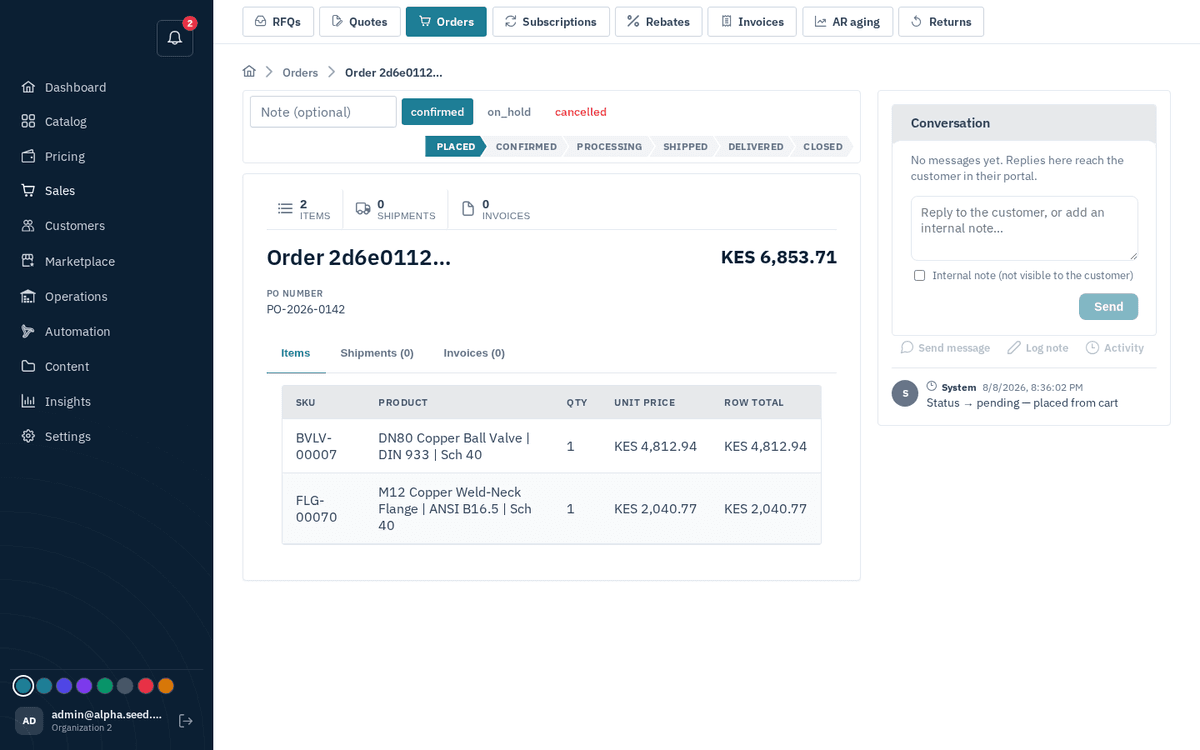
An order — status ribbon, items, transition buttons and the activity rail
Below the ribbon: tab-style smart buttons — Items, Shipments (N), Invoices (N) — plus meta fields (PO number, Requested delivery, From quote #N where applicable) and, on the right, the Conversation rail: a message thread that reaches the customer’s portal (with an “Internal note (not visible to the customer)” checkbox) and a read-only activity timeline of every status change (“Status → x — note”).
Moving an order forward — transitions, holds, cancel
Transitions are buttons labelled with the literal next status. Type an explanation in the “Note (optional)” box first if you want it recorded on the timeline. Which buttons you see depends on where the order is:
| Current status | Available buttons |
|---|---|
| pending | confirmed · on_hold · cancelled |
| confirmed | processing · on_hold · cancelled |
| processing | shipped · on_hold · cancelled |
| shipped | delivered |
| delivered | closed |
| on_hold | confirmed · cancelled |
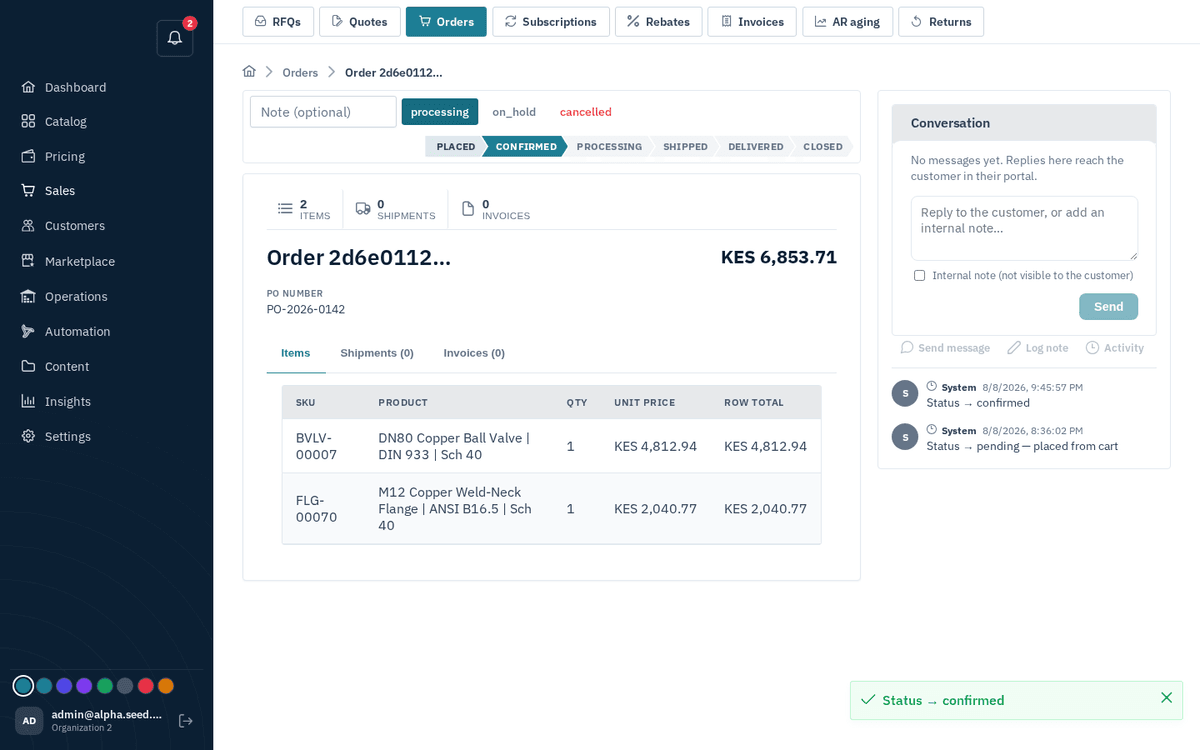
Transitions are buttons named for the next status — pending becomes confirmed
A successful click toasts “Status → ‹status›”. A refused one toasts “Transition failed” with the reason. The workflow engine enforces real business rules, so some refusals are by design:
- Confirming reserves stock. If a tracked line can’t be covered, confirm fails with an insufficient-stock message — receive stock or allow backorders first (Inventory).
- You can’t mark an order shipped until shipments cover every line — the error says to “create shipments covering every line before marking the order shipped”. Create them in Shipments.
- Approval guards can block confirm. If the order exceeds the buyer’s spending limit, confirm is “blocked” until the buyer’s own approver releases it (see below).
- Cancel is thorough: it releases stock reservations, voids any unpaid invoice, cascades cancellation to marketplace vendor sub-orders, and reverses promotion redemptions.
About holds. Orders arrive on_hold automatically when they trip a limit at placement: over the buyer’s personal spending limit, or over the company’s credit limit (counting open invoices and orders). Held orders wait for an approver at the buying company to approve (releasing the order back to pending) or reject (cancelling it) — that’s buyer self-service, not your queue. Your Approval routing tiers (Automation) decide how senior that approver must be for a given amount. You can also use on_hold manually any time you need to pause an order mid-flight, then confirmed to resume or cancelled to end it.