Shipments
Where: Sales → Orders → an order → Shipments tab
Ship from the order’s Shipments tab.
- Press the create-shipment button. The dialog asks for:
- Carrier (e.g. DHL, G4S, your own fleet’s name),
- Tracking #,
- Ship from warehouse (placeholder “Default warehouse” if you don’t choose),
- and per-item quantities, under the hint: “Quantities to ship (capped at ordered minus already shipped):” — so partial shipments are first-class; ship what you have now and the rest later.
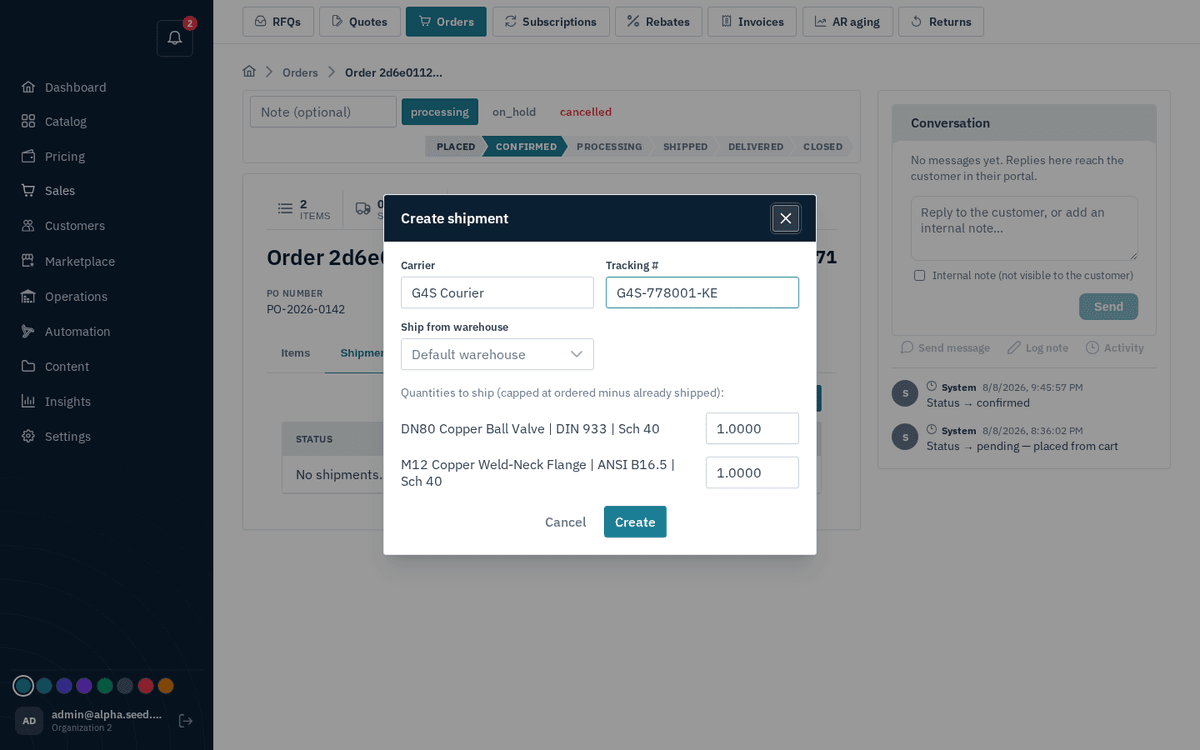
Create shipment — carrier, tracking number, source warehouse and per-item quantities
- Press Create — toast “Shipment created”. The shipment appears as a row with its own advance buttons: a pending shipment offers shipped / returned; a shipped one offers delivered / returned; a delivered one offers returned.
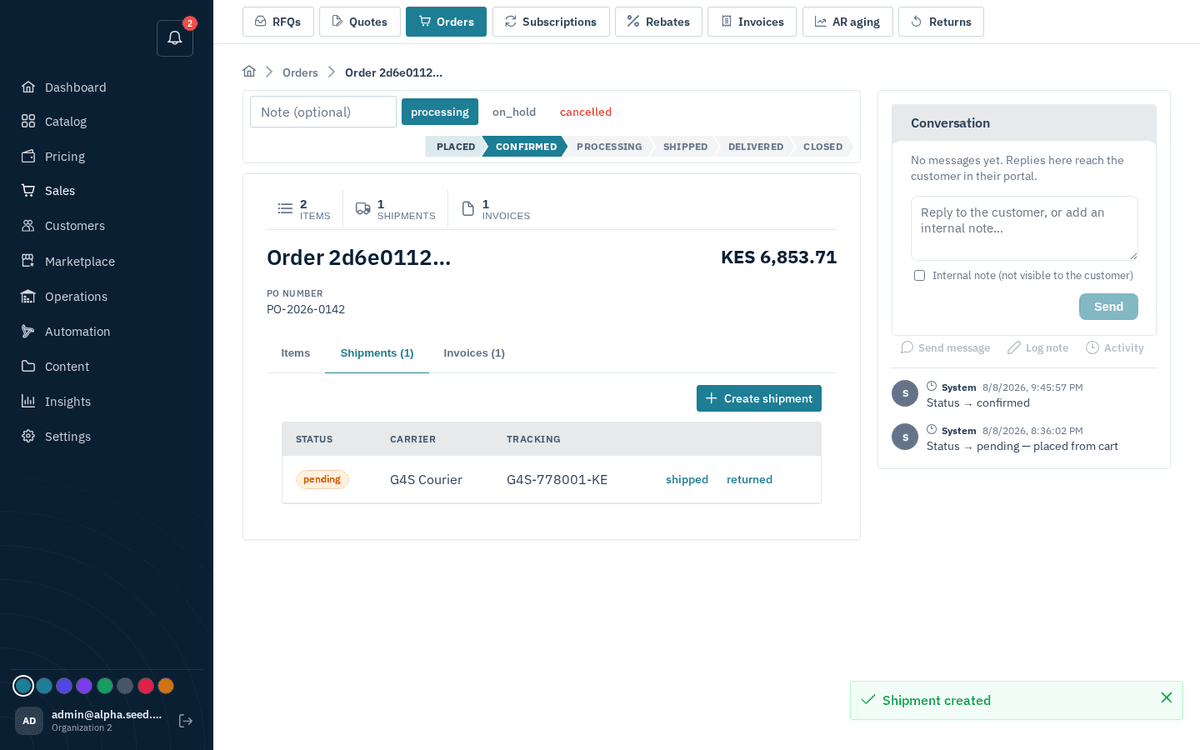
The shipment appears with its own advance buttons — shipped, delivered, returned
- Once shipments cover every ordered line, the order-level shipped button will succeed. The buyer sees the carrier and tracking number on their order tracking page.
tip
Shipping draws stock from the chosen warehouse and converts the reservation into a real deduction — your inventory ledger (Inventory) records it automatically.