RFQs
Where: Sales → RFQs
The RFQ inbox
Go to Sales → RFQs. Incoming requests appear as a list or a kanban board (toggle at the top) with columns submitted → quoted → accepted → declined → closed. The search box covers every request by RFQ number (RFQ-1a2b3c4d or its first few characters), customer name or the request’s notes, and the status menu narrows the inbox to one status with a count per status.
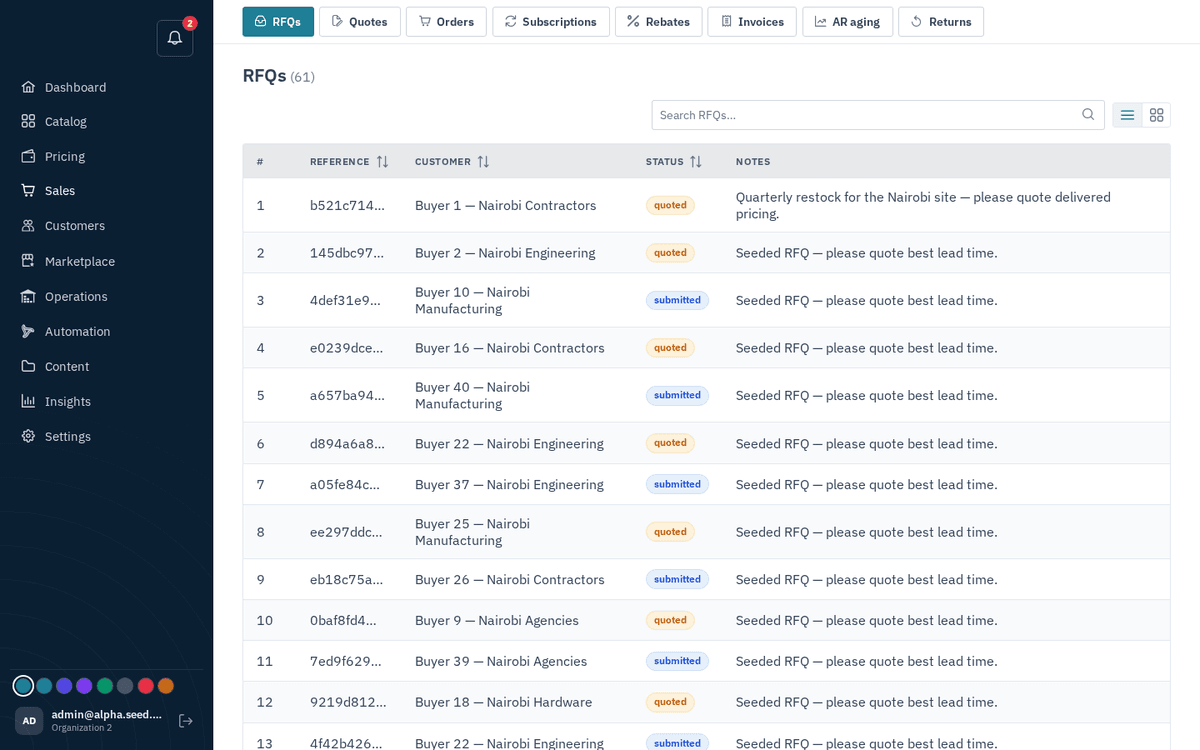
Sales → RFQs — inbound requests for quote, list or kanban
The empty state explains the page: “No RFQs yet — Requests for quote submitted by customers land here, ready for you to turn into quotes.”
Requests arrive from three doors: the storefront Request a quote page, the assistant, and the contact form — an enquiry that asks for a quotation and names quantities is turned into an RFQ on arrival, with the items matched to your catalog as lines and the rest of the message in the notes (see Leads).
| RFQ status | Meaning |
|---|---|
| submitted | The buyer sent it — waiting for you |
| quoted | You’ve sent a quote for it |
| accepted | The buyer accepted a quote — an order exists |
| declined | The buyer declined |
| closed / expired / cancelled | No longer active |
Reading an RFQ and creating a quote
- Click an RFQ to open it. The header shows RFQ ‹ref› and its status tag; the “Requested items” table lists SKU, Product, Qty, Unit, Target price (what the buyer hopes to pay), and any per-line note.
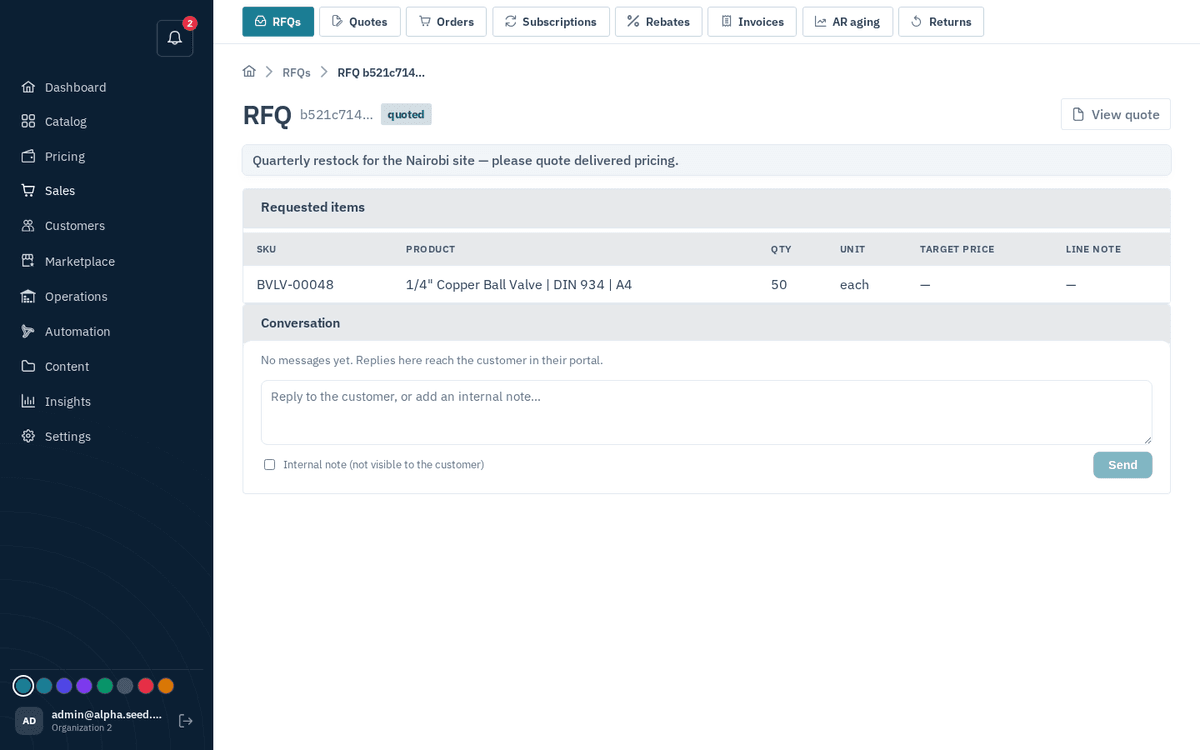
An RFQ — requested items with quantities, targets and buyer notes
- If the status is submitted, press “Create quote”. Sokisoko drafts a quote pre-filled from the RFQ’s lines (toast “Quote drafted from RFQ”) and takes you straight into the quote editor. If the RFQ was already quoted, the button reads “View quote” instead.
Requests from visitors without an account
A visitor can request a quote without signing up: the form asks for a name, an email and the lines, and the platform finds or creates the buyer account behind that email so the quote has somewhere to land. An email that already has an account is not turned away — the request is filed on that account and the visitor is told to sign in (or use Forgot password) to follow it. No session or token is ever handed to the visitor; they only ever see the quote by signing in or through the emailed link.
Closing a request you will not quote
A duplicate request, or one the buyer withdrew by phone, should not sit in the inbox counting as waiting past a day. Open it and press Close request, adjust the reason (it defaults to Duplicate of another request) and confirm. The RFQ moves to cancelled, the reason is posted on the request's thread where the buyer can read it, and the buyer gets a notification. A request that already has a quote cannot be closed — the quote is its record; supersede it with a new version instead.
Draft quotes — let the automation do the pricing
You don’t have to price every RFQ by hand. The prebuilt automation “Draft a quote for new RFQs” (Automation) watches for incoming RFQs, prices every requested line from the buyer’s own price lists into a draft, and alerts the sales team to review it. The alert says what the draft still needs: ready to review when every line is priced, the unpriced lines when some have no price, or nothing matched the catalogue when the buyer described parts you don’t list.
The automation never sends. A quote reaches the buyer only when a rep opens the draft, checks the lines and presses Send — the system assists, a person decides.
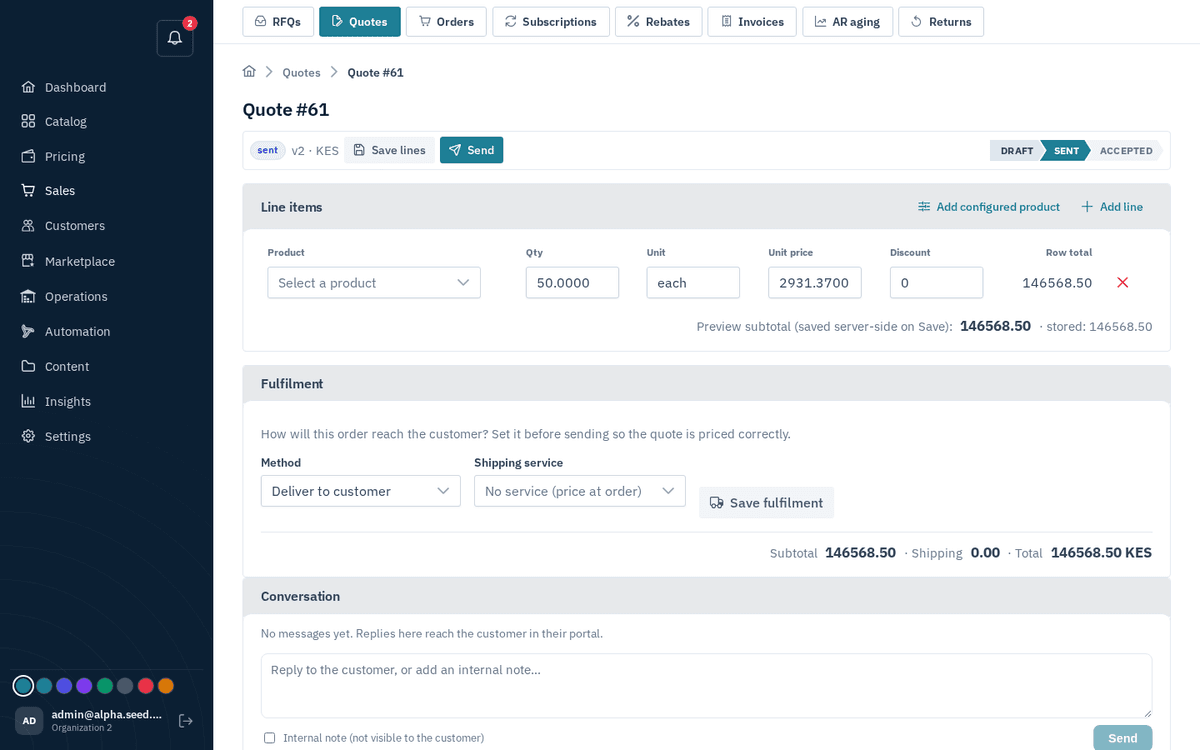
The quote editor — this quote was priced into a draft by the “Draft a quote for new RFQs” automation and sent by a rep
Flip this automation on and every RFQ arrives already priced — you only check and send. Turn it on at Automation → Prebuilt automations.