Payments and refunds
Where: Sales → Invoices → an invoice → Payments card
Payment reports from customers
Customers tell you they have paid from three places, all landing as claims for you to accept
or reject: the Paid already? link on their invoice page and in the invoice email, the
reminder emails' link, and a WhatsApp reply carrying an M-Pesa code. Accepting a claim books the
payment; the payment details they saw come from billing.payment_note under Configuration.
Recording a payment
The Payments card shows every payment against this invoice. While the invoice is collectible (balance above zero and not void) it offers “Record payment”; once settled, it simply reads “Settled in full”.
- Press “Record payment”.
- The dialog fields:
- Customer — prefilled.
- Method — card / ach / invoice / po / mpesa.
- Currency and Amount — the amount defaults to the outstanding balance; lower it for a partial payment.
- Reference — “bank / M-Pesa receipt, blocks duplicate entry”. Always fill this in: the same reference can’t be recorded twice, which protects you from double-keying a receipt.
- Save — toast “Payment recorded”. Payment rows show Method, Amount, and Status (captured green, refunded grey, failed red).
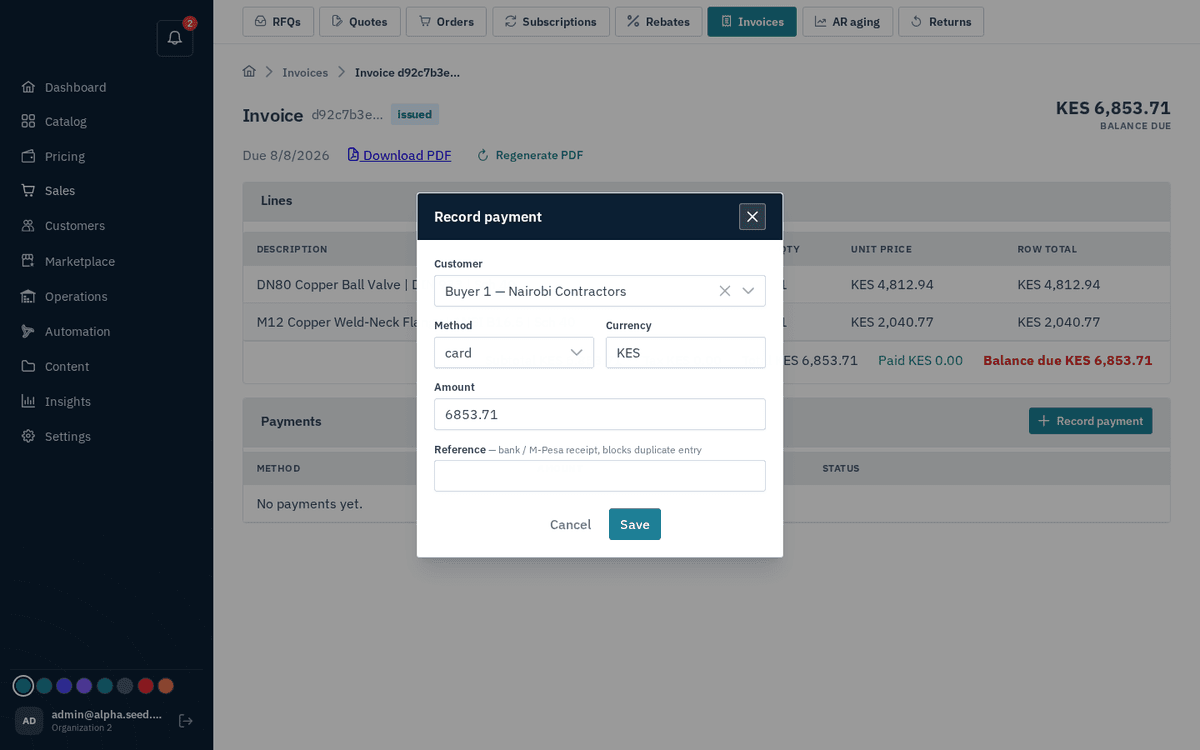
Record payment — method, amount (defaults to the balance) and a reference
Buyers can also pay their own invoices online from the storefront (card, or mobile money where enabled); those payments appear in this same card automatically.
Refunds
On any captured (or authorized) payment row, press the Refund text button. The refund is sent to the payment gateway; if it can’t be processed you’ll see “Refund failed” with the reason. Refunded payments turn grey in the list.
Money from a statement
Receipts that arrive without an invoice number — an M-Pesa or bank transfer — are matched to invoices on Sales → Reconcile, from a statement you import. See Reconcile.