Company accounts
Where: Customers → Customers → a company
Click a customer to open its page: an overview (Tax ID, Payment terms, Credit limit, Group, and the company hierarchy if it has parent/child companies), smart-button tabs, and a right-hand chatter rail.
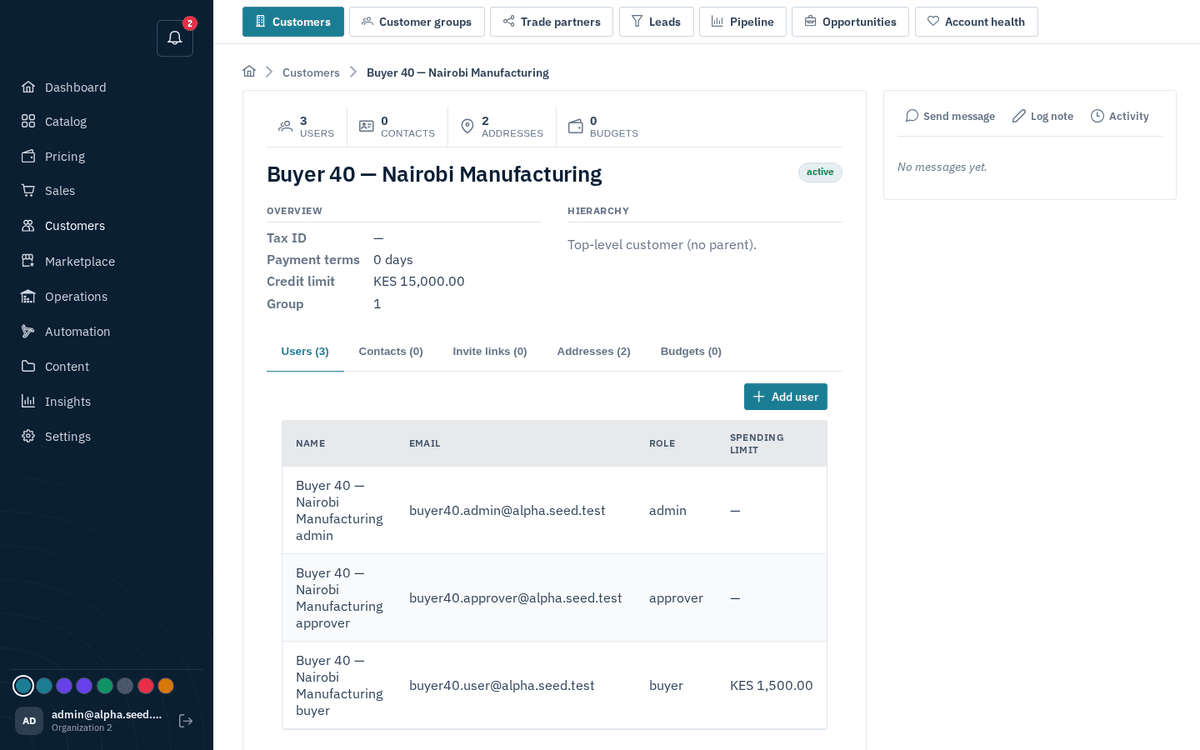
A company account — users, contacts, invites, addresses, budgets and chatter
Users tab. The people at this company who can sign in to the storefront.
- Press “Add user”.
- Fill in: Full name, Email, Password (with a Generate button), Role — buyer / approver / admin — and an optional Spending limit. Tick “Email them a link to sign in to the storefront” to notify them.
- Save — toast “User added & link emailed” (or “User added”).
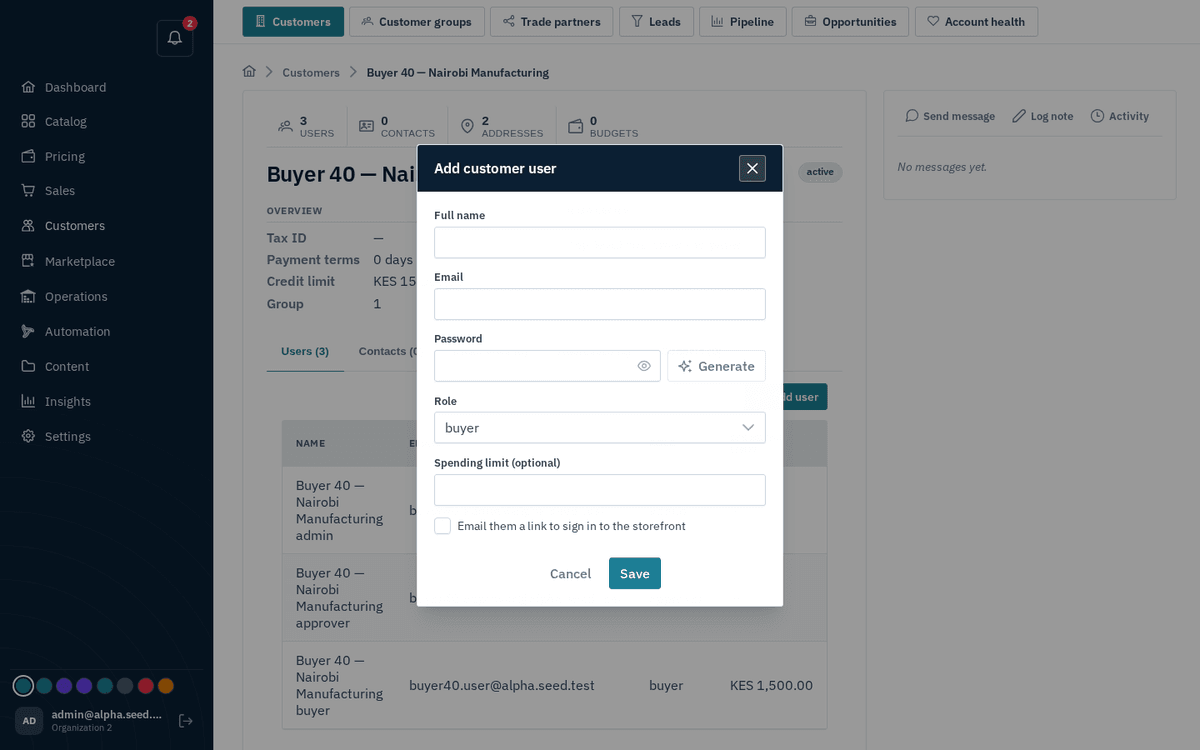
Add customer user — role (buyer/approver/admin) and an optional spending limit
| Company role | What they can do on the storefront |
|---|---|
| buyer | Browse, quote, and order — held for approval when over their spending limit |
| approver | Everything a buyer can, plus approve or reject held orders (but never their own) |
| admin | Everything, plus manage the company’s own users, roles, and limits |
A Spending limit is per-user: any order that user places above the limit goes on_hold until a company approver releases it. Leave it empty for unlimited.
Contacts tab. Non-login people worth tracking (receiving clerk, finance contact): “Add contact” with Full name (required), Job title, Email, Phone.
Invite links tab. Instead of creating each user yourself, generate a self-registration link: press “New invite link”, choose the Role, Expires in days (default 14), and an optional Spending limit. The link is copied to your clipboard automatically — share it and the company’s buyers register themselves on the storefront with that role and limit. The hint on the tab says exactly this: “Share a link so this company’s buyers can register themselves on the storefront.” Each link shows its status (active / expired / revoked) with copy and revoke buttons.
Addresses tab. “Add address”: type billing or shipping, a default checkbox, and the address lines (line 1/2, city, region, postal code, country). Default addresses pre-fill the buyer’s checkout.
Budgets tab. Procurement spend caps: “Add budget” with Cost center (“blank = company-wide”), Period (monthly / quarterly / annual), Amount, and Currency. Budgets are enforced at the buyer’s checkout — an order that would blow the period’s budget is blocked outright (not just held). Until you add one: “No budgets — spend is uncapped.”
The chatter rail. Post notes on the right, and log structured activities with the Activity dialog — type (note / call / email / meeting / task), a required Subject, and a body — toast “Activity logged”. This is the account’s running history for the whole team.