Customers
Where: Customers → Customers
Before you begin
- Customer groups exist if you segment pricing by group (see Customer groups).
- Decide payment terms and credit limit with the customer — both are enforced automatically.
The customer list
Go to Customers → Customers. Columns: #, Name, Phone, Tax ID, Terms (payment terms in days), Credit limit, Active tag, and pencil/trash. Deleting asks: ‘Delete customer “‹name›”? It will be soft-deleted.’
Search and paging both run on the server, so they cover the whole book rather than the page you can see, and the # column numbers accounts continuously — page two of 25-row pages starts at 26. The arrows on Name, Tax ID, Terms, Credit limit and Active sort the whole book too; click a third time to drop the sort and go back to alphabetical. (Phone comes from the account's main contact rather than the account itself, so it does not sort.)
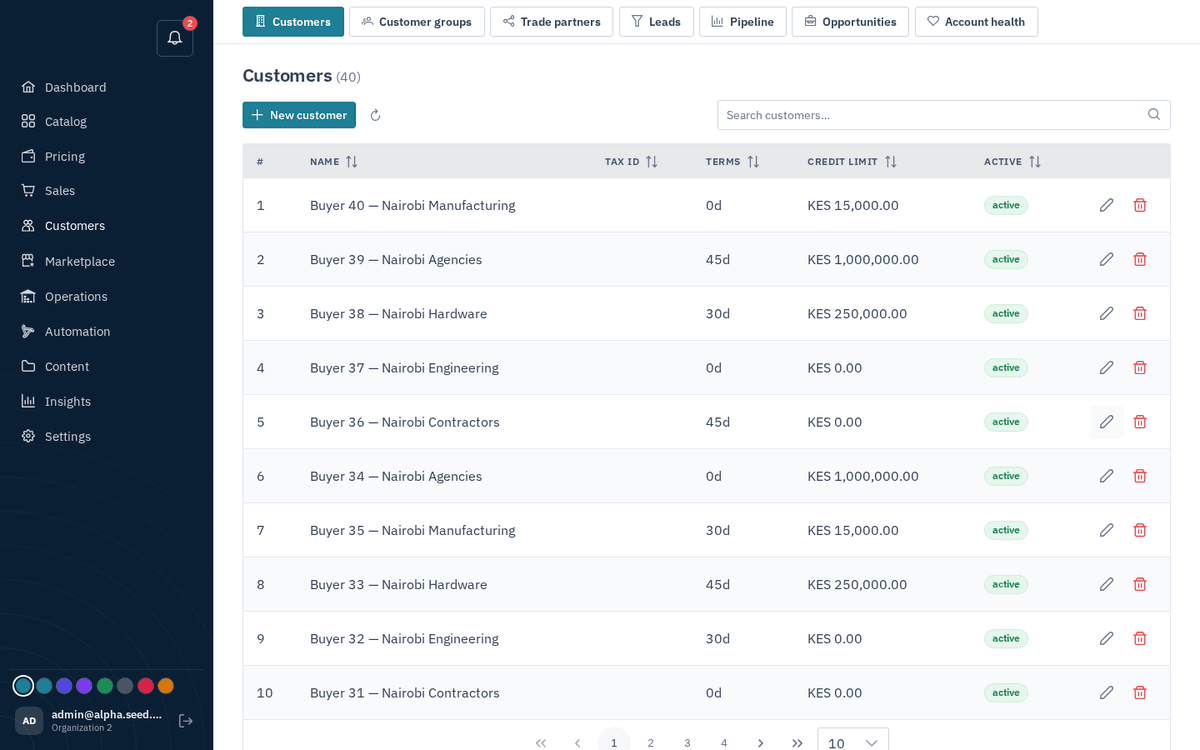
Customers — company accounts with terms and credit limits
Creating a customer — with an optional storefront login
- Press “New customer”.
- Fill in: Name (required — “Name is required” appears if blank), Tax ID, Group (placeholder “— none —”), Payment terms (days), and Credit limit.
- To let this customer order online right away, tick “Create a storefront login so this customer can order online” under the “Storefront login (optional)” divider. Three more fields appear: Contact name, Email, and Password (press Generate for a strong one), plus the checkbox “Email them a link to sign in to the storefront”.
- Press Save. Toasts confirm each part: “Created”, then “Login created & link emailed” (or “Storefront login created” if you didn’t email).
Credit limit 0 means unlimited. A positive credit limit is enforced automatically — an order that would push the company’s open invoices + open orders past the limit arrives on_hold. Payment terms set the invoice due date (e.g. 30 = net-30).
If you see the warning “Customer created, but the login failed” (usually because the email is already in use), the company exists — just open it and add the user from the Users tab with a different email.