The product page
Click any product to open its page.
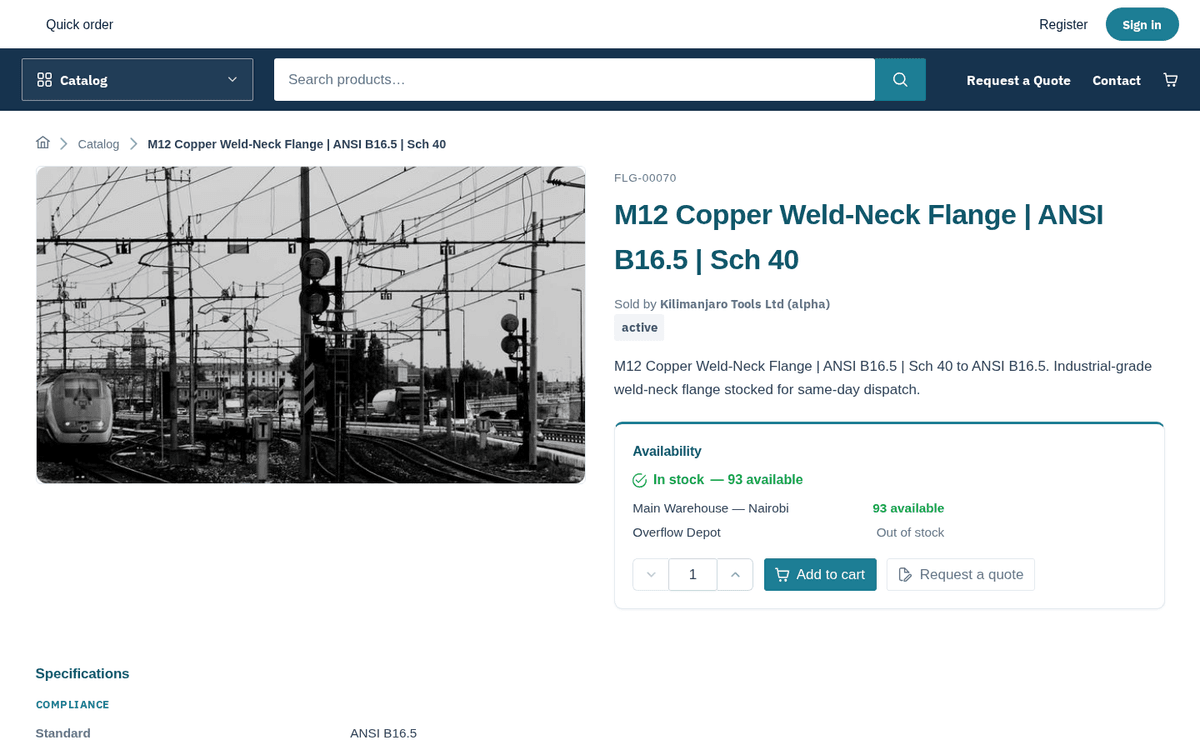
A product page: gallery, availability and the “Sold by” vendor badge
Working down the page:
- Gallery — photos (and videos, if provided) with zoom. A product with no photo yet offers a WhatsApp link that asks the store for one, with the product named in the message.
- SKU and name — the SKU line sits above the product name. Quote the SKU when talking to the seller; it is the unambiguous identifier.
- Sold by ‹vendor› — if the store is a marketplace, this line names the vendor who actually fulfils this product. House products (sold by the store itself) don’t show it.
- Rating summary — the average and a “‹n› review(s)” link that jumps to the reviews section.
- Variants — for products that come in sizes/colours/grades, pill buttons per axis let you switch between siblings; a “Selected — …” recap confirms what you’re on.
Your pricing and quantity-break tiers
When signed in, the buy box is headed Your pricing and shows a tier table with columns Quantity and Unit price. Rows read like “1+ / each — 4,785.07 KES” and “100+ / each — 4,309.00 KES”: the more you buy, the lower the unit price. These are your company’s contract prices — the price applied in the cart follows the tier your quantity reaches.
If the seller has no price on file for your company, the panel instead says: “Price on request — Add it to your cart or request a quote — our team replies with your price.” Add to cart still works: the item sits in your cart marked On request, and the cart sends everything as one quote request. Or press Request a quote for just this product (Requesting quotes).
Availability, per warehouse
The Availability panel shows one of four states, then a per-warehouse breakdown:
| State line | Meaning |
|---|---|
| In stock — ‹n› available (green check) | Ready to ship from the seller’s own stock |
| Available from supplier — ‹n› ready · ships in ~‹d› day(s) (truck) | The seller sources it; allow the lead time shown |
| Available on backorder (clock) | Orderable now, ships when stock arrives |
| Out of stock (x) | Not currently orderable — buy controls are disabled |
Below the state line, each warehouse is listed with “‹n› available” or “Out of stock”, so you can see where stock physically sits (useful when you collect, or when delivery time depends on the source warehouse).
When a product is Out of stock, the page notes “Out of stock — request a quote to order it.” and Request a quote becomes the primary button.
Configurable products
Some products have a Configure panel with option groups (required groups are marked *). Each option button shows its price effect (“+/-‹delta›”). As you pick options, a live summary shows the “configured unit price” — or lists what’s still missing. When the configuration is valid, the add button reads Add configured to cart.
If you press add before finishing, you’ll see “Please complete the configuration before adding.” And a cart can hold only one configuration of a given product at a time — a second attempt says “Already in your cart as a configured item — edit it in your cart.”
Buying controls
- Set the quantity with the stepper or type it (1 to 1,000,000).
- Press Add to cart (or Add configured to cart). A toast confirms “Added to your cart.” / “Configured item added to your cart.”
- Or press Request a quote — it opens the quote builder with this product already on line 1.
On a phone, a bar at the bottom of the screen keeps WhatsApp (when the store lists a number — the message already names the product) and Request a quote in reach while you scroll.
Specifications, documents, related products and reviews
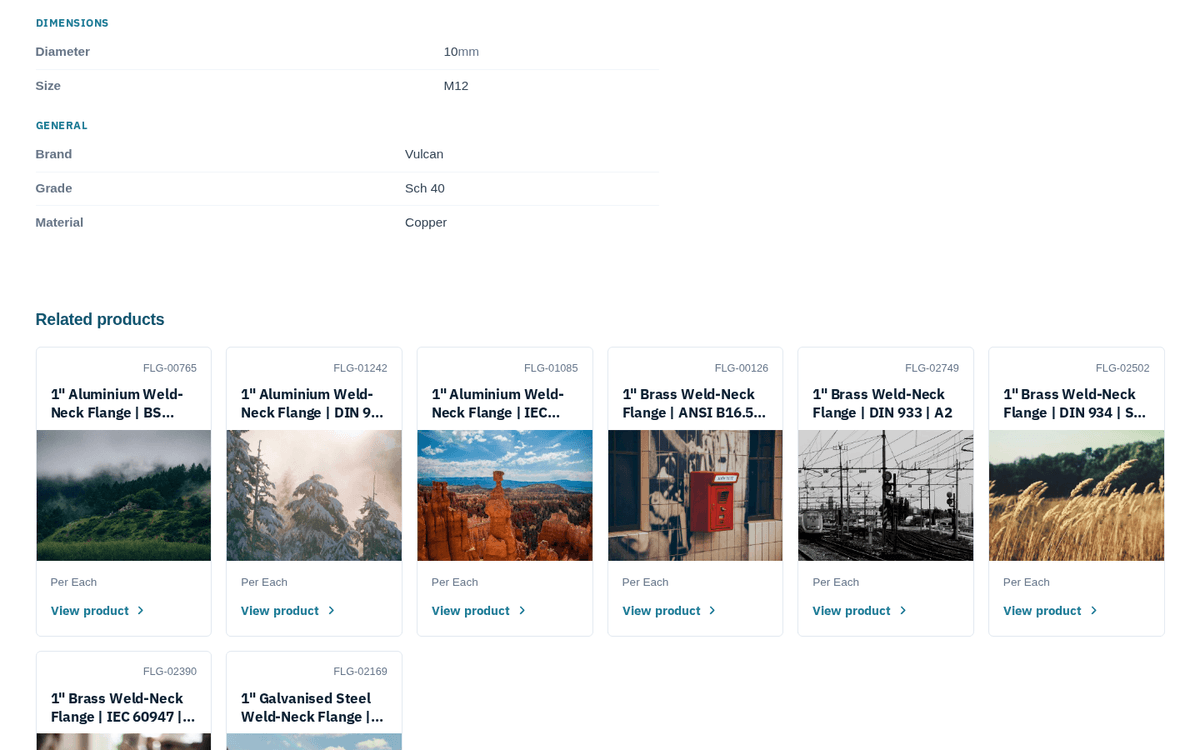
Further down the product page: specifications, availability and related items
- Specifications — grouped technical tables (standards, dimensions, materials).
- Documents & datasheets — PDF downloads the seller attached.
- Related products — a grid of alternatives and companions.
- Reviews — once your company has received the product, Write a review appears: pick a star Rating, optionally a Title and your experience, then Submit review. Before that the section says “You can review this product once your company has received it.” You’ll see “Thanks — your review is pending approval.” — reviews go live after the seller approves them, and a “Verified purchase” tag marks reviews from companies that actually received the product. Signed out, it offers Sign in to review products your company has received.