Getting help
Message threads — the best channel
Every order, invoice and quote carries its own thread (“Questions about this order/invoice/quote”). Type your question and press Send (Ctrl+Enter works too); the seller’s reply lands in the same thread and rings your notification bell. Always prefer the thread over email — the seller sees exactly which document you mean, with no reference numbers to mistype.
The notification bell (header or sidebar) collects everything: replies, quote arrivals, order status changes, listing updates. Clicking it opens Account › Notifications, where you can filter by reason, switch between Unread and All, and Mark all as read. On the dashboard you can also enable Message alerts push notifications — “Get a notification when your rep replies — even with the store closed.”
The contact form
Not signed in, or asking something general? Use Contact in the header.
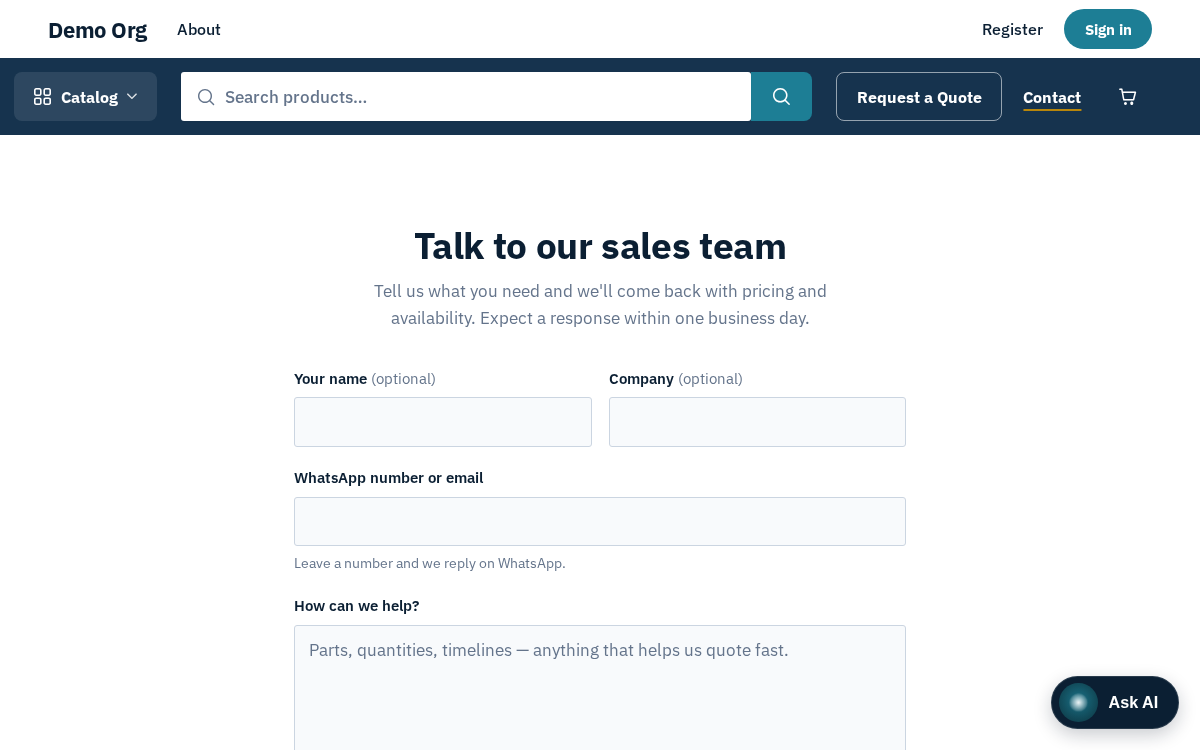
The public contact / enquiry form — it goes straight to the sales team
Your name and Company come first and are optional. Leave a WhatsApp number or email in the one box below them, then write your question under “How can we help?”. Press Send enquiry (or Enter). Anything to fix is said under its field, for example “Check the number: it looks incomplete.”, and what you typed stays on this device if the page reloads. On success: “Thanks — we’ve got it. Your enquiry is with our team. We'll be in touch shortly.” — typically within one business day. Sending a parts list instead? Request a quote under the button opens the quote form.
The built-in assistant
Press the microphone in the assistant's message box to start a call: it says Connecting you to …, greets you, then listens, answers aloud and listens again — ask for a price, check an order, or say "open my quotes" and it takes you there. Spoken answers are a sentence or two, with the full answer on screen, and it only talks about the store. The bar at the top of the chat runs the call: tap the mic to mute or unmute (or to cut in while it is speaking), the arrow beside it to pick another microphone, Minimise to keep talking in a small floating bar while you browse, and End to hang up — the conversation stays on screen. If you stay quiet, it mutes itself until you tap the mic. Closing the assistant ends the call at once.
If your store has it enabled, a round chat button floats bottom-right on every page — the Assistant. It answers from your own account data ("Hi there! I'm the store's assistant. Ask about products, prices, quotes or your orders — I follow the page you're on."), with a few Ask me things like questions to start from and a Request a quote button: try Where is my latest order?, What do I owe?, What should I reorder? It can only see what you can see.
It can also act for you, always with your say-so: add items to the cart, reorder a past order, request a quote, counter or accept a quote, place an order, decide an approval, fill the cart from a shopping list. Anything that commits your company — placing an order, accepting a quote — is prepared as a confirmation card first: read the summary, press the action button to go ahead or Cancel. A card works once and expires after ten minutes. When a job has several steps the assistant shows one card listing them all, then reports a ✓/✗ checklist and opens the page where the result lives.
End chat asks "How did that go?" — your answer helps the supplier improve it. If it ever replies "Sorry, I'm unavailable right now.", fall back to the pages themselves or a message thread.