Searching
Where: The Search products… field in the header
The Search products… field sits front and centre in the header on every page.
- Start typing a product name or SKU. Live suggestions appear, each showing the product name and its SKU. While loading you’ll see “Searching…”; with no hits, “No products match “your term”“.
- Click a suggestion to jump straight to that product’s page — or press Enter to run a full search.
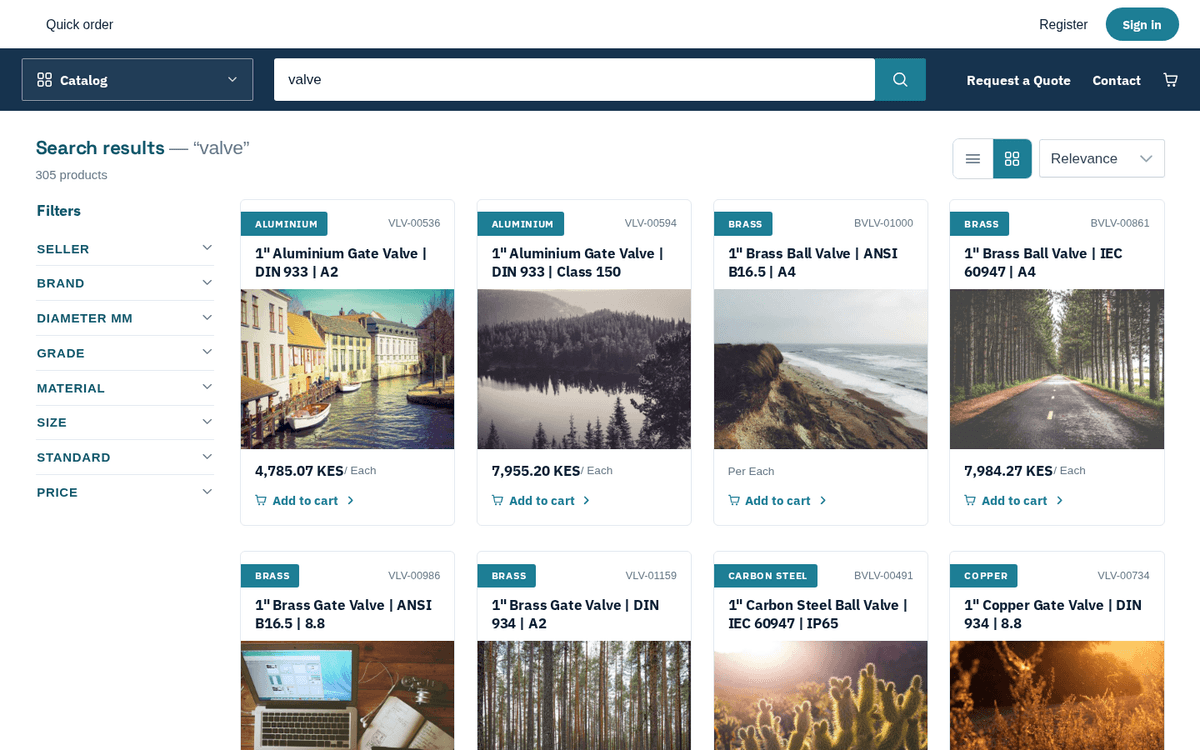
Searching the catalog for “valve” — results with filters on the left
The results page shows a heading (“Search results — “valve”” or “All products”) with the total count, and:
- A Filters sidebar on the left (on mobile, a Filters (n) button opens it as a drawer). Each filter group — Seller, Brand, Material, Size, Price and any other attribute the seller publishes — lists checkbox values with counts. Long lists cap at 6 values with Show more/Show less, and get their own little search box. Numeric filters such as Price use a slider with min/max labels.
- A Sort selector: Relevance, Name, Newest, Price: low to high, Price: high to low. With Relevance, a size you type lists that exact size first: m10 x45 or M1045* shows the M10 x 45 parts before anything that only mentions both numbers.
- A list/grid view toggle (the store remembers your choice).
- Applied filters appear as removable chips above the results, with a Clear all link.
- Results come 24 per page, with a Prev / Next paginator at the bottom.
You can add simple products to the cart straight from the result cards — the Add to cart link on each card adds one unit and confirms “Added 1 to your cart.”
On a phone, a bar at the bottom of the screen keeps WhatsApp (when the store lists a number — the message already names what you searched for) and Request a quote in reach while you scroll.
If your term doesn’t match anything exactly, the store falls back to close matches and tells you: “No exact matches — showing similar results for “your term”.” If genuinely nothing matches, you’ll see “We couldn’t find anything for “your term”.” with a Clear all filters button if filters are active.
“Search is unavailable right now.” means the search service is temporarily down — refresh in a minute, and contact the supplier if it persists.