Requesting a quote
Where: Request a Quote in the header, or ⋯ → Request a quote
Building the request
Open Request a Quote (header band, or ⋯ → Request a quote). The page is one short form under the heading “Request a quote”.
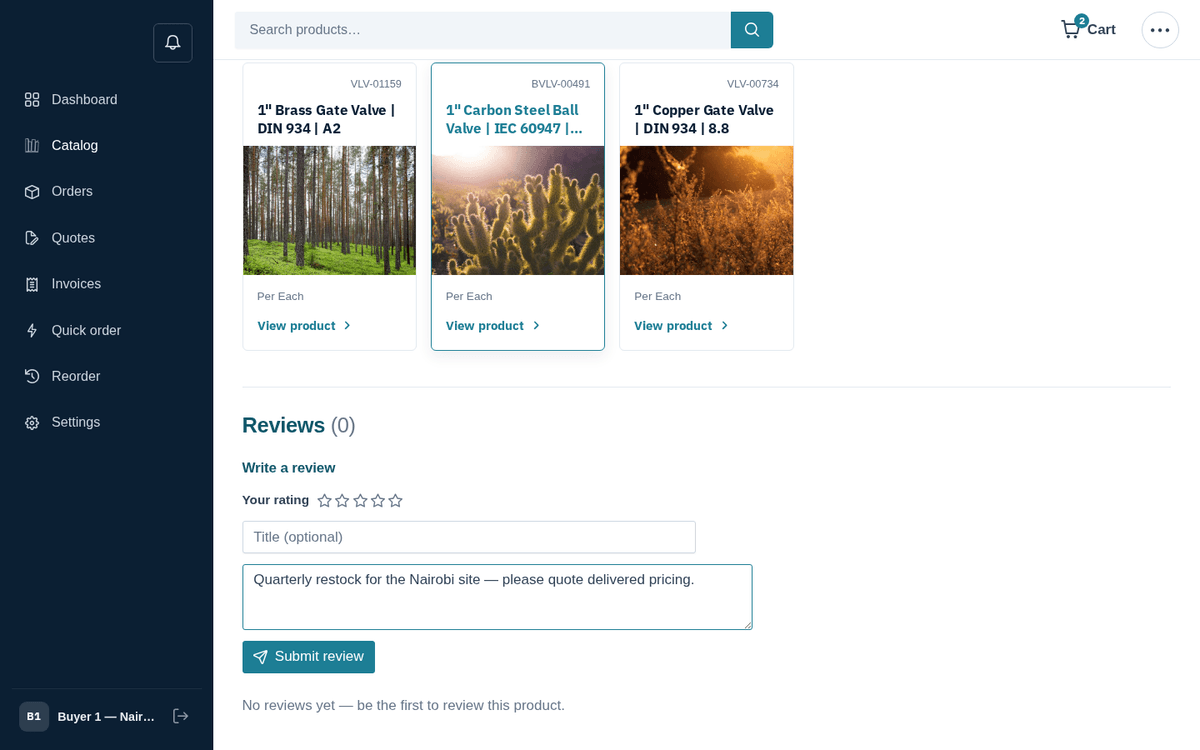
Request a quote: your list, then where to send the price
What do you need? Type or paste what you need, one item per line, the way you would send it on WhatsApp — size, grade and quantity, e.g. “M10 x 50 hex bolt 8.8 — 100 pcs”. Lines that match the catalog become quote lines; anything the store doesn't list goes to the seller to source and price. A list alone is enough.
Pick from our catalog (optional):
- Press + Pick from our catalog under the list. A product line opens with the cursor in its search box (“Search the catalog by name or SKU”).
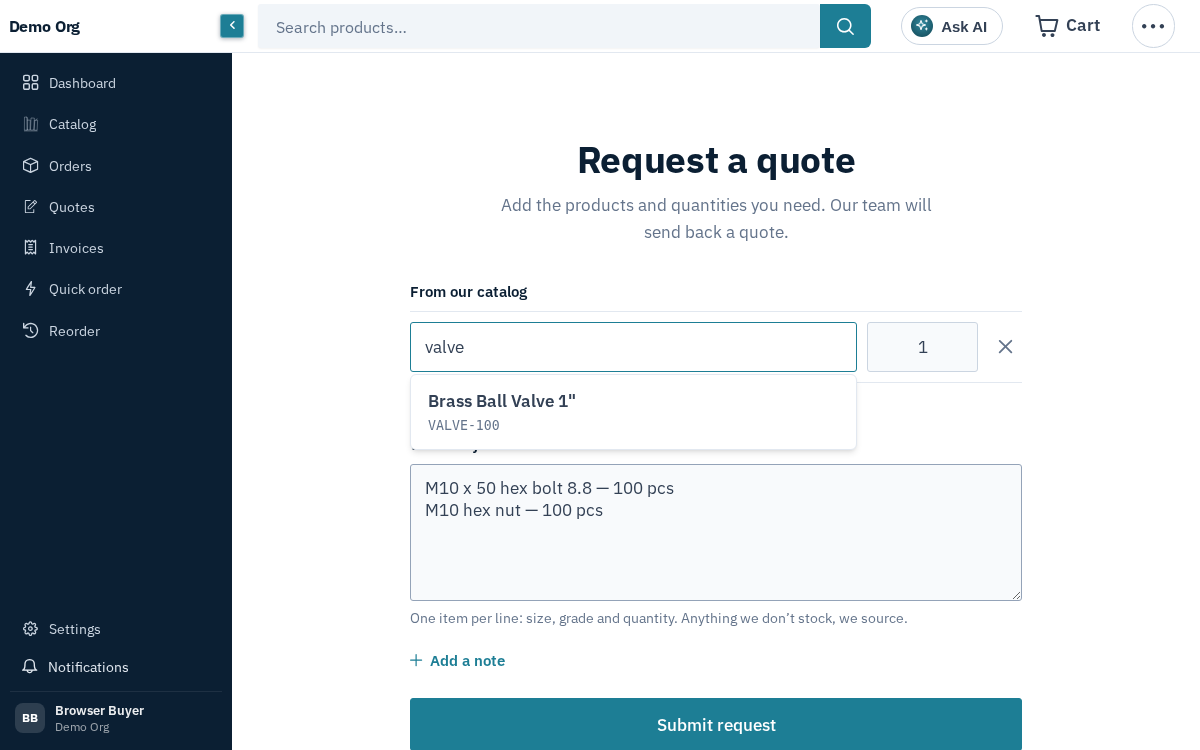
Type a name or SKU — live suggestions come from the whole catalog
- Pick a suggestion: the line shows the product's name, SKU and unit. Set the quantity beside it.
- Press + Add another product for more lines; remove a line with its ×.
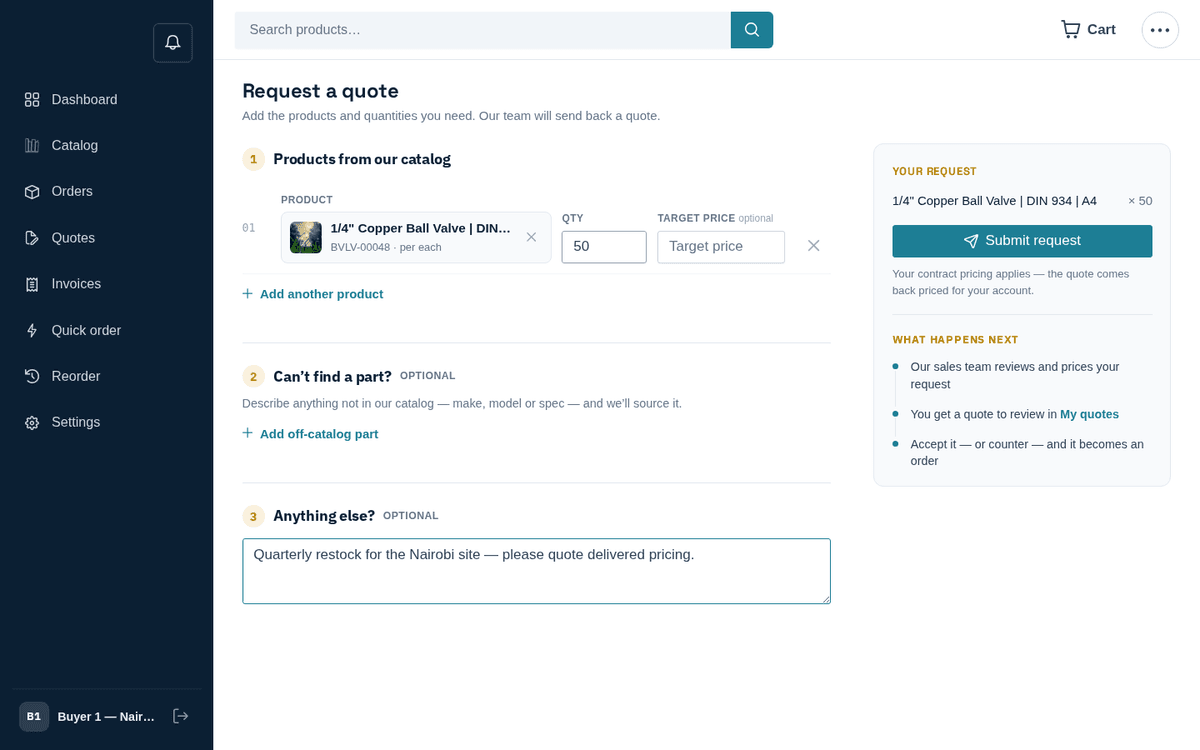
A picked product becomes a line with its quantity; a note adds anything else
Coming from the cart or a product page, those products are already listed under From our catalog and the list box becomes Anything else you need? (optional).
+ Add a note (optional): opens a box for delivery timing, packaging, certifications — anything that helps the seller quote accurately.
If you are not signed in, the form also asks where to send the price: one box for a WhatsApp number or email, then Your name and Company, both optional. Leave a number and the quote comes back on WhatsApp. Signed in, your contract pricing applies and the quote is priced for your account.
Anything to fix is said under its field and the cursor moves there; Enter sends the request, and a half-typed request is kept on this device until it is sent. Rather chat than fill in a form? Prefer WhatsApp? Send your list there. under the button opens a WhatsApp chat with the store, with your list already typed in.
- Press Submit request.
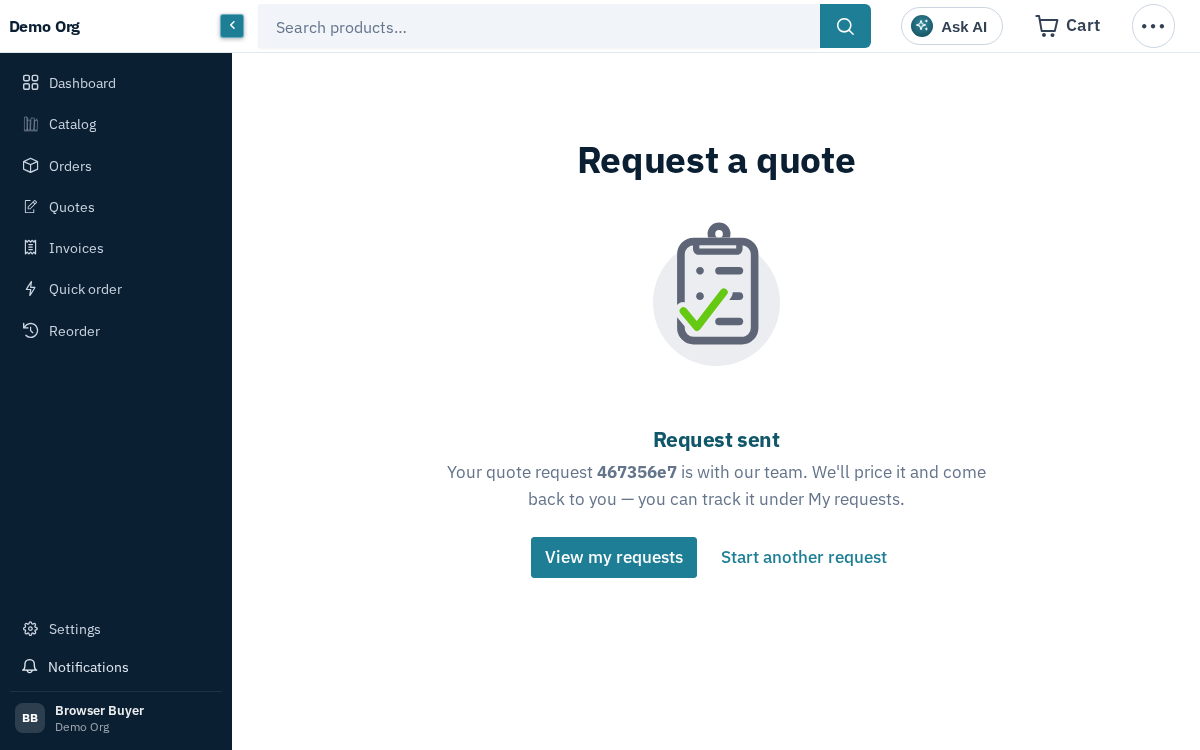
Request sent — the reference tracks it under My requests
Success shows “Request sent — Your quote request ‹ref› is with our team. We’ll price it and come back to you — you can track it under My requests.” with buttons View my requests and Start another request. If you left a number it adds “We'll send your quote on WhatsApp to ‹number›”; with an email, “We'll email your quote to ‹email›”.
Tracking requests under My requests
Open ⋯ → RFQs (“My requests for quote”).
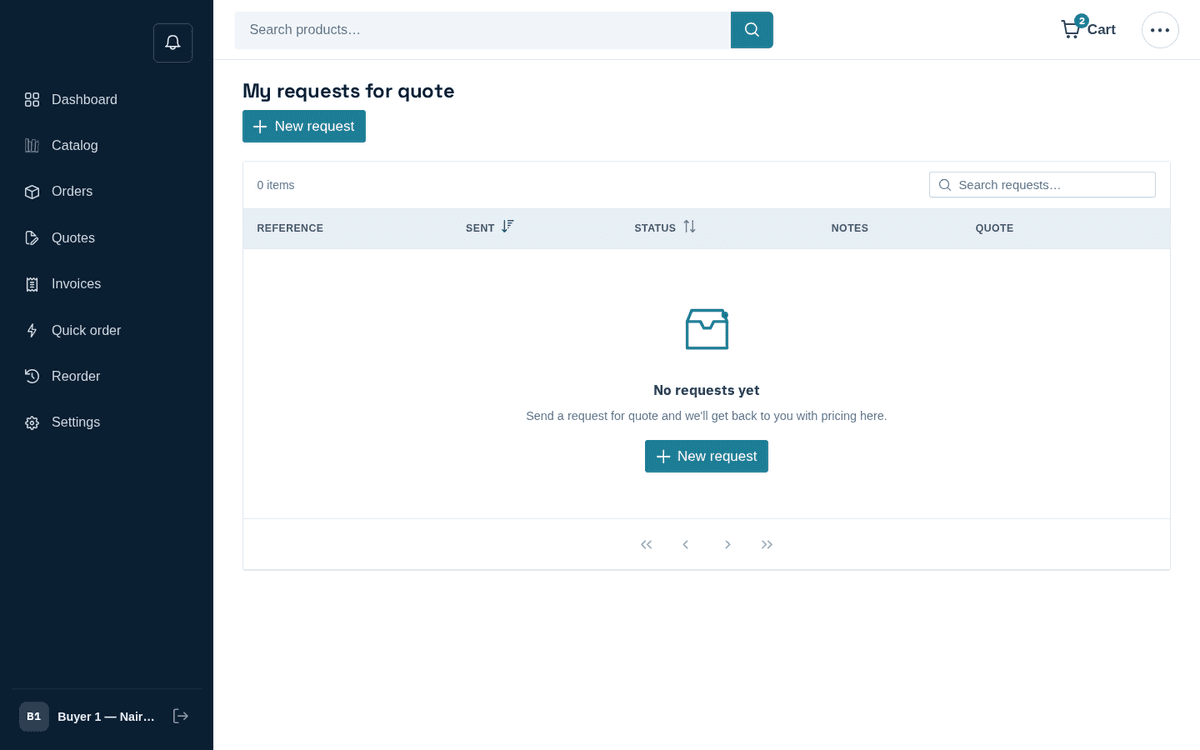
My requests for quote — status shows when a quote is ready
Each request shows its status. While the seller works it reads Awaiting quote; once a quote exists the row links straight to it with View quote.
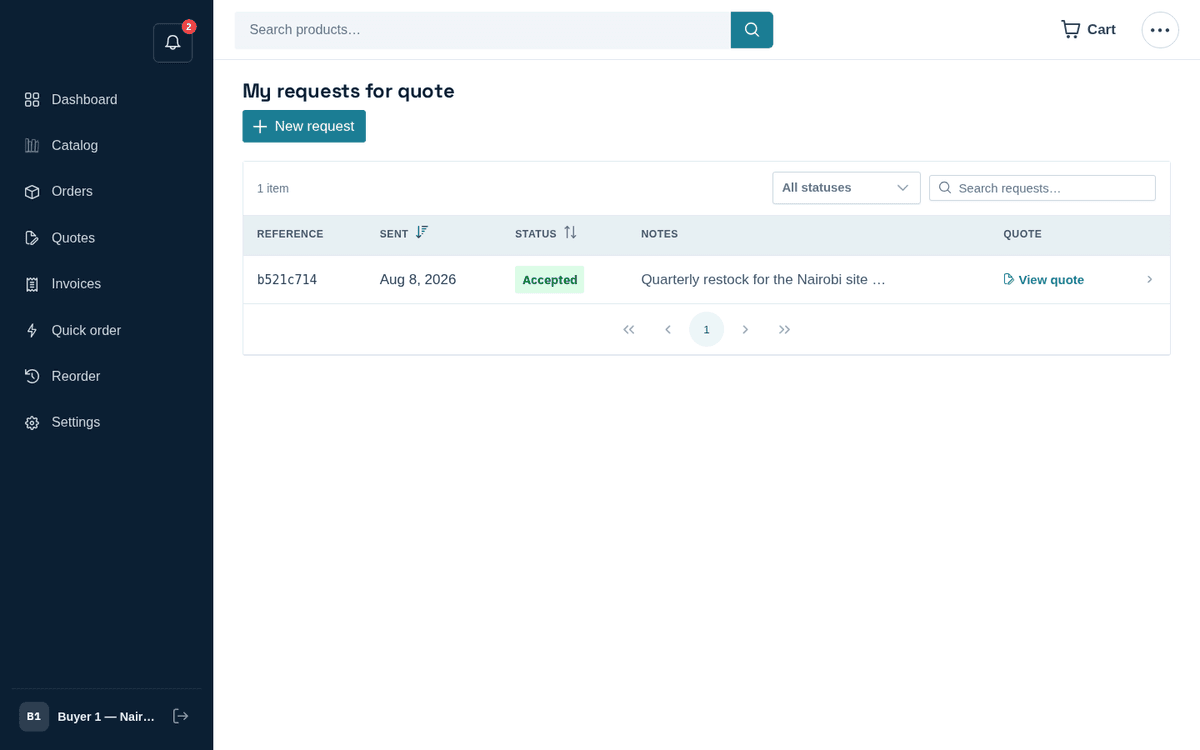
My requests: the RFQ links straight to the quote it produced
The quote can come back within minutes — many sellers run an automation that prices RFQs instantly from your own contract price lists and sends the quote without waiting for a human. Watch the notification bell.