Returns and credit notes
Where: An order's Request return button · ⋯ → Returns · ⋯ → Credit notes
Requesting a return
Returns start from the order, not from a separate page:
- Open the order (Tracking orders) and press Request return.
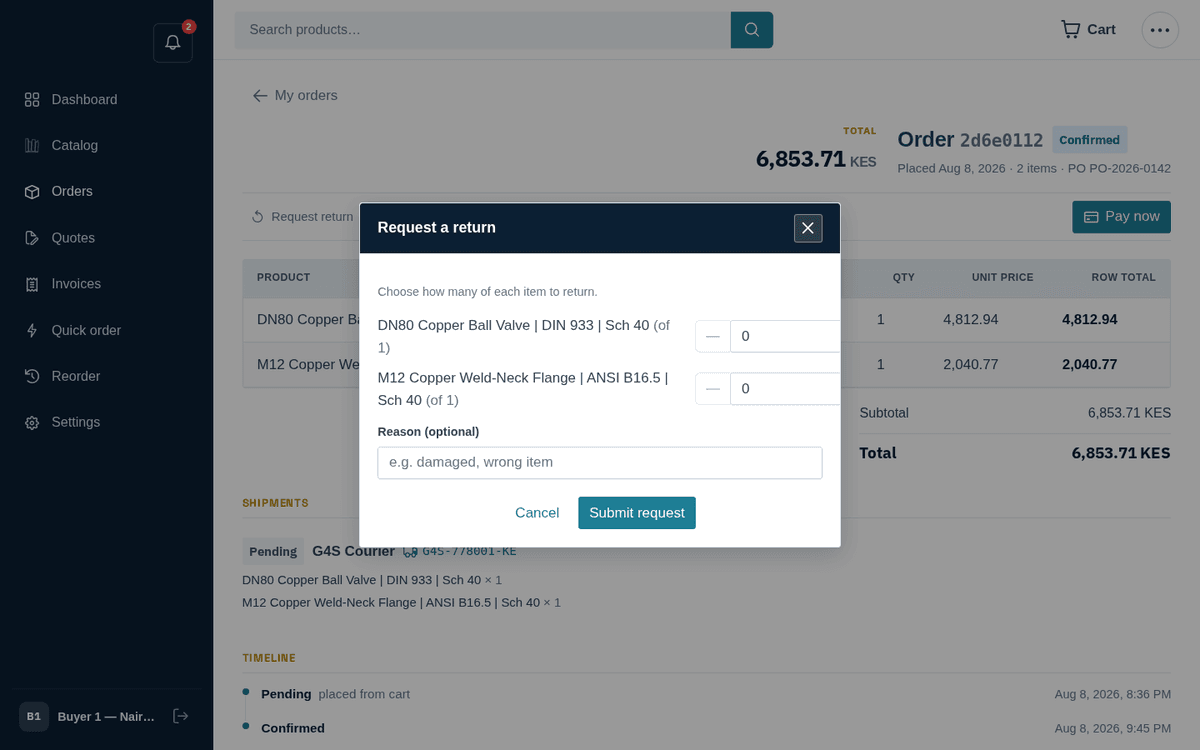
Request a return: pick lines and quantities
- The “Request a return” dialog lists each item with a quantity stepper — “Choose how many of each item to return.” You can never return more than you bought (each line shows “(of ‹qty›)”).
- Optionally give a Reason (e.g. “damaged, wrong item”).
- Press Submit request. Confirmation: “Return requested — we’ll review it shortly.”
“Choose a quantity to return.” means every stepper is still at 0 — set at least one line above zero.
Tracking returns
Open ⋯ → Returns.
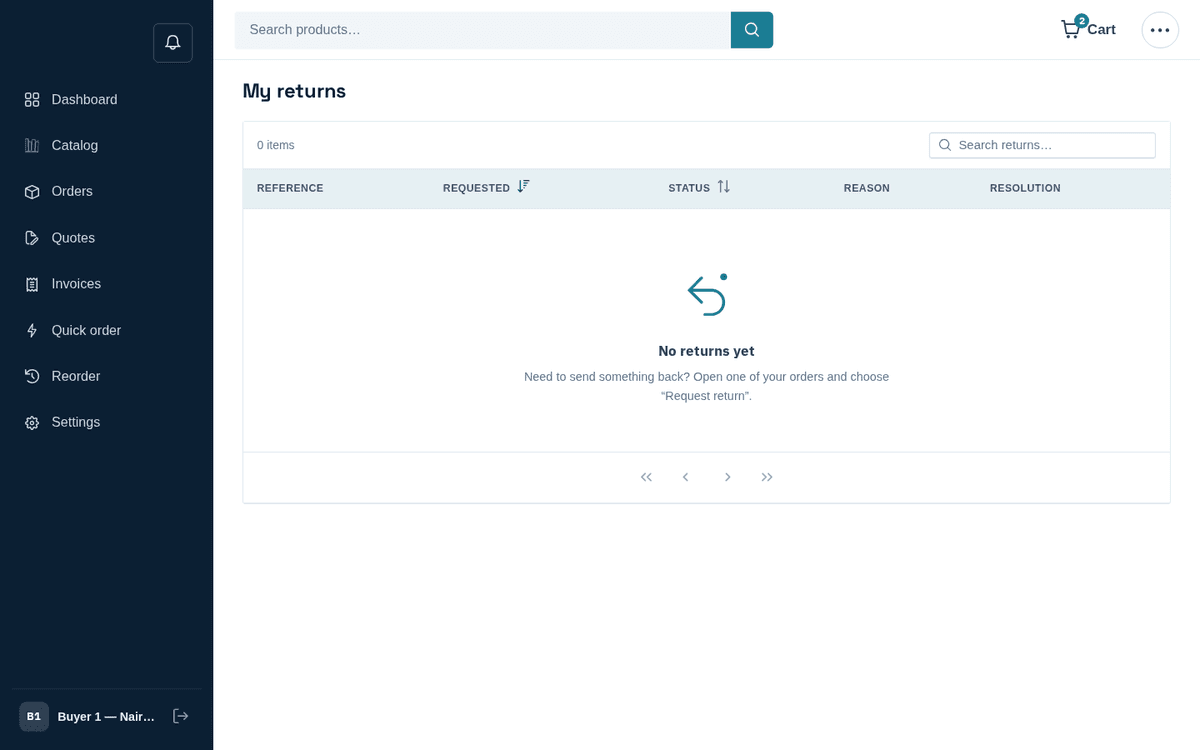
Returns — every return you have requested and its state
| Return status | Meaning |
|---|---|
| Requested | Submitted; awaiting the seller’s review |
| Approved | Accepted — send the goods back per the seller’s instructions |
| Received | Goods arrived back; stock restocked and a credit note issued |
| Rejected | Declined — the reason is worth a message on the order thread |
| Closed | Finished |
The empty state reminds you where returns start: “Need to send something back? Open one of your orders and choose “Request return”.”
Credit notes
Open ⋯ → Credit notes.
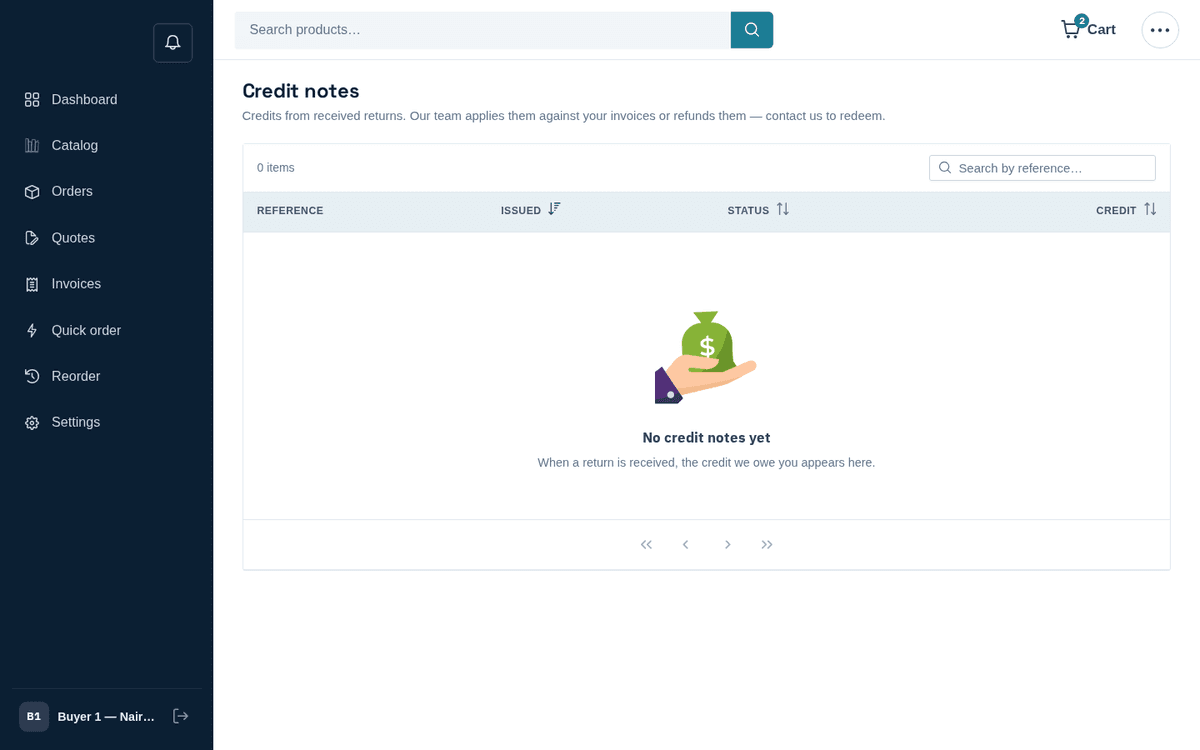
Credit notes issued from received returns
When a return is received, the money owed back to you appears here as a credit note. As the page explains: “Credits from received returns. Our team applies them against your invoices or refunds them — contact us to redeem.” Credit notes are also how settled volume rebates arrive (Recurring orders, budgets and rebates).