Invoices and payment
Where: Invoices in the sidebar
The invoices list
Open Invoices in the sidebar.
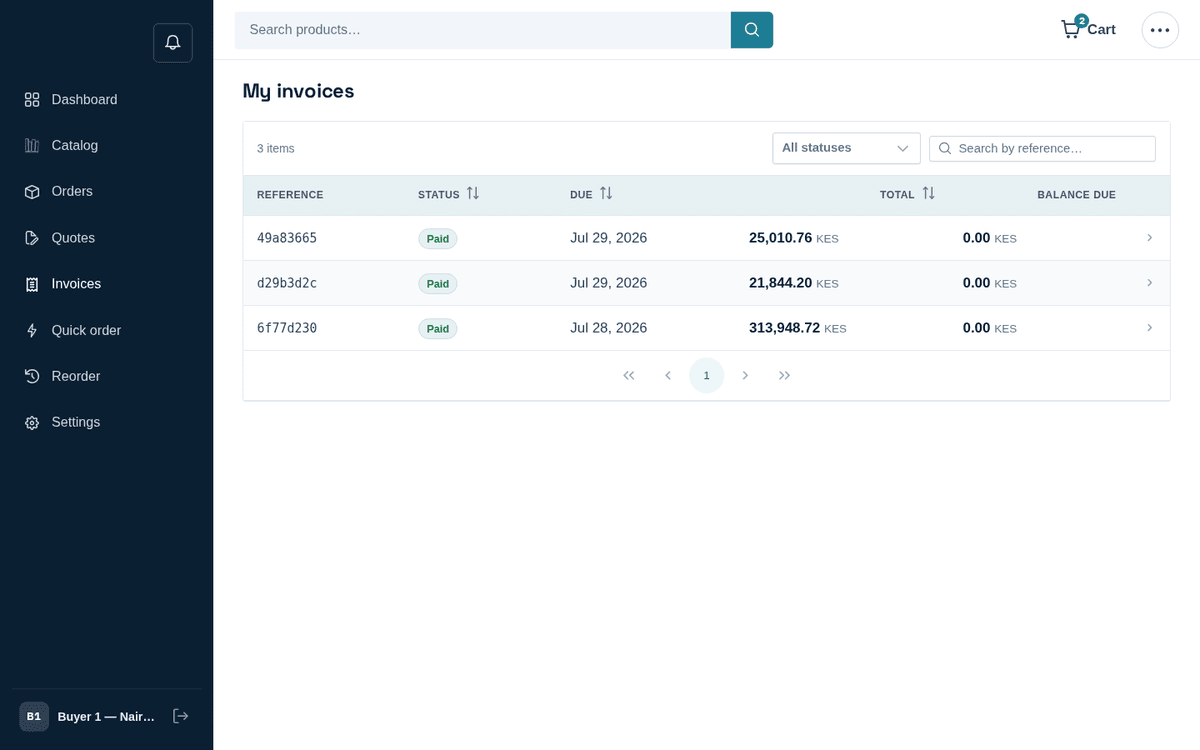
Invoices — status, due date, total and balance due
Columns: Reference, Status, Due date, Total, and — the one to watch — Balance due. Status colours: paid green, overdue red, void grey, issued neutral. The newest 20 show first; Load more invoices adds the next 20, and search, the status filter and the sorts always cover every invoice.
The invoice page
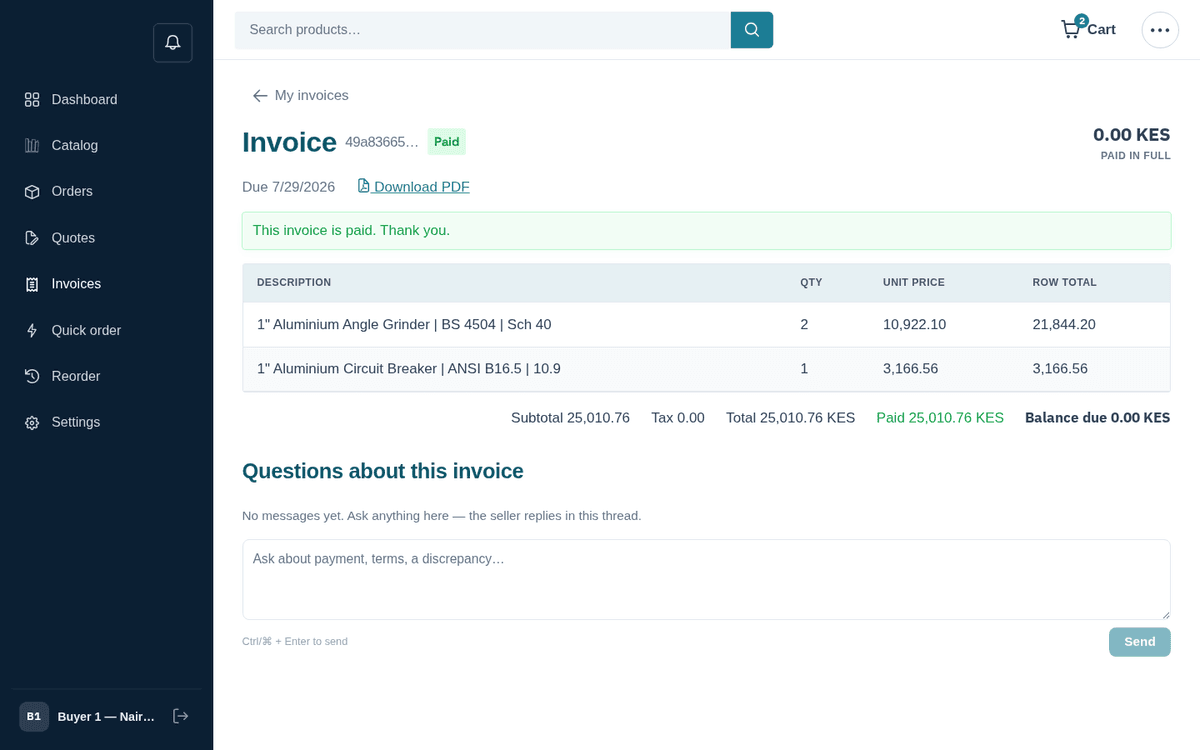
An invoice: download the PDF, see line items, and pay
The header shows “Invoice ‹ref›” with the status tag and the big number: the Balance due (or “Paid in full”). Next to the due date sits Download PDF — the formal document for your accounts-payable records.
Below: the line items, then totals — Subtotal, Tax, Total, Paid, Balance due — and the “Questions about this invoice” thread (“Ask about payment, terms, a discrepancy…”) for anything you want to challenge or clarify before paying.
When the seller has published payment details, a How to pay box lists them (for example an M-Pesa paybill and account, a bank account, or cash on collection), with the link Paid already? Send us the M-Pesa or bank reference. That link opens a short form where you report the payment (method, reference, amount, which starts as the balance on record); anything missing is said under its field, the seller matches the report and the invoice updates. The same details and link are in the “Invoice … from …” email.
A fully settled invoice shows the green banner “This invoice is paid. Thank you.”
Paying an invoice
While an invoice is issued or overdue, a payment bar appears with up to two methods (depending on what the seller supports):
Mobile money (STK push):
- Under “Pay with mobile money”, enter your phone number (e.g. “07xx xxx xxx”).
- Press Send prompt. As the hint says: “You’ll get a prompt on your phone to approve.”
- Approve the payment on your phone. Meanwhile the page shows “Check your phone and approve the prompt — this page updates itself.” and polls for about a minute.
- On confirmation, the invoice flips to paid. If the confirmation is slow you’ll see “We have not had confirmation yet. If you approved it, the invoice will update shortly.” — the payment still lands; refresh in a bit.
Card: press the “Or pay by card” link-button and follow the card flow. Failures show the reason, or “Payment failed. Please try again.”
Retrying a payment is safe — the store keeps an idempotency key per payment attempt, so a retried payment can’t double-charge you.
You don’t have to pay online at all. Many companies pay invoices by bank transfer under their terms as usual; the seller records the payment and the invoice updates. Online payment is there for when you want the invoice settled now.
Balances and the dashboard
The dashboard’s Amount due tile totals your unpaid invoices and flags “N overdue” when applicable, and the alert strip warns “N invoice(s) are overdue”. Chase these — overdue invoices are usually what triggers a supplier to pause an account.