Categories
Where: Catalog → Categories
Categories form a tree — top-level categories can contain child categories — and drive the storefront navigation and filters.
Before you begin
- You can sign in to the admin console with the
category.viewpermission (andcategory.manageto change anything). - Decide the top-level structure first — nesting can be changed later, but buyers see the tree as navigation.
- Go to Catalog → Categories.
- Press “New category”. (On an empty store you’ll see the empty state “No categories yet” — “Organize your catalog into categories so buyers can browse and filter products.” — with the same button.)
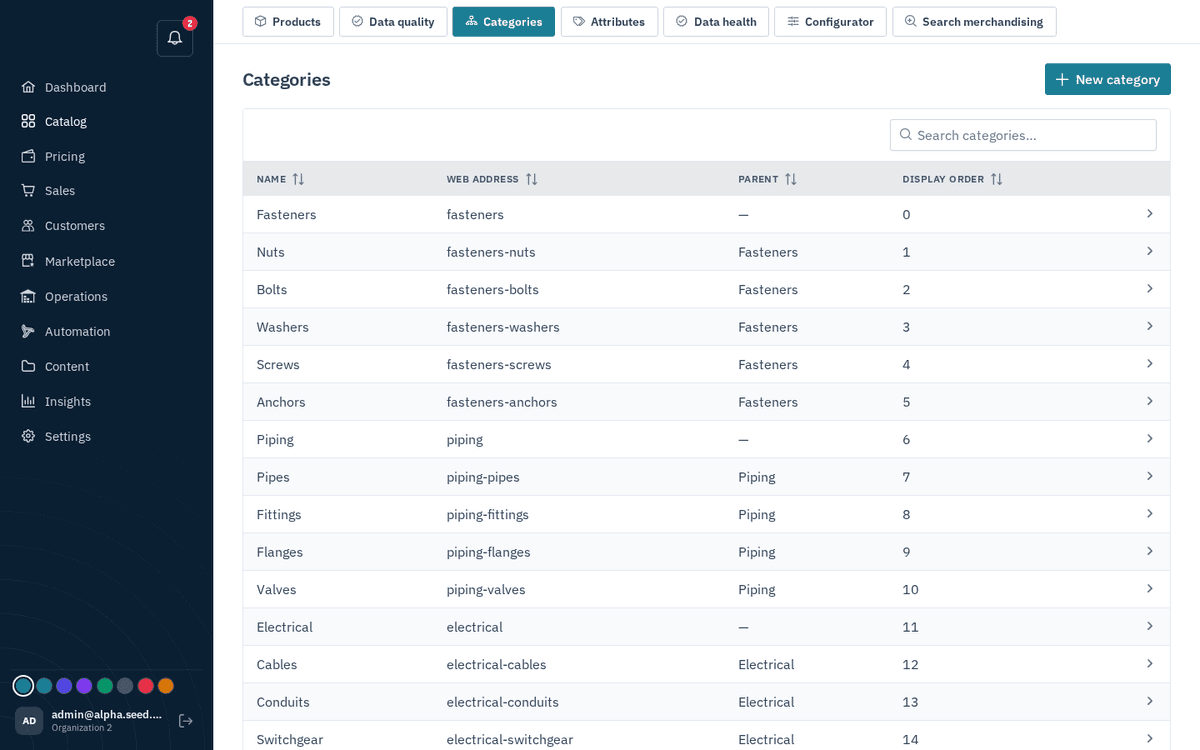
Catalog → Categories — the tree your storefront navigation is built from
- Fill in the dialog “New category”:
- Name — what buyers see (the cursor starts here).
- Web address — “(appears in the storefront link)”, e.g.
office-chairs. Leave it blank to have one generated. - Parent category — “(leave empty for a top-level category)”. A searchable dropdown; pick a parent to nest this category. A category can never be its own parent.
- Display order — “(lower shows first)”. Controls ordering among siblings.
- Press Create. You’ll see the toast “Category created”.
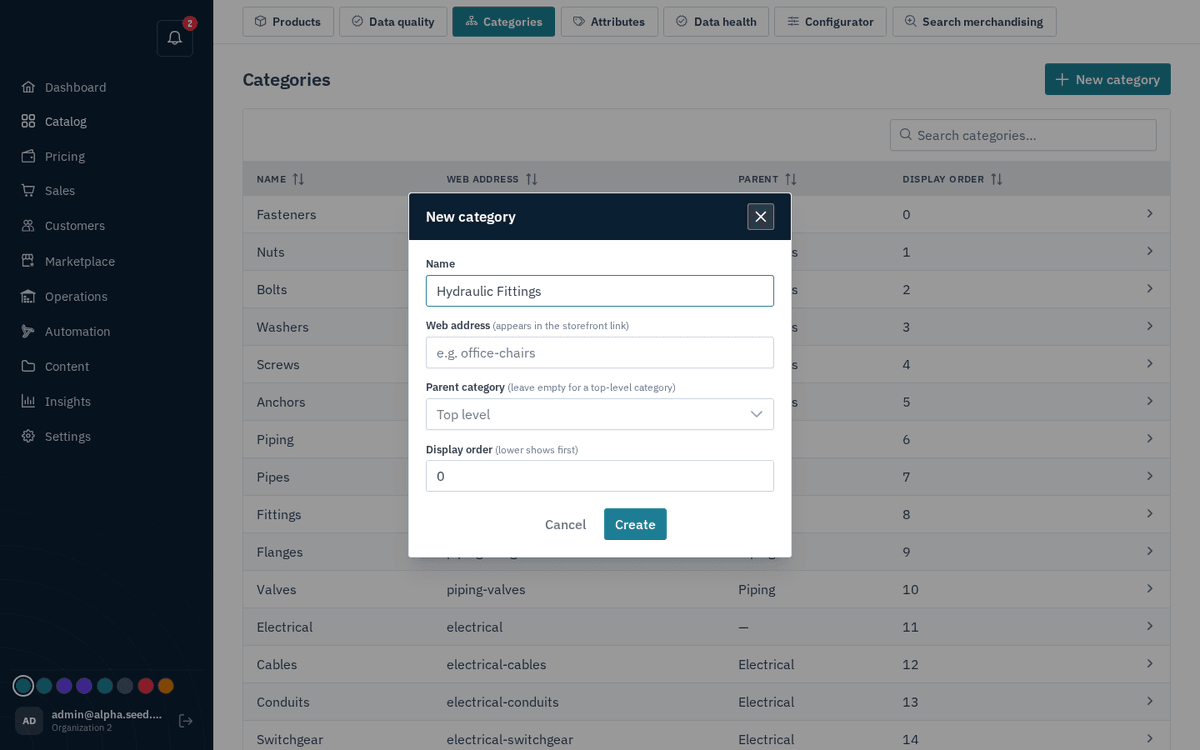
New category — name, web address, parent and display order
To edit, click a row — the same dialog opens with Save and a Delete button. Deleting asks: “Delete”‹name›“? Products keep existing — they’re just unlinked from this category.”
Troubleshooting
If deletion fails with “Cannot delete” — “Category is in use”, move or unlink whatever still references it first.