Price rules
Where: Pricing → Price rules
Price rules adjust resolved prices automatically. The page explains: “Automatically adjust prices for a customer group or certain products. When rules overlap, the highest-priority one wins.”
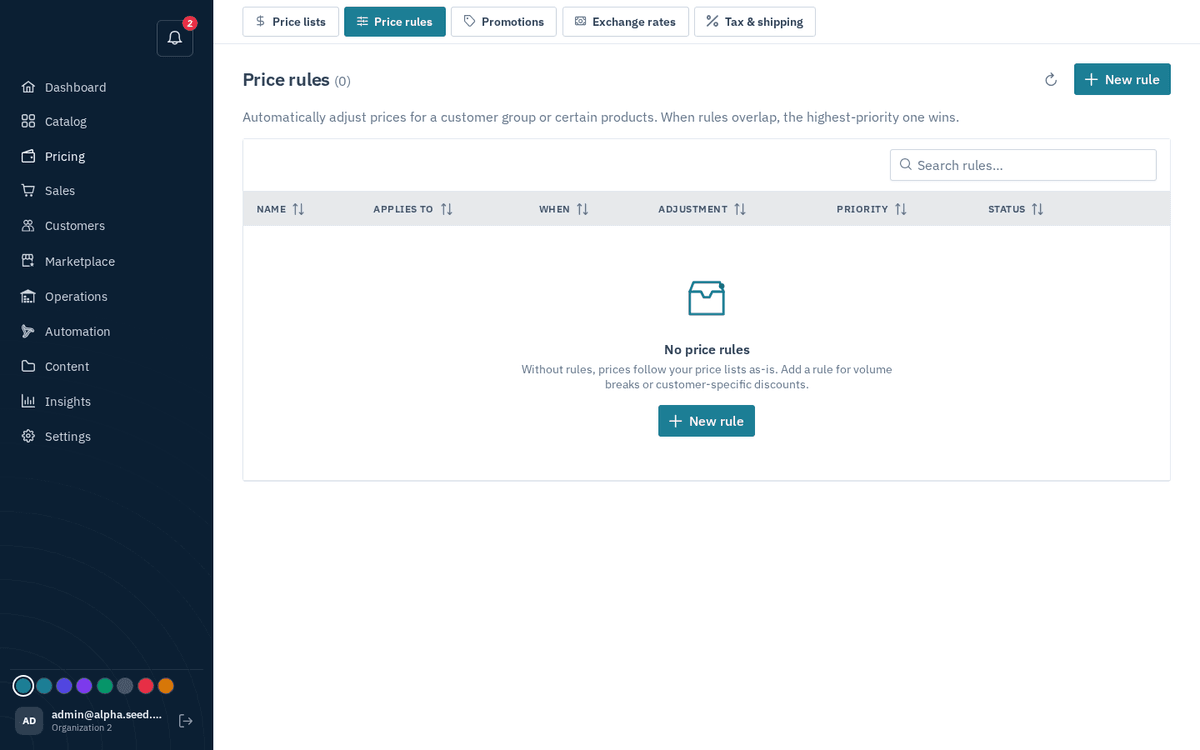
Price rules — automatic % or fixed adjustments; highest priority wins
- Go to Pricing → Price rules and press “New rule”.
- Fill in:
- Name — for your own reference.
- Customer group — “(blank = all buyers)”.
- Product detail (optional) + Detail value — scope by an attribute, e.g. detail
brand, valueacme. Set both or neither (“Attribute key and value must be set together (or both blank).”). - Type — “Percentage (e.g. -10 means 10% off)” or “Fixed amount (e.g. -5 lowers the price by 5)”.
- Value — negative lowers the price, positive raises it.
- Priority — “(higher is preferred when more than one fits)”.
- Active checkbox.
- Save — toast “Rule created”.
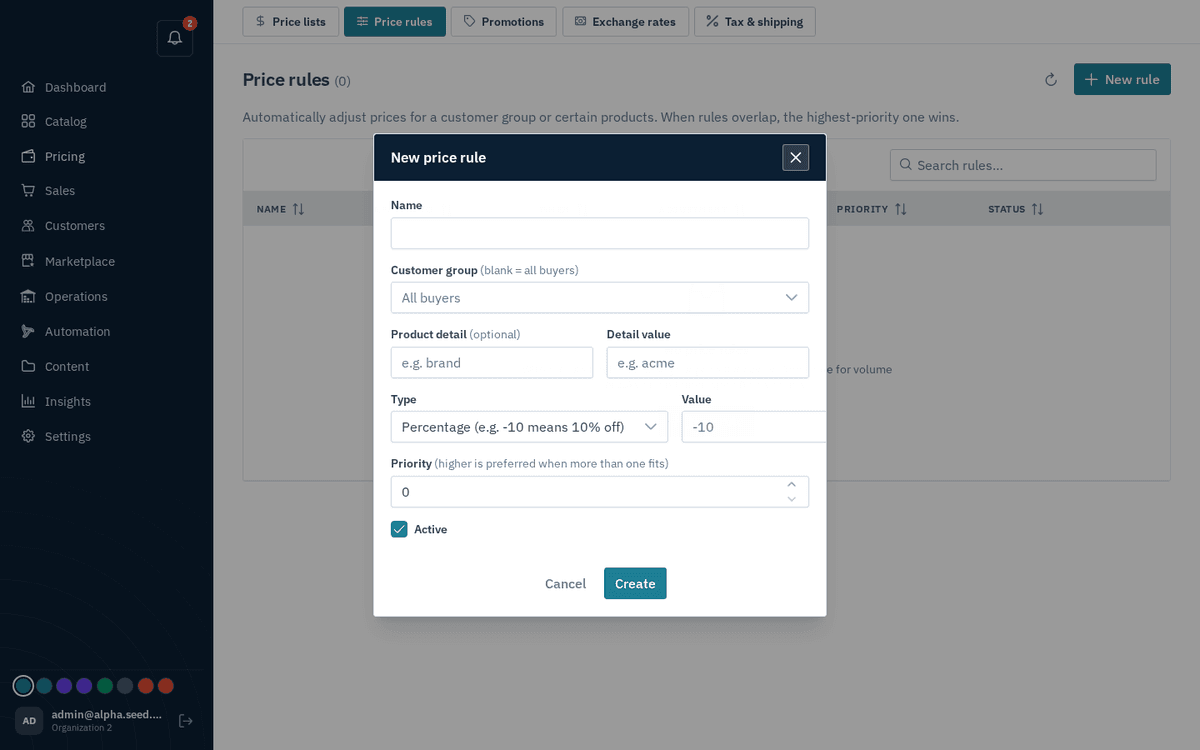
New rule — scope by customer group and/or product detail, set the adjustment
The list shows Name · Applies to · When · Adjustment · Priority · Status. Without any rules, “prices follow your price lists as-is” — which is a perfectly good place to start.