Storefront behavior
Where: Insights → Storefront behavior
Insights → Storefront behavior shows what buyers do before they buy: the browse-to-order funnel, active and abandoned carts, and search gaps — terms buyers searched that returned nothing.
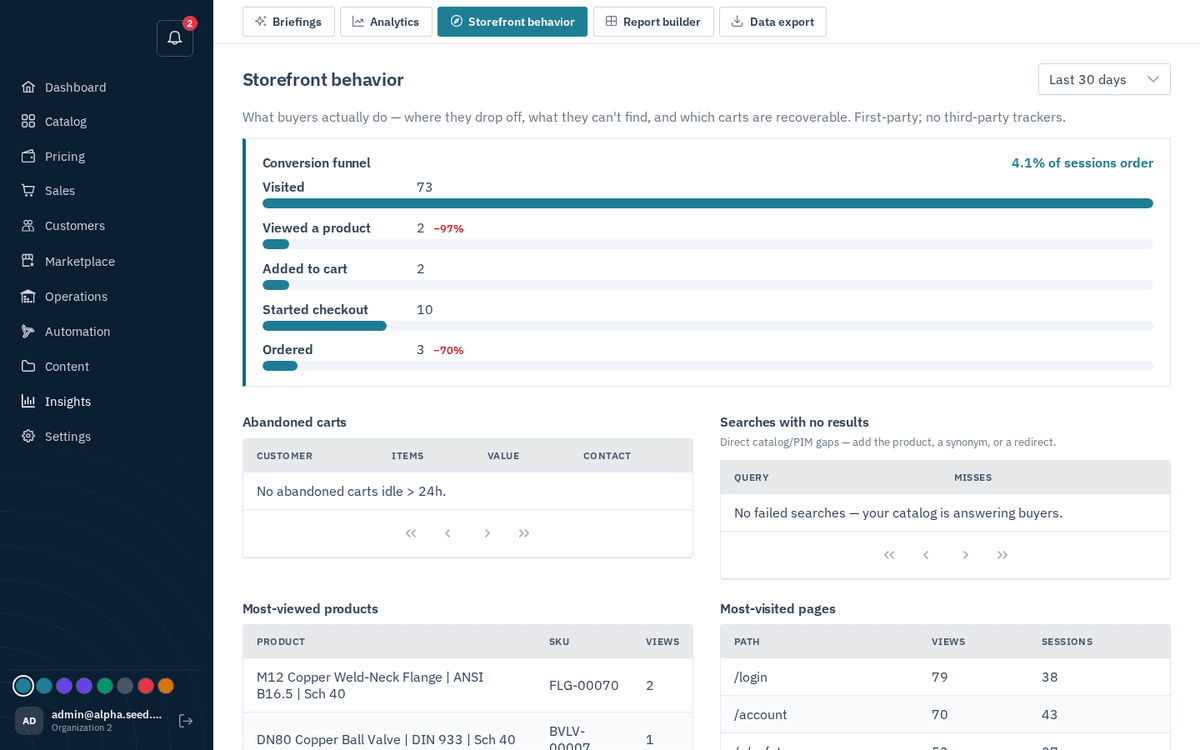
Insights → Storefront behavior — funnel, carts and search gaps
The search-gaps list is a merchandising goldmine: every entry is demand you’re not meeting — add the product, a synonym (Catalog → Search merchandising), or a category.
The funnel follows how you sell
The funnel is the shape of the journey: Visited → Viewed a product → then either Added to cart → Started checkout → Ordered, or, if you hide your prices (Configuration → Who sees list prices set to quote_only), Started a quote → Requested a quote. A store that sells by quote is measured on quotes; it is not marked down for an empty cart it never intended to use. Hovering any band shows how many people reached it and how many were lost at that step.
Stopped at the form sits under the funnel of a quote-led store: how many visits pressed Submit on the quote form and what was still missing — nothing listed, no name, no WhatsApp number or email — or whether the request failed to send. It is the difference between people who opened the form and people whose request reached you.
Who counts as a visit
Crawlers and scrapers run the site's scripts like a browser, so they used to be most of what this page counted. A visit now counts only once it did something a page load cannot do by itself: stayed ten seconds, scrolled, tapped or typed, added to the cart, started or sent a quote, or signed in. Everything else is left out of every number on this page, and the funnel says how many such crawler visits were set aside. Expect the counts to be a few times smaller than before, and real.
When buyers are here
The heatmap puts visitors on a grid of weekday against hour, darker where more people are on the site, and names your busiest hour above it. This is a staffing question as much as a marketing one: a quote answered while the buyer is still on the page is a quote you tend to win, so it pays to have someone at the desk during the dark squares.
What the website brought
Every quote request, quote, order and payment is credited to the touch that started it: the quote form, a sign-up, or a WhatsApp chat. The store's WhatsApp button and the quote form's "Prefer WhatsApp?" link add a six-letter web ref to the message a buyer sends, and when that message arrives the chat, the buyer and the request it becomes are tied to the visit that produced them, with its source. A request from the form, or an account opened on the site, is credited the same way. A buyer who writes on WhatsApp with no ref, within half an hour of someone tapping the button on the site, shows as probable; a buyer the site never met, an order entered by staff or one mirrored from your ERP shows as not from the site. The summary line is the confirmed website total; the same figures feed web leads and web paid on your plan page, so what you are billed for is what you see here.
Where they go next
Where they go next ranks the commonest move from one page to the next inside a single visit — the answer to "they land on the category page, and then what?". Doors they come in by ranks the pages visitors arrive on, with the share who left straight away: they went no further than the page they arrived on. A landing page with a high bounce rate is where you are losing people first, and it is usually the cheapest thing to fix. Where they came from lists each source with the leads it brought — visits that requested a quote or tapped WhatsApp, a phone number or an email anywhere on the store — so you can see which door is worth widening. A search engine, a directory or an answer engine is named by its site; a visit with no referrer is direct. A campaign link tagged ?utm_source=linkedin is credited to linkedin, so tag the links you post and each campaign shows its own leads. Links for your posts, under that table, is your store's address already tagged for WhatsApp, LinkedIn and email, each with a copy button: paste those into your posts and signatures and the table credits every one.
Search-engine crawlers and other automated visitors are recognised by their browser signature and left out of every number here, so the counts are people.
All of it comes from your own storefront. There are no third-party trackers, nothing is shipped to another company, and no separate analytics subscription or data pipeline is involved.
Related topics
Top searches and searches nobody clicked
Top searches lists what buyers typed into your storefront search, in their own words, with how often and how often the search led them to open a product. That list is your keyword research: the terms people already use for what you sell are the ones worth ranking for. A popular term that rarely leads to a product means you don't list it, or don't name it the way buyers do — the search always returns something, so a result page is not a sign it worked.
Searches nobody clicked is the action list. Each row is a term buyers typed and then left without opening anything, with the count ("3 of 4"), what your store's search shows for that term today, and two ways out. Search shows now gives the number of results and the first product (a link to it on your store), "No exact match, closest:" when only near matches come up, or Nothing found. A row with one result that is exactly the right product is usually not a miss: the buyer saw the answer in the list and, with prices on request, had no reason to open it. Rows that say Nothing found, or whose first product is the wrong kind, are the ones to act on. If you sell it under another name, type the words your catalog uses — frame fixing, anchor — and press Add synonym: from then on a search for the buyer's word also matches yours (the same rule you manage under Catalog → Search merchandising). If one page answers it, type a destination — a category like /c/anchors or a product like /p/… — and press Redirect. Find in catalogue opens the product list filtered by the same term so you can check what exists first.