Recurring orders
Where: An order's Set up recurring button · ⋯ → Recurring
For consumables you buy on a fixed rhythm, let the store place the order for you.
Setting one up starts from a past order:
- Open the order and press Set up recurring.
- The “Set up a recurring order” dialog explains: “We’ll reorder these N item(s) automatically at current prices. Pause, skip, or cancel anytime.” Choose How often? — Every week / Every 2 weeks / Every month / Every quarter.
- Press Start subscription. A subscription named “Reorder of ‹ref›” is created and you land on the Recurring page.
Managing them — open ⋯ → Recurring:
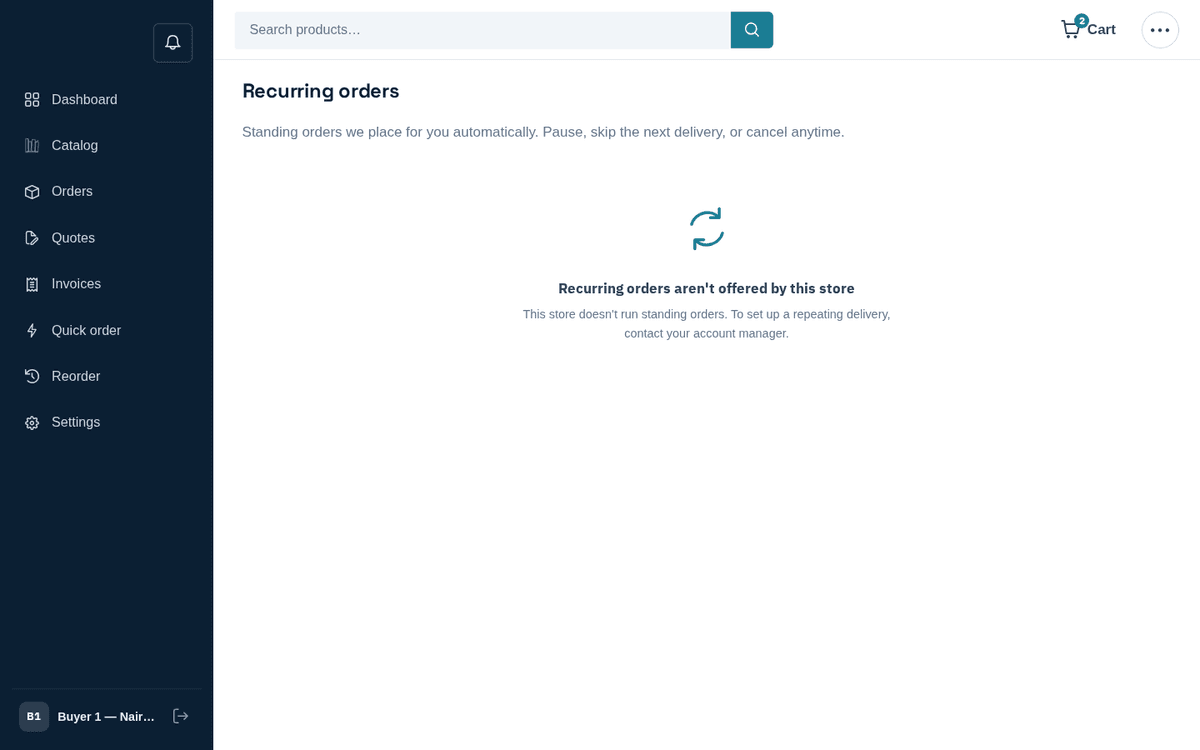
Recurring orders — edit cadence, skip, pause or cancel
The page (“Standing orders we place for you automatically. Pause, skip the next delivery, or cancel anytime.”) lists Name, Cadence, Next delivery and Status, with per-row actions:
- Edit — change the cadence and per-item Quantities.
- Skip next — jump over one delivery, keep the rhythm.
- Pause / Resume — stop deliveries without losing the setup.
- Cancel — end it for good.
When a recurring order runs, a real order is placed on your account and you’re notified — it appears under Orders like any other.
If this page says “Recurring orders aren’t offered by this store”, the seller’s plan doesn’t include the feature — “To set up a repeating delivery, contact your account manager.”