Quick order
Where: Quick order in the header, sidebar or dashboard
Open Quick order from the header, the sidebar, or the dashboard button. The page says: “Search the catalog and set quantities — or paste a SKU list straight from your spreadsheet.” A toggle switches between the two modes: Search products / Paste a list.
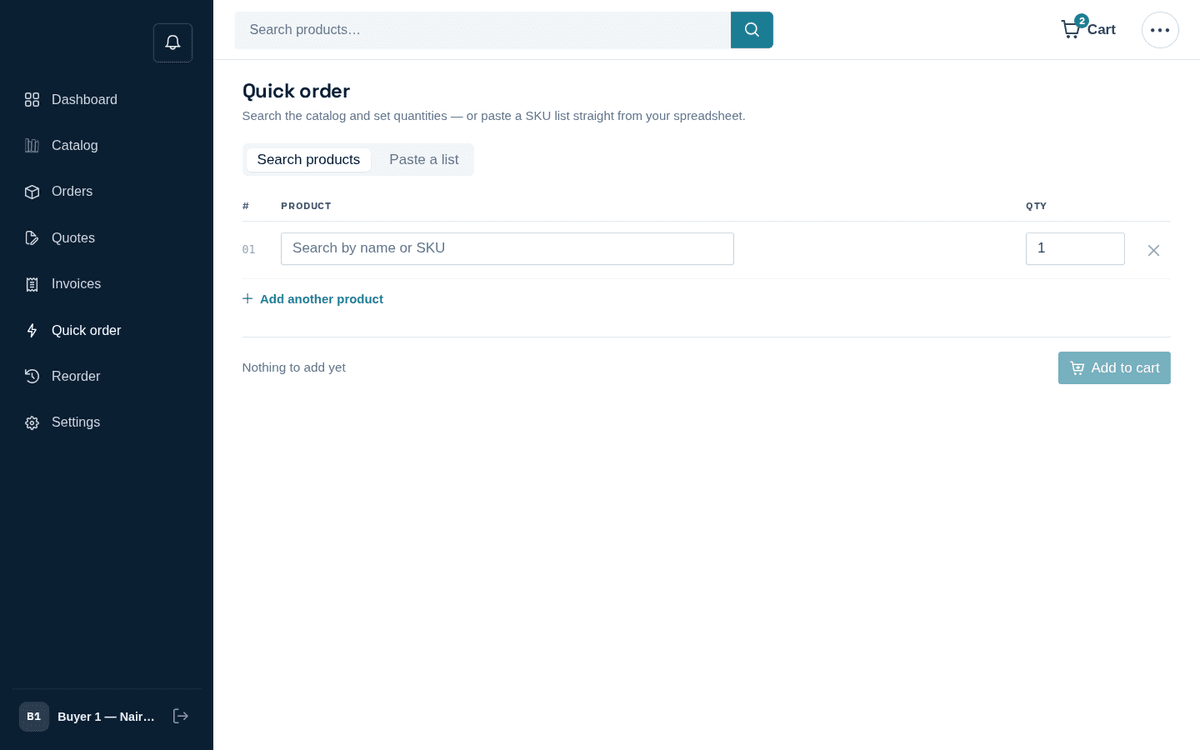
Quick order — search lines or paste SKUs straight from your purchasing sheet
Search mode:
- In the numbered sheet, type into “Search by name or SKU” — suggestions show name, SKU and vendor.
- Pick a product; the line locks in showing “‹SKU› · per ‹unit›”. Set the Qty.
- Picking into the last row automatically adds a fresh row; or press + Add another product. Duplicate SKUs are merged when you submit.
- The footer counts up — “N product(s) · M unit(s)” — press Add to cart.
Paste mode:
- Copy SKUs from your spreadsheet. The format is “One SKU per line, with an optional quantity after a comma — e.g.
WIDGET-01, 10(blank means 1).” Commas, tabs or semicolons all work as separators. - Paste into the big text box and press Add to cart.
Results are reported honestly: “N item(s) added to your cart.”, plus warnings for anything skipped — “Unknown SKUs (skipped): ‹list›” for typos and “Priced on request: ‹list›” for items the seller prices on request, which go into your cart so one quote request covers them. A Go to cart button takes you onward.
Keep a master spreadsheet of your SKUs and quantities per site or machine. A monthly consumables order becomes: copy column, paste, Add to cart, Checkout.