Signing in
Where: Sign in at the top right of your supplier's store
Signing in
- Click Sign in (top-right of the store). The sign-in page appears.
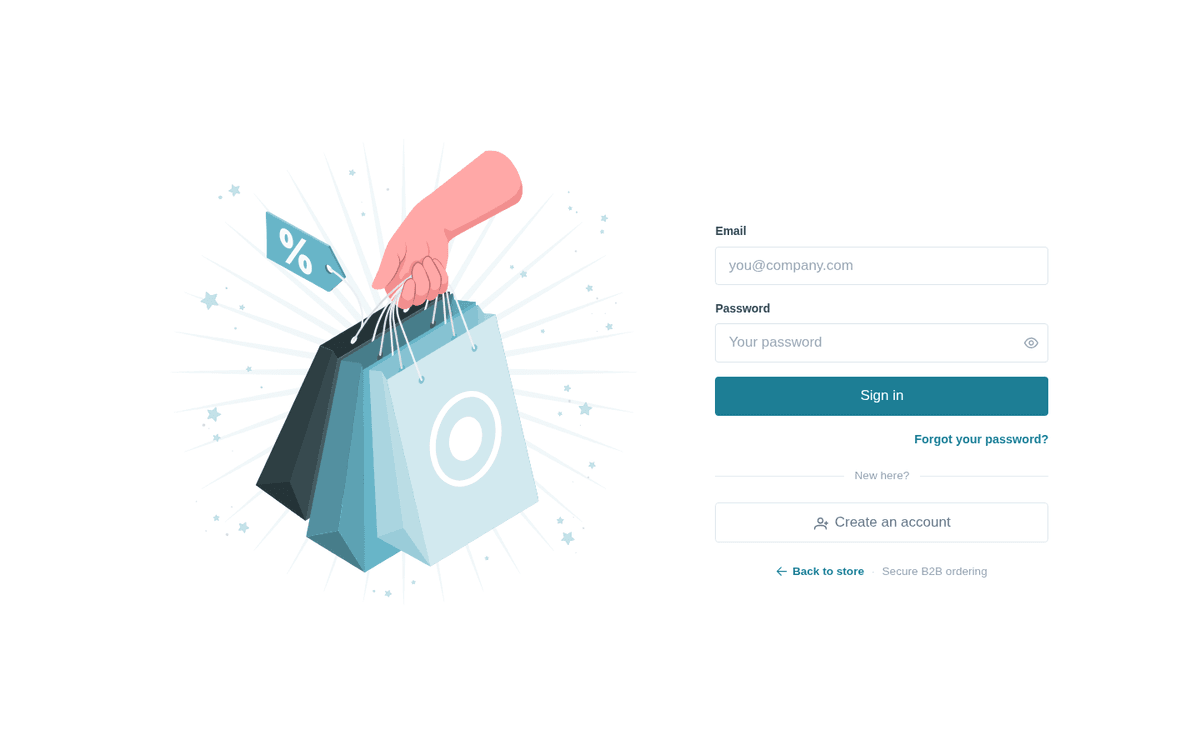
The storefront sign-in page
- Enter your Email and Password.
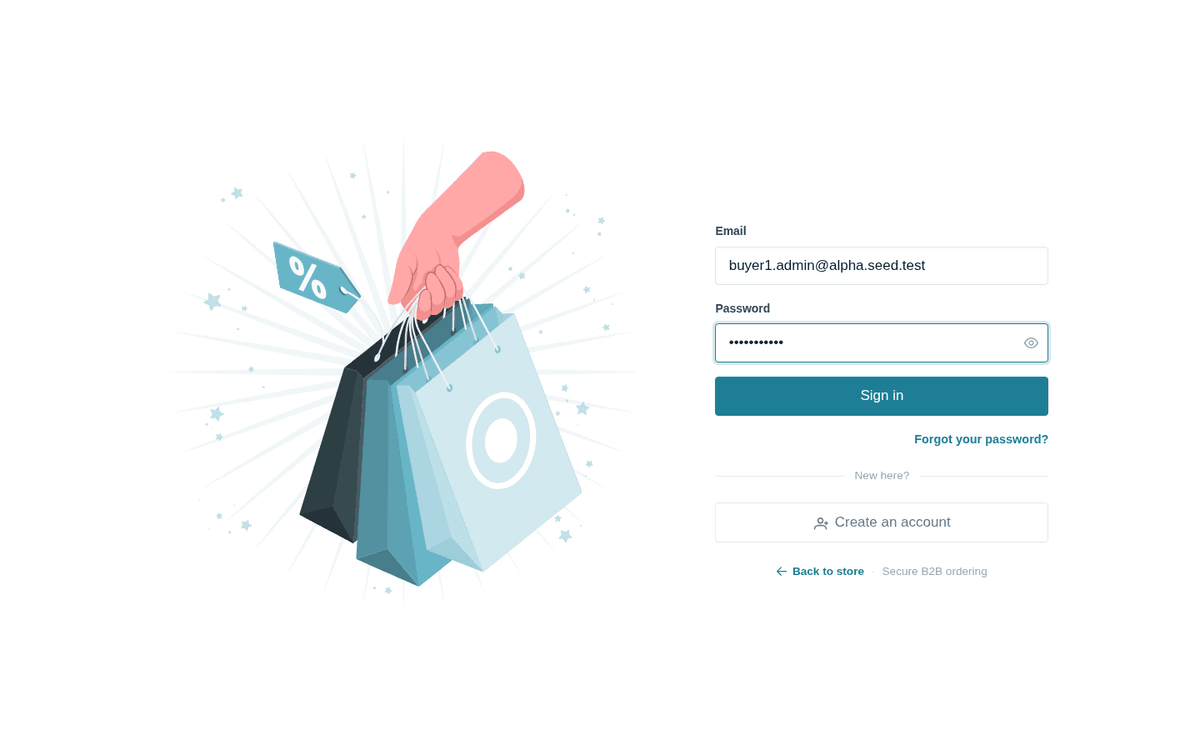
Enter your work email and password, then press Sign in
- Press Sign in. You land on your account dashboard (or back on whatever page sent you to sign in, such as a checkout in progress).
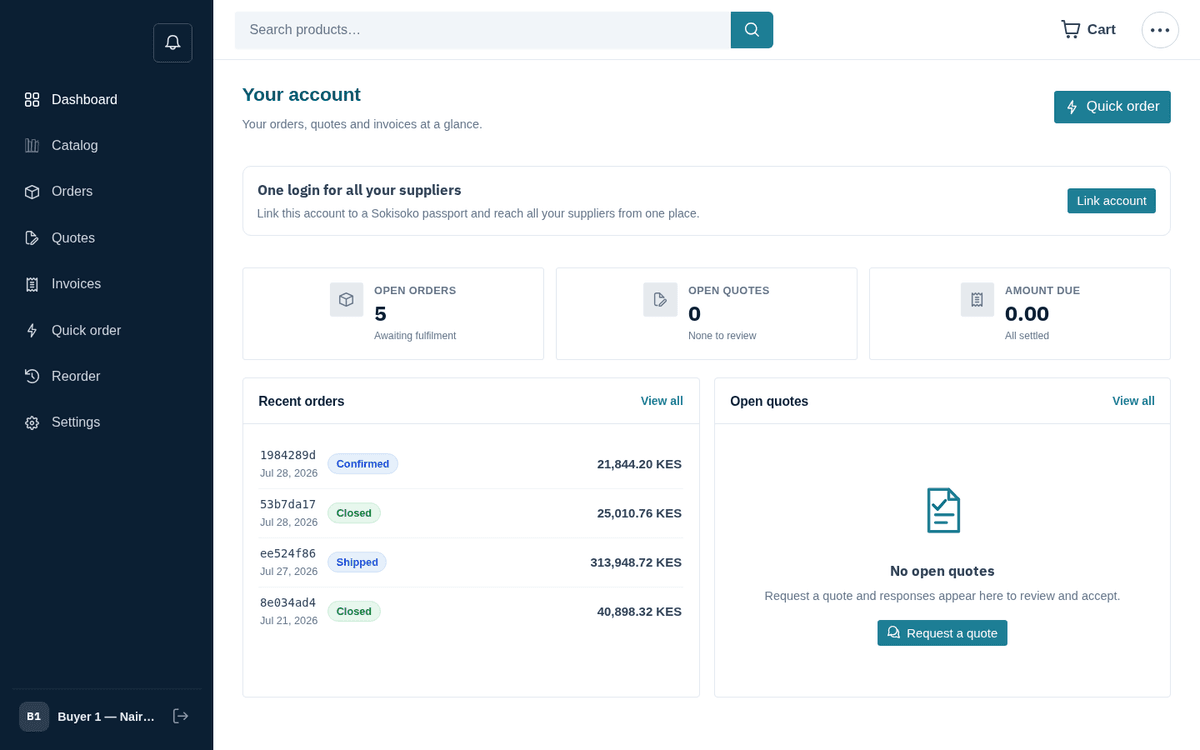
After signing in you land on your account dashboard
The dashboard (“Your account — Your orders, quotes and invoices at a glance.”) shows KPI tiles for Open orders, Open quotes, Amount due and (for approvers) Approvals, plus Recent orders and Open quotes panels. An alert strip on top warns you about things that need action: orders waiting for your approval, overdue invoices, quotes expiring within 7 days, and budgets above 80% spent. Click any alert to jump straight to the right page.
You stay signed in on that device for 24 hours.
After signing in, the whole store — including the catalog — runs inside the account layout: a navy sidebar with Dashboard, Catalog, Orders, Quotes, Invoices, Quick order, Reorder, Settings, and a round ⋯ menu in the top bar for the rest (RFQs, Returns, Credit notes, Lists, Recurring, Rebates, Spending, Budgets, Approvals, Team). Everything in this guide is reachable from there.
Already have an account without knowing it?
Requesting a quote or checking out as a guest creates your account with no password. If you later try to Create an account with that email, the page says to check your inbox either way, and the email you receive, "You already have an account", carries a Set your password link instead of a new confirmation. An email that already has an account can still join a colleague's company from an invite link by entering that account's password; the next sign-in opens the company joined most recently.
Forgot your password?
- On the sign-in page click Forgot your password?. The page says “Locked out? We’ve got you.”
- Enter your account Email and press Send reset link. You’ll always see the same neutral confirmation — “If that email has an account, a reset link is on its way. Check your inbox.” — whether or not the address exists (this protects your account from snooping).
- Open the emailed link. On the “Choose a new password.” page, fill New password and Confirm password, then press Set new password.
- On success: “Password updated — you can sign in now.” Press Go to sign in.
Reset links expire after about 1 hour. An old link shows “This reset link has expired or was already used. Ask for a new one.” with a Send me a new link button.
One login for all your suppliers (Passport)
If you buy from several suppliers who all run on Sokisoko, you can link them under one Sokisoko passport. Under Settings → Security, the card “One login for all your suppliers” has a Link account button — enter your passport email and password to link this store to it. From your passport page you then see all your supplier stores in one list, with open-quote, order and unpaid-invoice counts, and an Open store button for each. There’s also a public Find suppliers directory on the platform site.
This is optional; you can ignore it entirely and sign in to each store separately.
Language
If the store publishes its content in more than one language, a Language selector appears in the header (and in the mobile menu). Pick a language and the whole catalog and navigation switch over.