Reviewing, accepting and countering a quote
Where: Quotes in the sidebar
First time here?
If you asked for the quote on WhatsApp, or left only a phone number, the quote also arrives in that WhatsApp chat: the lines, the total, how long it is valid and a link to open it, followed by the quote PDF. The link signs you in the same way the email does.
If you asked for the quote without an account, the email's button, Set your password and view the quote, does both in one step: choose a password and the quote opens, signed in. The link works for 48 hours; after that, use Forgot your password? on the sign-in page with the same email.
The quotes list
Open Quotes in the sidebar. A stat band summarises the state of play: Awaiting your review, Expiring within 7 days (“act before they lapse”), Accepted (“ready to order from”) and Open value.
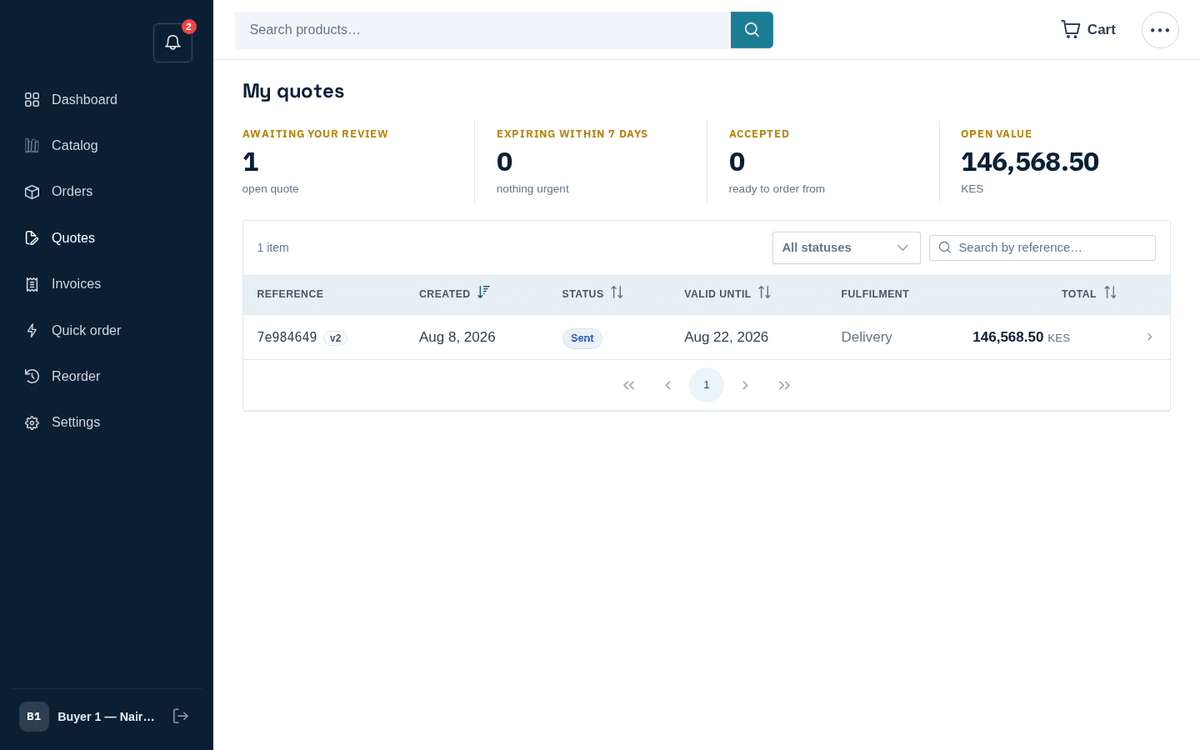
My quotes: the stat band shows what needs review; the new quote is ready
Columns: Reference (with a “v‹n›” pill once a quote has been revised), Created, Status, Valid until (with a “‹n›d left” chip near expiry), Fulfilment and Total. Settled quotes fade out. Click a row to open the quote. The list opens with your 20 most recent quotes and Load more quotes adds the next 20; the stat band, search, status filter and sorts always count every quote, not only the ones on screen.
Reviewing a quote
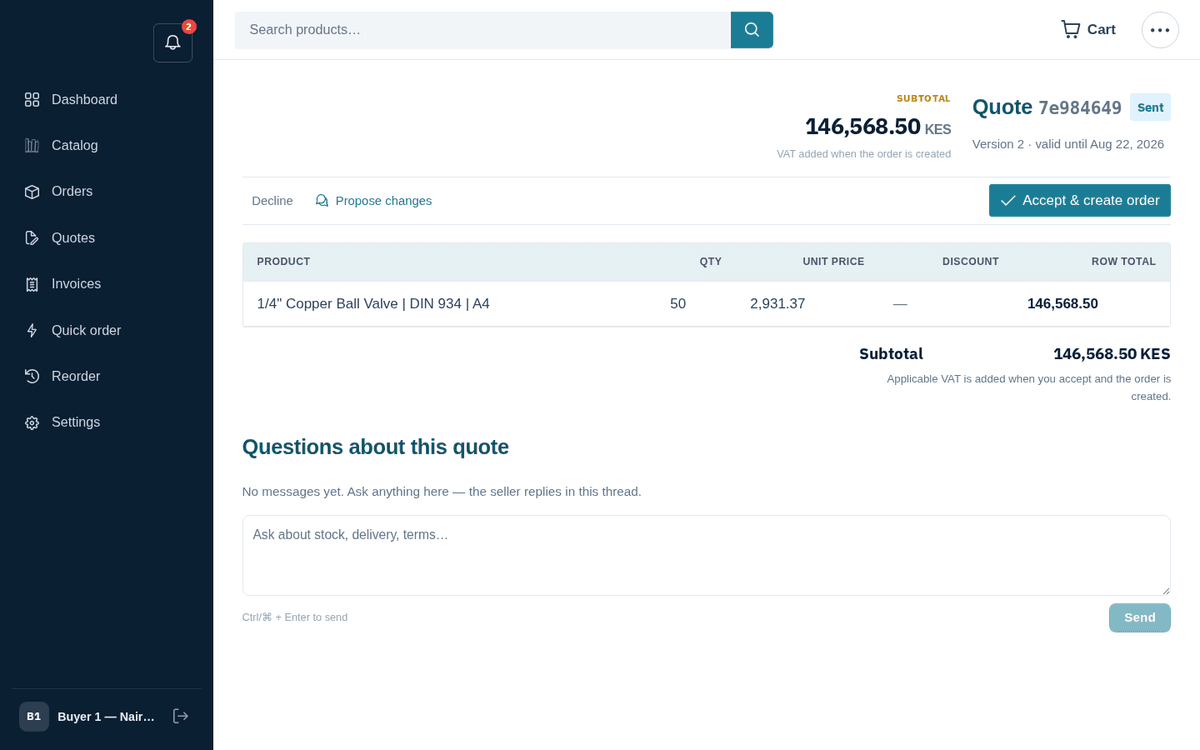
The quote: lines, validity — Decline, Propose changes, or Accept & create order
The header shows “Quote ‹ref›” with its status tag, the Subtotal (“VAT added when the order is created”), and the meta line “Version ‹n› · valid until ‹date›”. Below: the line table (Product, Qty, Unit price, Discount, Row total) and the totals.
Three things to check before acting:
- Validity — the “valid until” date and the “‹n›d left” chip. An expired quote can no longer be accepted.
- Version — each revision bumps the version. The negotiation history section lets you expand every round (“v‹n› — Seller quote / Your counter-offer — ‹total› — ‹date›”) with per-version line breakdowns, so the whole negotiation is auditable.
- The lines — prices, quantities and any discounts the seller applied.
If anything is unclear, use the “Questions about this quote” thread at the bottom — the seller replies in the same thread.
Accept, counter, or decline
An open quote offers three actions across the top: Decline, Propose changes, and the primary Accept & create order.
Accept & create order — opens a short dialog asking how the goods should reach you: Deliver to your shipping address on file (Deliver somewhere else opens the map and address fields), or I'll collect it from one of the seller's locations. You can add Your PO number, which goes on the order, and a Note for the sales team, which lands on the order's message thread. If something needs fixing, the dialog stays open with everything you typed. Collecting removes any delivery charge the seller quoted. Confirming converts the quote into a real order at the quoted prices and takes you straight to its tracking page; the order shows Collect from ‹location› or Deliver to ‹address› in its header. VAT is added on the order unless the quote already showed it.
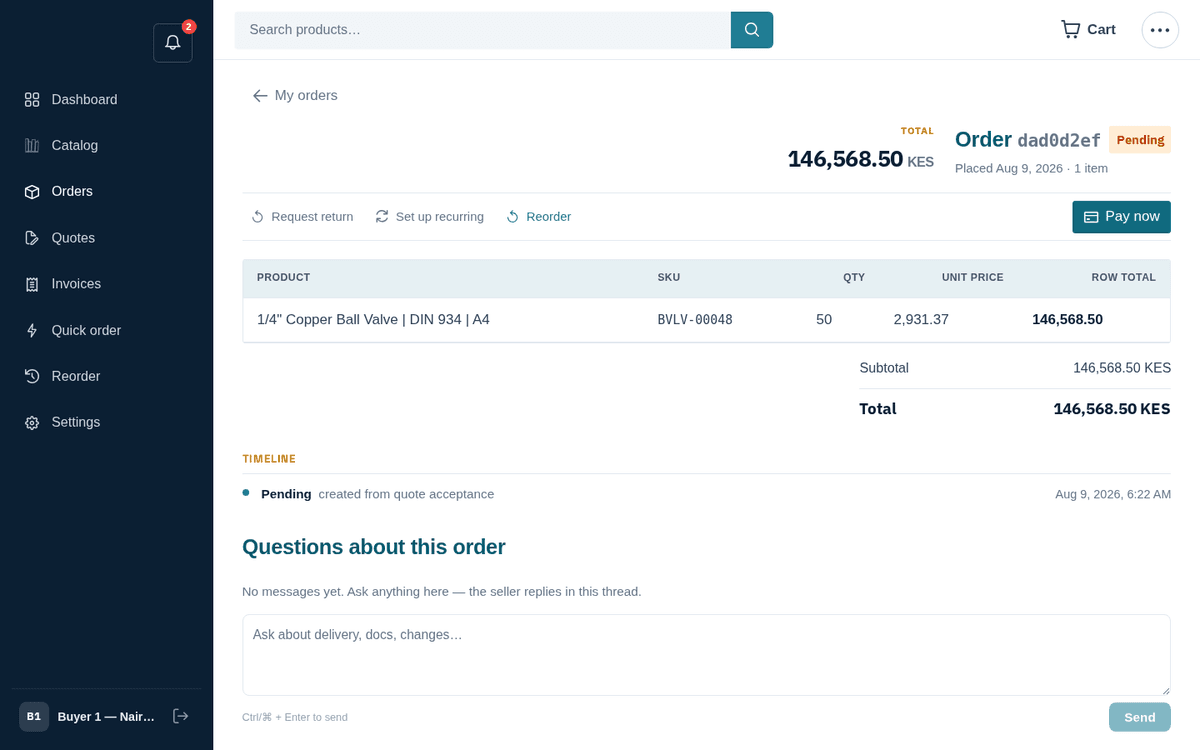
Accepting creates the order instantly and lands you on its tracking page
Propose changes — a proper counter-offer, line by line:
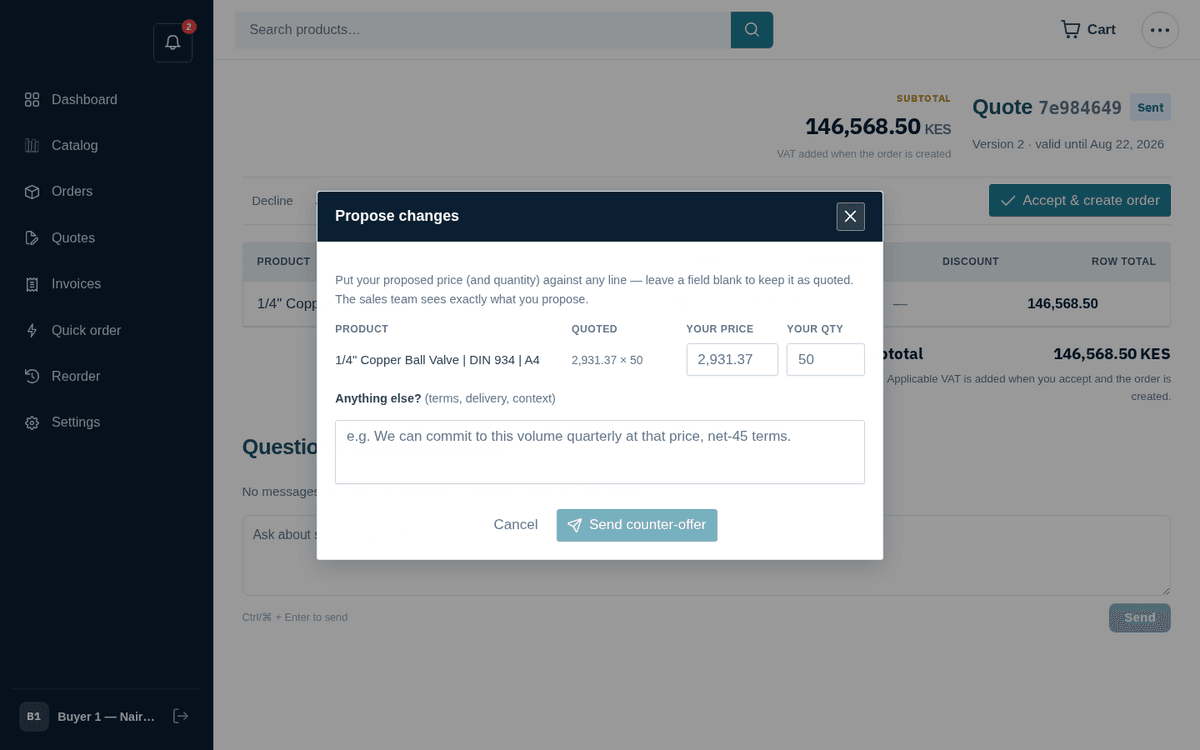
Counter-offer: put your price or quantity against any line and send it back
- The dialog explains itself: “Put your proposed price (and quantity) against any line — leave a field blank to keep it as quoted. The sales team sees exactly what you propose.”
- For any line, enter Your price and/or Your qty next to the quoted values.
- Use the “Anything else? (terms, delivery, context)” box for the commercial story — e.g. “We can commit to this volume quarterly at that price, net-45 terms.”
- Press Send counter-offer (it stays disabled until you’ve actually changed something). Confirmation: “Your counter-offer was sent — the sales team will revise the quote.”
While the seller works your counter, the quote shows “Counter-offer sent — the sales team is revising your quote.” When the revised version (v3, v4, …) arrives, review and act again.
Decline — asks first (“Decline this quote?”), with an optional box to tell the sales team why; the reason lands on the quote's thread. Keep the quote leaves it open. Settled quotes (accepted, declined, expired) show “This quote is ‹status› — no action needed.”
“This quote could not be accepted (it may have expired).” — check the validity date; ask the seller (via the quote thread) to reissue it. “Your counter-offer could not be sent (the quote may have changed).” — reload the page; the seller likely revised it while you were typing.