How orders reach you
Where: Orders in the sidebar
How buyer orders become your sub-orders
Buyers shop the whole marketplace at once — one cart can mix your products with other vendors’ and the operator’s own. When such an order is placed, Sokisoko splits it automatically: you receive a sub-order containing only your items. That’s what the Orders page shows, and its sub-line says exactly that: “Your share of each buyer order. Advance fulfilment as you accept, ship and deliver.”
Each sub-order carries a frozen money snapshot from the moment of sale: the gross (your items at their sold prices), the operator’s commission at your rate, and the net payable to you. Fulfilment is yours to drive — nobody advances your sub-orders but you.
Reading the Orders page
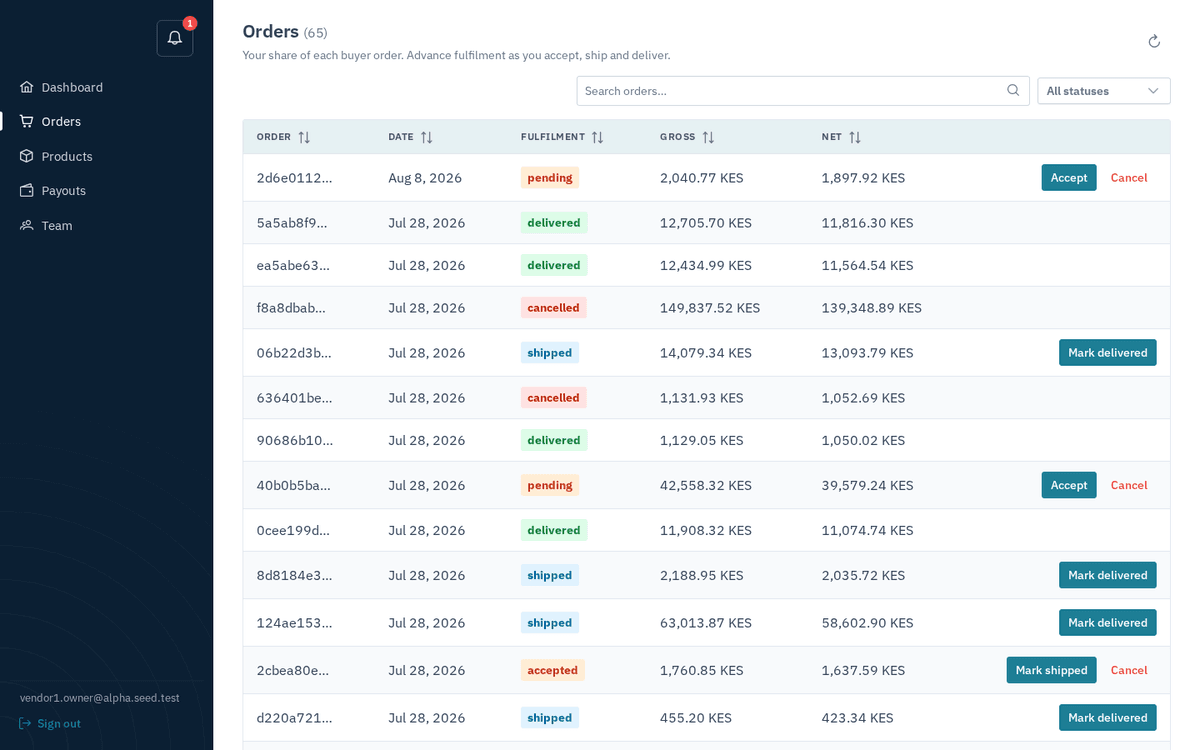
The Orders page — each row is your share of a buyer order, with its next action ready as a button
- Header: Orders with the count, plus a refresh button.
- Toolbar: a search box (“Search orders…”) and a status filter (“All statuses” — pending / accepted / shipped / delivered / cancelled).
- The table (15 rows per page, newest first, sortable) shows: Order (the first 8 characters of the reference), Date, Fulfilment status tag, Gross, Net, and — on the right — the action buttons for that row’s current state.
- Click anywhere on a row to open the order detail dialog (see Accepting, shipping and delivering).
Before your first sale the page shows “No orders yet” — “Your share of each buyer order lands here, ready for you to accept, ship and deliver.”
The fulfilment lifecycle
A sub-order moves along a fixed path, and the button on each row is always named for the next step:
| Current status | Meaning | Buttons you’ll see |
|---|---|---|
| pending | New — awaiting your commitment. | Accept · Cancel |
| accepted | You’ve committed to fulfil it. | Mark shipped · Cancel |
| shipped | Goods are on their way. | Mark delivered |
| delivered | Done — this order now counts toward your next payout. | — |
| cancelled | Called off (by you or because the buyer’s order was cancelled). Earns nothing. | — |
The order of steps is enforced — you cannot deliver something you never shipped. If two people work the same order and one clicks a stale button, the portal refuses with a message like “cannot move from shipped to accepted”; refresh and carry on.