Managing your team
Where: Team in the sidebar (admins)
The Team page lists everyone who can sign in to your vendor portal: “People who can sign in to this vendor portal.” If you activated the original invite, you are the founding admin.
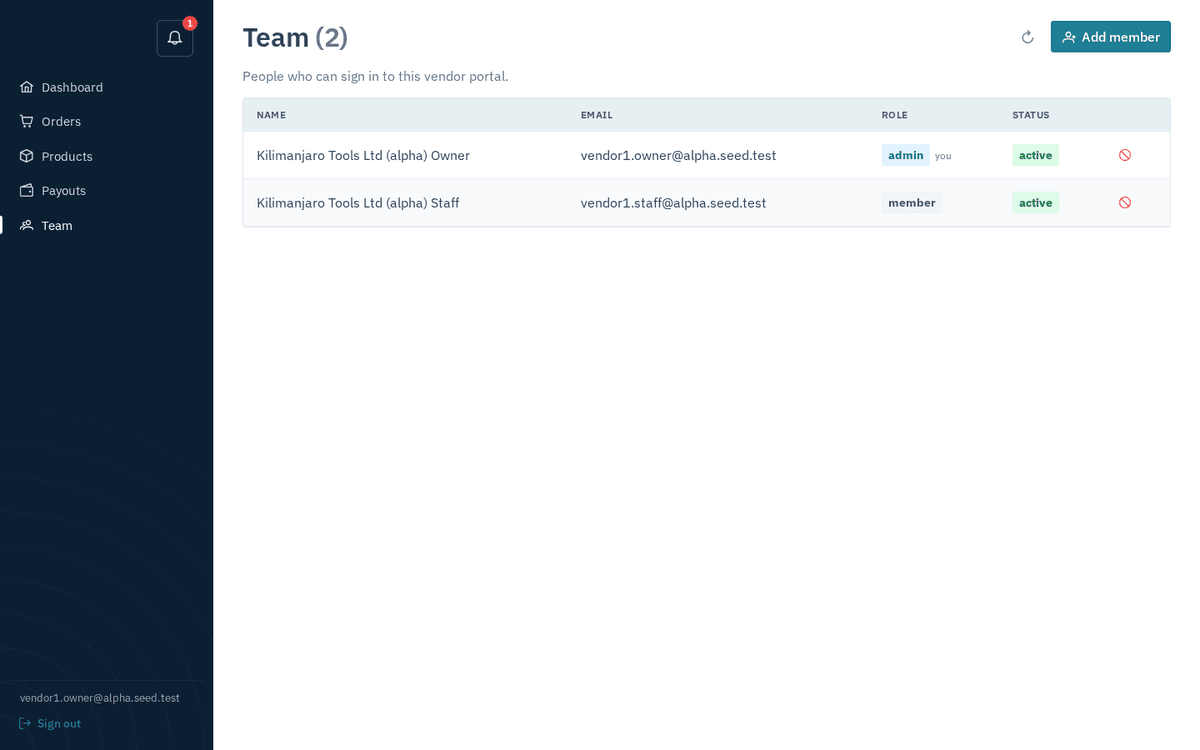
The Team page — names, emails, role and status tags; admins can add and deactivate members
Roles
| Role | Tag colour | Can do |
|---|---|---|
| member | Grey | Everyday selling: dashboard, orders, products, payouts. |
| admin | Blue | Everything a member can, plus manage the team — add users, edit them, reset passwords, deactivate. |
Your own row is marked “(you)”. Non-admins see the page read-only, with the note “Only admins can add or change members.” (and the system enforces it: “only a vendor admin can manage portal users”).
Adding a user
- Click Add member (top right — admins only). The “Add team member” dialog opens.
- Fill in: Full name, Email, Temporary password (8+ characters) (there’s an eye icon to unmask it while you type) and Role (Member/Admin).
- Click Add. Toast: “Team member added”.
- Hand the person their email and temporary password yourself — the portal does not email new team members. Ask them to sign in and change it soon (you can set a new one for them any time — see below).
If you see “Could not add user” with “could not create user (email may already be in use)”, that address already has an account — perhaps a deactivated one. Find it in the list and reactivate instead of re-adding.
Editing a user (rename, role change, password reset, reactivate)
- Click the person’s row (admins only). The edit dialog opens, titled with their name.
- Change what you need:
- Full name
- Role — Member or Admin.
- Active (can sign in) — untick to block sign-in, tick to restore it.
- Reset password (optional, 8+ characters) — type a new password here to reset theirs; leave blank to keep it.
- Click Save. Toast: “Saved”.
Deactivating a leaver
The fastest route: click the ban icon (Deactivate) on their row and the account is blocked immediately — toast “User deactivated”. Deactivation is reversible: edit the user later and re-tick Active (can sign in).
You cannot remove the last admin. If you try to deactivate or demote the only active admin, the portal refuses: “this is the vendor’s only active admin — promote another user first.” Promote a second admin, then make the change.
Deactivate people the day they leave. They may know the password; deactivation is what actually closes the door.