Accepting, shipping and delivering
Where: The action buttons on each Orders row
Step 1 — Accept
- Find the pending row and click Accept.
- The toast “Marked accepted” confirms it, and the row’s button becomes Mark shipped.
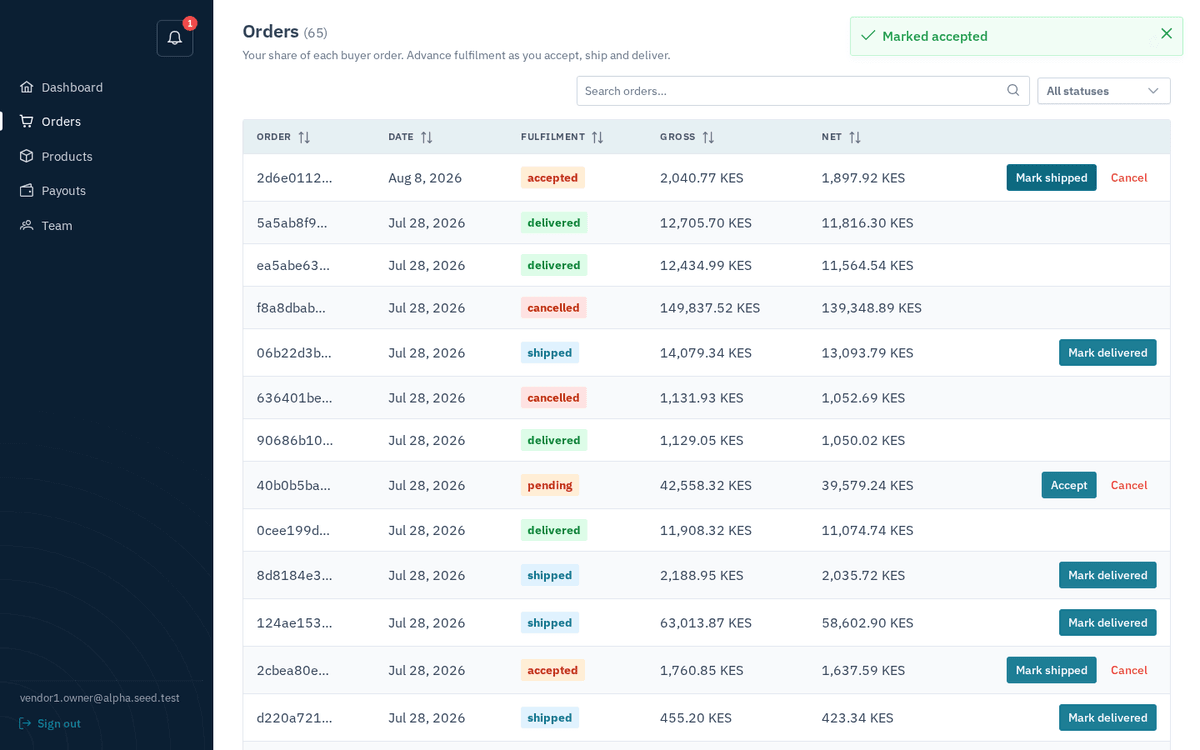
After Accept the sub-order is accepted — Mark shipped is the next step
Accept promptly — it tells the operator and the buyer that fulfilment is underway. If you can’t fulfil, cancel promptly instead (see Accepting, shipping and delivering); silence helps no one.
Step 2 — Mark shipped (with tracking)
- On an accepted row, click Mark shipped. Instead of updating immediately, the “Mark as shipped” dialog opens: “Add tracking so the operator and buyer can follow the shipment (optional).”
- Optionally fill in:
- Carrier — e.g. DHL, G4S.
- Tracking number — e.g. 1Z999….
- Click Mark shipped (the truck button). Toast: “Marked shipped”.
Both fields are optional — you can ship without tracking — but whatever you enter is shown to the operator and travels through to the buyer’s order-tracking page, which saves everyone “where is it?” calls.
Step 3 — Mark delivered (and cancelling)
- When the goods arrive, click Mark delivered on the shipped row. Toast: “Marked delivered”. Delivery is the milestone that matters for money: only delivered sub-orders enter payouts, and your Net-N payment clock starts at delivery.
- To call an order off, click the red Cancel text button — available only while the order is pending or accepted. The portal asks you to confirm: “Cancel this sub-order? This tells the operator you can’t fulfil it.” On confirm, toast “Order cancelled”. A cancelled order earns no commission for the operator and no net for you.
- Sometimes the buyer’s whole order is cancelled on the operator side. Your sub-order is cancelled automatically and the bell tells you: “Order ORD-… was cancelled” — “The buyer’s order was cancelled — stop fulfilment on your sub-order.” Stop packing immediately.
If any status change fails, you’ll see the toast “Update failed” with the reason.
The order detail dialog
Click any row to open its detail dialog (titled “Order [reference]…”):
- The current status tag, and — once you’ve shipped with tracking — a truck icon with “[carrier] · [tracking number]”.
- A note of the currency: “Prices in KES” (or your marketplace’s currency).
- The line items: Product / SKU / Qty / Unit price / Total.
- The money summary: Gross, Commission (7%) shown as a minus amount, and Net payable in bold — the exact figure this order will contribute to a payout.
- Footer buttons mirror the list: Cancel order (while it’s still cancellable), the next-step button, or just Close.
What the buyer sees
You never talk to the buyer through the portal, but your actions surface on their side: your products carry “Sold by [your business]” on the storefront product page; your shipment’s carrier and tracking number appear on their order-tracking page; and their order completes only as its vendors deliver. Fulfil crisply and your storefront reputation is the operator’s favourite kind of problem.