Applying to sell
Where: /portal/apply, or Apply to sell on the sign-in page
Applying to sell
The application form is public — you do not need an account to use it.
- Open the vendor portal address (ends in /portal). On the sign-in page, click Apply to sell next to “Not a vendor yet?” — or go straight to the /portal/apply page if the operator sent you that link.
- You’ll see the application page. The headline reads “Sell to industry, at scale.” and the sub-line explains the process: “Apply to sell on our marketplace — approved applicants get a portal invite by email.”
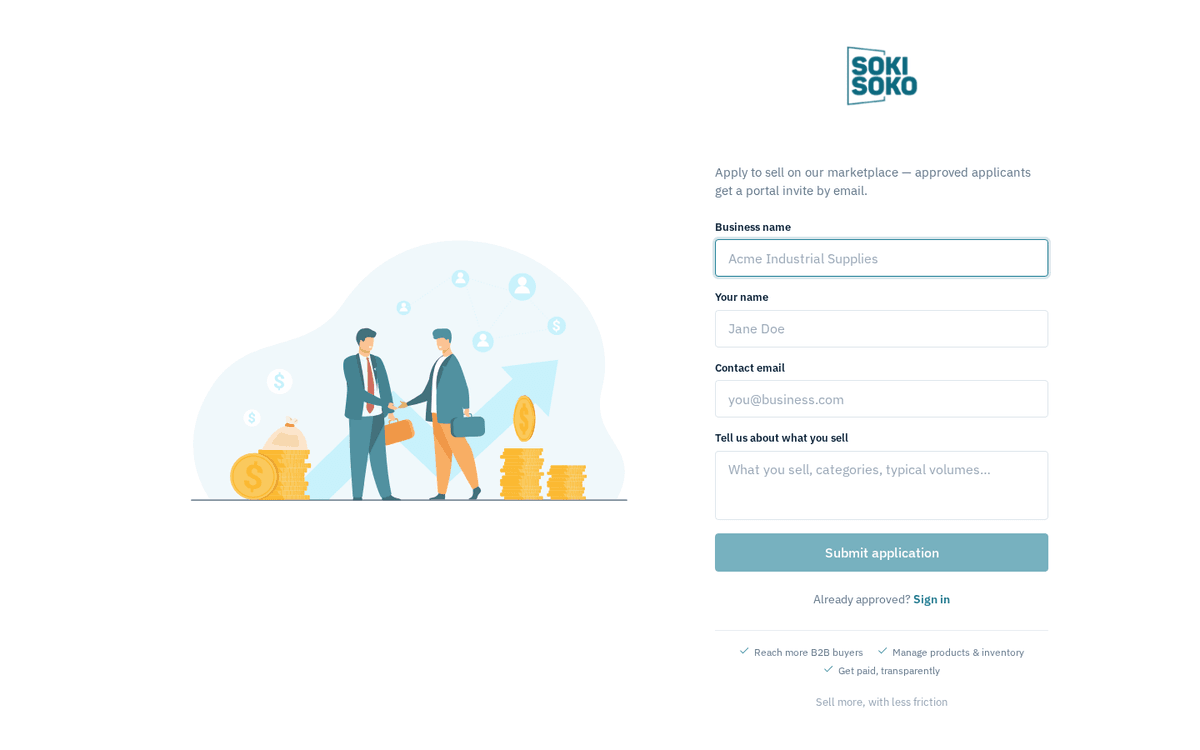
The Apply to sell form — business name, contact and what you sell
- Fill in the form, field by field:
| Field | Required? | What to enter |
|---|---|---|
| Business name | Yes | Your trading name as buyers should see it (the placeholder shows an example: Acme Industrial Supplies). |
| Your name | No | The person the operator should contact (e.g. Jane Doe). |
| Contact email | Yes | The email address where you want the invite. This becomes your sign-in email, so use a mailbox you control and check. |
| Tell us about what you sell | No | A free-text pitch: “What you sell, categories, typical volumes…”. The more concrete you are, the easier the operator’s decision. |
- Click Submit application. The button stays greyed out until both Business name and Contact email are filled in; if you somehow submit without them you’ll see “Business name and contact email are required.”
- On success the form is replaced by a green confirmation: “Thanks! Your application has been received. We’ll email you once it’s reviewed.” — with a Back to sign in button.
Already have an account? The footer of the apply page links back with “Already approved? Sign in”.
If you see “Could not submit your application.”, the portal could not reach the marketplace. Wait a minute and try again; if it persists, contact the operator directly.
What happens after you apply
Your application lands in the operator’s admin console, on their Vendor applications page. This is what they see:
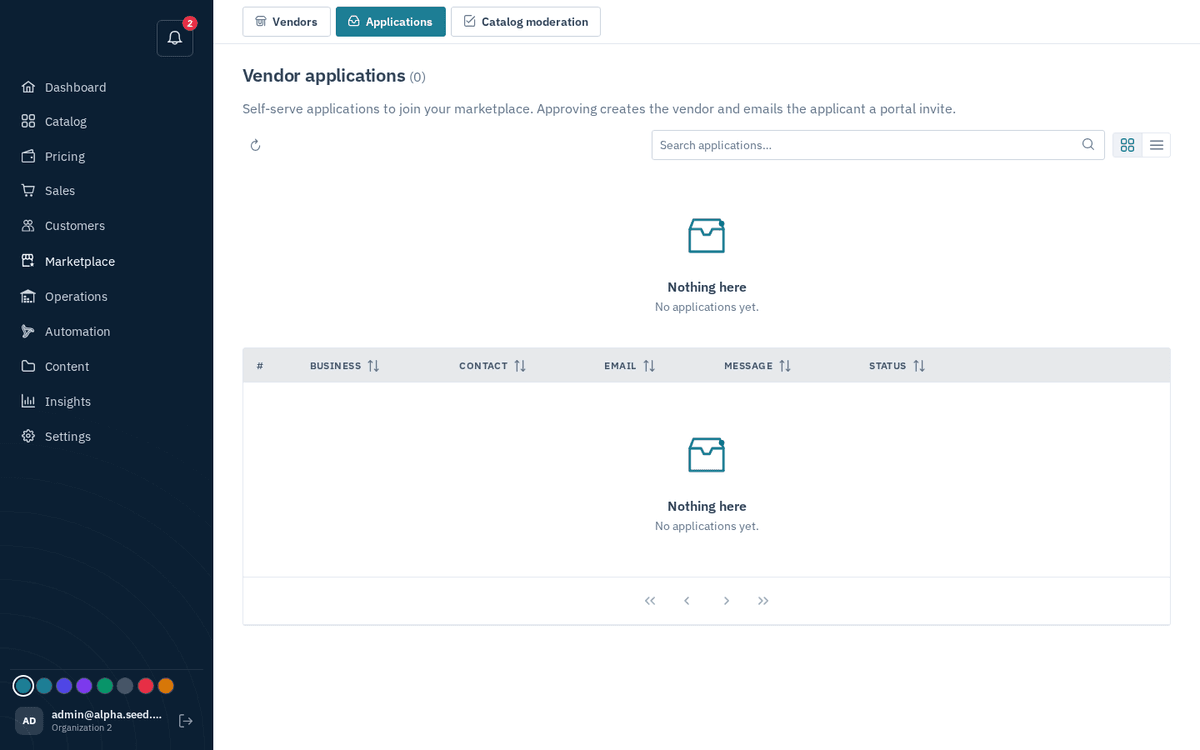
The operator’s Vendor applications queue — approving creates your vendor account and emails you an invite
When the operator clicks Approve, three things happen at once:
- Your vendor account is created — with your business name, an active status, and the commission rate and payout terms the operator sets for you.
- Your application is marked approved.
- A single-use invite is created for your contact email and emailed to you. The invite link points at the portal’s accept-invite page and expires after 14 days. The operator also sees the link on their side, so if the email goes missing they can send it to you directly (for example over WhatsApp or a phone call).
If the operator rejects your application, you receive a rejection email, optionally including their reason.
There is no fixed review time — a human reads every application. If you have heard nothing after a few working days, email the operator and ask; do not submit a second application for the same business.