Finding your way around
Finding your way around (the sidebar)
The dark left sidebar is your permanent navigation:
| Item | What lives there |
|---|---|
| Dashboard | This page — metrics, checklist, commission breakdown. |
| Orders | Your share of each buyer order, and the buttons to accept, ship and deliver. |
| Products | Your catalog — create, edit, submit for review, photos, bulk import. |
| Payouts | Money: pending and paid totals, every remittance and what it settled. |
| Team | Who can sign in to this portal. |
At the top of the sidebar sit the marketplace’s brand and the notification bell; at the bottom, your signed-in email and the Sign out button.
On a phone or a narrow window the sidebar folds away into a drawer — tap the menu (hamburger) button in the top bar to open it. Everything works the same.
The notification bell
The bell at the top of the sidebar shows a red badge with your unread count. Click it to open the “Notifications” popover:
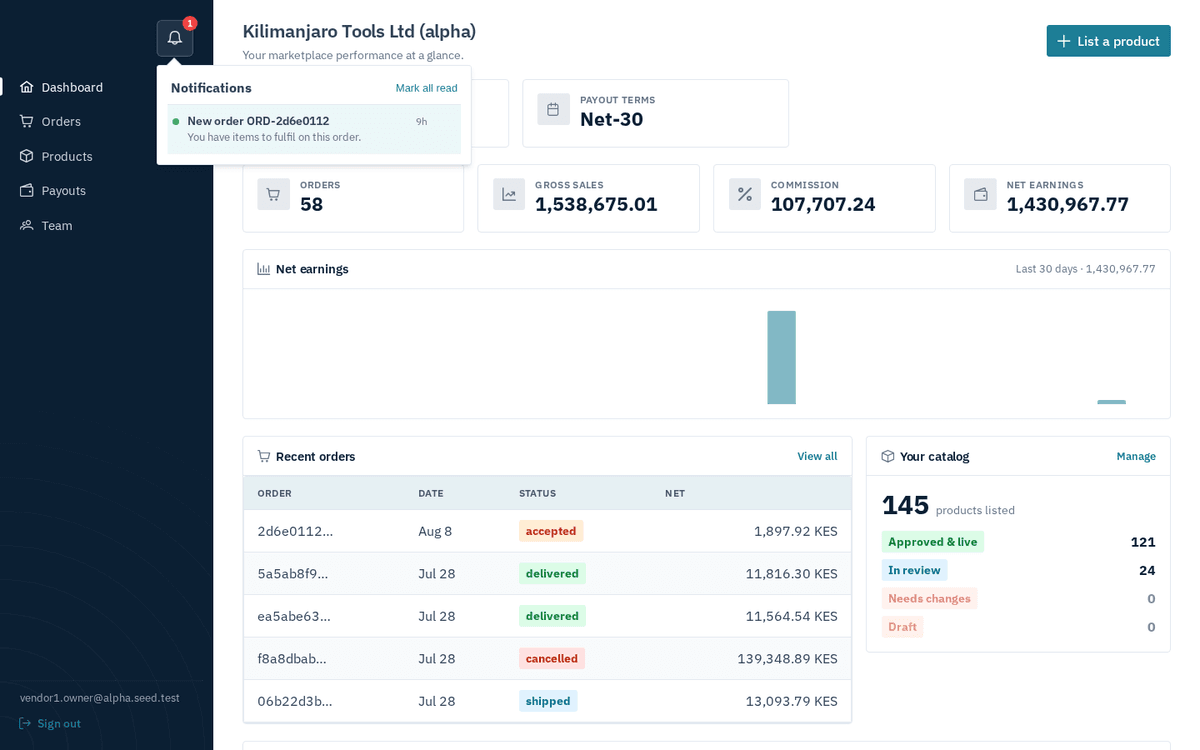
The notification bell — new orders, listing approvals and rejections arrive here in real time
- Each notification has a title, a message and an age; click one to jump to the page it’s about (a new-order notification opens Orders, for example).
- Mark all read clears the badge; Clear read removes already-read items; the small × on a row deletes just that one.
- When there’s nothing left you’ll see a check-circle and “You’re all caught up”.
Notifications arrive in real time when the operator has live updates configured; otherwise the portal checks for new ones every 30 seconds. Notifications reference lists every notification you can receive and what to do about each.
The assistant
A chat button at the bottom right opens the portal's assistant ("Hi! Ask me anything about the portal — answers follow the page you're on."). Ask about your orders (which sub-orders are still pending?), a specific order's status, your payouts, your takings over a period, or your listings; it answers from your own vendor data only. It can also submit a draft product for review when you ask it to. End chat asks how it went — your feedback reaches the operator. Press Talk to call it instead: a call bar appears, it greets you, listens, answers aloud and listens again; say "open payouts" or "open my orders" and it takes you there. In the bar, the mic mutes and unmutes (or cuts in while it speaks), Minimise keeps the call going in a floating bar, and End hangs up. Closing the assistant ends the call at once.